Create a New Appointment
Booking is what the front desk does most: a customer calls or messages asking for a time slot, and you record it so the whole clinic can see it. An appointment is always tied to one customer, so if the customer is not in the software yet, first create their profile.
Step 1: Open the customer (patient), then click Book
Go to CRM › Customer Management and click the customer's name to open their profile. In the tab row in the middle of the screen, choose the Appointment tab — the dark blue Book button sits at the top left, above the list of this customer's previous appointments.
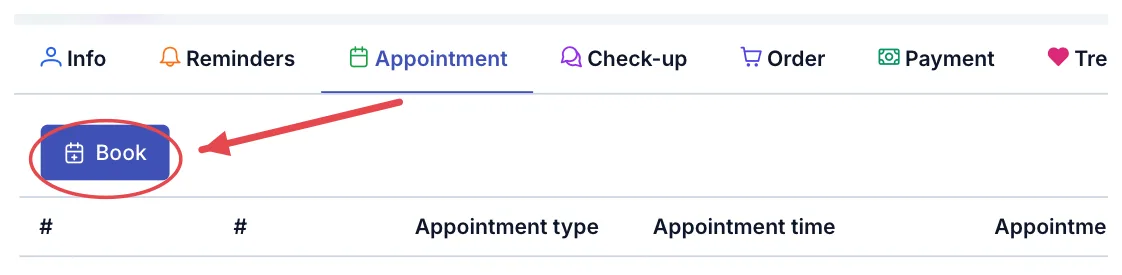
Illustration of the Book button on the Appointment tab
Click Book and the Create appointment window opens.
The software already knows who the appointment is for, so you never retype a name or phone number. You can also see, right below the button, when this customer has been booked before — which prevents two appointments on the same day for the same person.
Step 2: Fill in the Create appointment window
The window has many fields, but only two are required (outlined in red): Appointment type and Branch. Fill in the rest when you know them; leave them empty otherwise and complete them later.
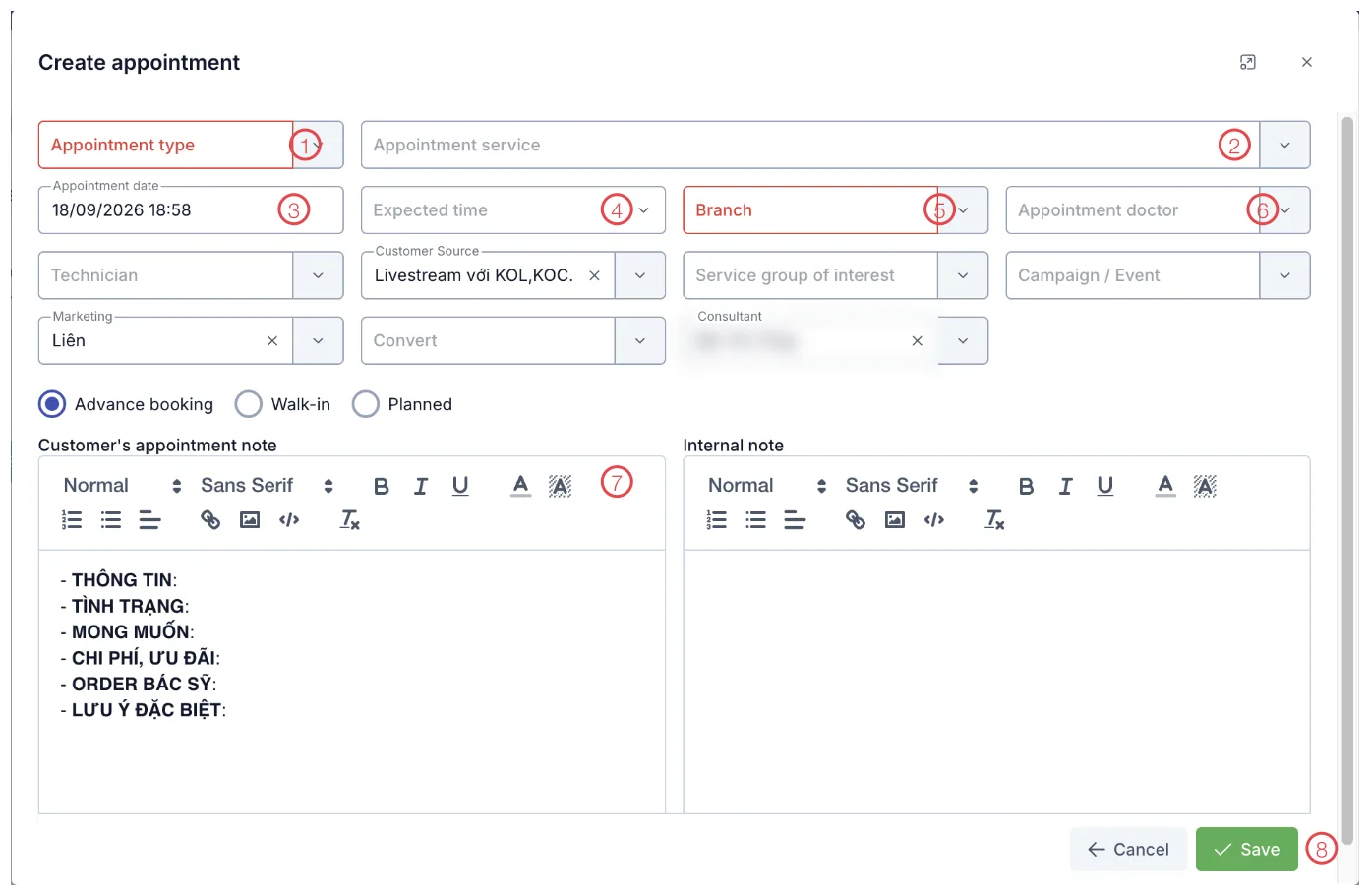
Illustration of the Create appointment window
| Position | What to enter |
|---|---|
| 1. Appointment type ⭑ | Why the customer is coming: new consultation, treatment, follow-up, warranty, Zalo booking. |
| 2. Appointment service | The service the customer wants, picked from your clinic's catalogue. |
| 3. Appointment date | Date and time of the visit. The software pre-fills the current moment — remember to change it. |
| 4. Expected time | How long the visit will take: 30 minutes, 1 hour, 1 hour 30 minutes, 2 hours, 3 hours. |
| 5. Branch ⭑ | Which location the customer is coming to. The field most often filled in wrongly at multi-site clinics. |
| 6. Appointment doctor | The doctor the customer asked for, or the one you assign. Leave empty if undecided. |
| 7. Customer's appointment note | Whatever the customer told you (see Step 3). |
| 8. Save | Saves the appointment. |
⭑ = required.
The remaining fields feed reports and commissions and are optional:
- Technician — the person handling the technical work.
- Customer Source, Marketing, Campaign / Event — how the customer found the clinic. For a returning customer the software keeps what is already in their profile.
- Service group of interest — the group of services they are considering.
- Convert, Consultant — who is following this customer.
Below the fields are three choices; pick exactly one:
| Choice | When to use it |
|---|---|
| Advance booking | The customer booked ahead — the usual case. |
| Walk-in | The customer turned up without booking and you are recording it at the desk. |
| Planned | Still only an intention, not agreed with the customer yet. |
Step 3: Write down what the customer (patient) said
The Customer's appointment note box comes with a six-line template so nothing is forgotten: information, condition, what they want, price and offers, doctor requested, special notes. Type after each line.
On the right is the Internal note box — for messages between staff ("difficult customer (patient), prefers a female doctor"). Customers (Patients) never see this box.
The six lines come from your clinic's settings, not from the interface language, so they stay exactly as your clinic wrote them even when the software is in English. You can type your reply in any language.
Step 4: Save
Click Save (the green button at the bottom right). The appointment immediately appears in the customer's list and in CRM › Appointment list for the whole clinic.
If you click Cancel or the ✕ after filling anything in, the software asks whether you really want to discard your changes. Confirming loses everything you typed — there is no undo. Choose the option that takes you back to the form if you want to keep it.
Choosing the right appointment type
Clicking the Appointment type field shows five options:
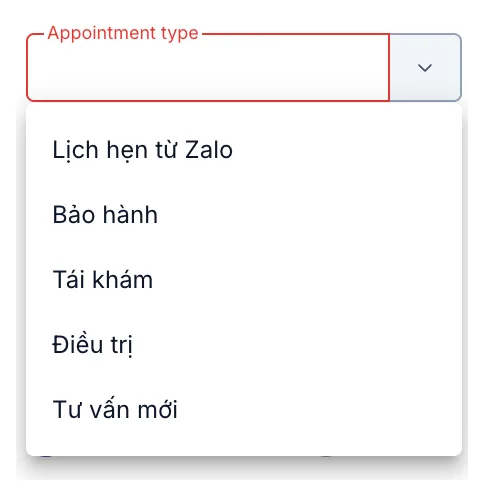
Illustration of the appointment types
| Type | Use it when |
|---|---|
| Tư vấn mới (new consultation) | First visit, no service done yet. |
| Điều trị (treatment) | The customer is coming for an agreed service. |
| Tái khám (follow-up) | The customer returns for a check after treatment. |
| Bảo hành (warranty) | The visit is covered by a warranty. |
| Lịch hẹn từ Zalo (Zalo booking) | Booked by the customer through Zalo; set automatically. |
These names come from your clinic's own list, which is why they stay in Vietnamese in the screenshot above. Picking the right one matters beyond tidy reports: the schedule views count appointments per type, so a wrong type gives you a wrong picture of the day.
Related
- Confirm Customer (Patient) Arrival — the reminder call before the visit.
- Check-in / Check-out — recording that the customer is at the desk.
- Appointment Details — everything about one appointment.
- Cancel an Appointment — when the customer cannot come.