Confirm Customer (Patient) Arrival
This is the reminder call made before the appointment, usually a day ahead: customer (patient) care or a consultant rings to ask "you are still coming tomorrow, right?", listens to the answer and records the result in the software.
Do not confuse it with Check-in / Check-out: confirming happens the day before, by phone; check-in happens on the day, when the customer (patient) is standing at the desk.
Why it matters
An appointment nobody calls about easily turns into an empty chair:
- Free the slot for someone who will actually come. If the customer cancels a day ahead, that time can still go to another customer. Finding out on the day means a doctor sitting idle.
- Prepare the right people and materials. A treatment needs a specific doctor, a room, supplies — worth preparing only if the customer is really coming.
- Customers remember. Most no-shows are forgetfulness, not a change of mind; one call brings them back.
- Spot who keeps missing. The software records which appointments were confirmed; compared with who actually turned up, patterns appear quickly.
How to confirm
Go to CRM › Appointment list and filter by tomorrow to get your call list. On the customer (patient)'s row, click the purple ✓ button (position 3 in the picture).
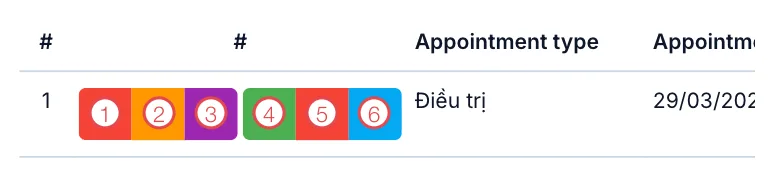
Illustration of the confirm button on an appointment row
Hovering over the button shows "Confirm the customer is coming for the visit?". Click it and answer the question the software asks.
It only appears for appointments that are not yet confirmed and not yet due. Once confirmed, once the customer has arrived, or after cancellation, the button disappears — that is the software preventing double clicks, not an error.
Seeing what is confirmed
Open the appointment detail panel (the eye button) and look at the labels under the status chain:
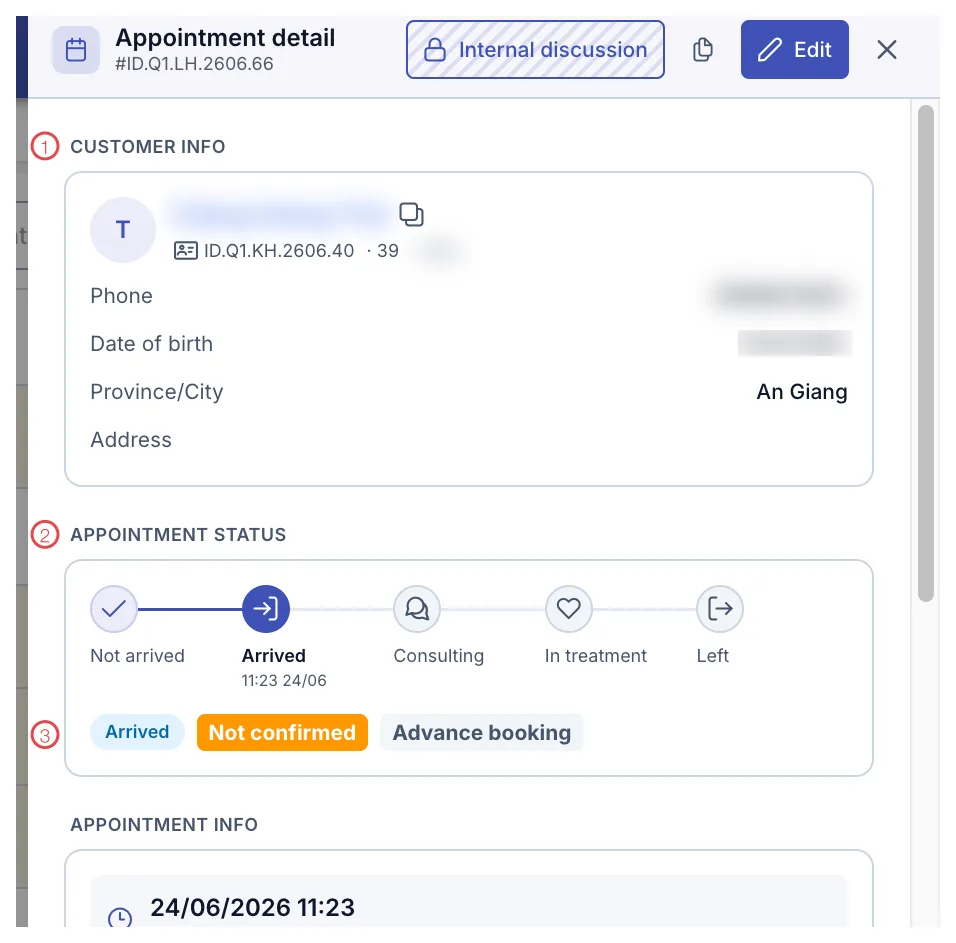
Illustration of the Not confirmed label in the detail panel
- Not confirmed (orange) — nobody reached the customer yet, or the call was not recorded.
- Confirmed — the customer said they would come.
This label is independent of the Not arrived → Arrived → … → Left chain. An appointment can perfectly well be Confirmed but still Not arrived (promised, not due yet), or Not confirmed yet Arrived (nobody got through, but they came anyway).
A workable daily routine
- Late afternoon, filter the Appointment list by tomorrow.
- Call the customers one by one.
- Customer (Patient) confirms → click the ✓ on that row.
- Customer (Patient) cannot come → cancel or move the appointment; never leave the old one standing.
- No answer → leave it Not confirmed and set a reminder to try again in the morning.
"I need to check my work schedule" only exists in your head. Put it in Internal discussion or the note box in the detail panel so the next shift can follow up.
Related
- Check-in / Check-out — the next step, at the desk.
- Cancel an Appointment — when the customer cannot make it.
- Create a Reminder — schedule the call-back.