Ways to View Treatments
The Clinic group in the CRM menu holds three entries that are easy to mix up. The key:
Treatment service and Service by appointment show services the customer bought. Treatment course shows individual sessions already performed.
One purchased service produces many sessions, which is why the two groups of screens always show wildly different row counts.
| What you need to know | Open |
|---|---|
| What the customer bought, at what price, with what discount | Treatment service |
| Which service belongs to which appointment, and who is responsible | Service by appointment |
| What the doctors actually did today, and how far along a plan is | Treatment course |
1. Treatment service
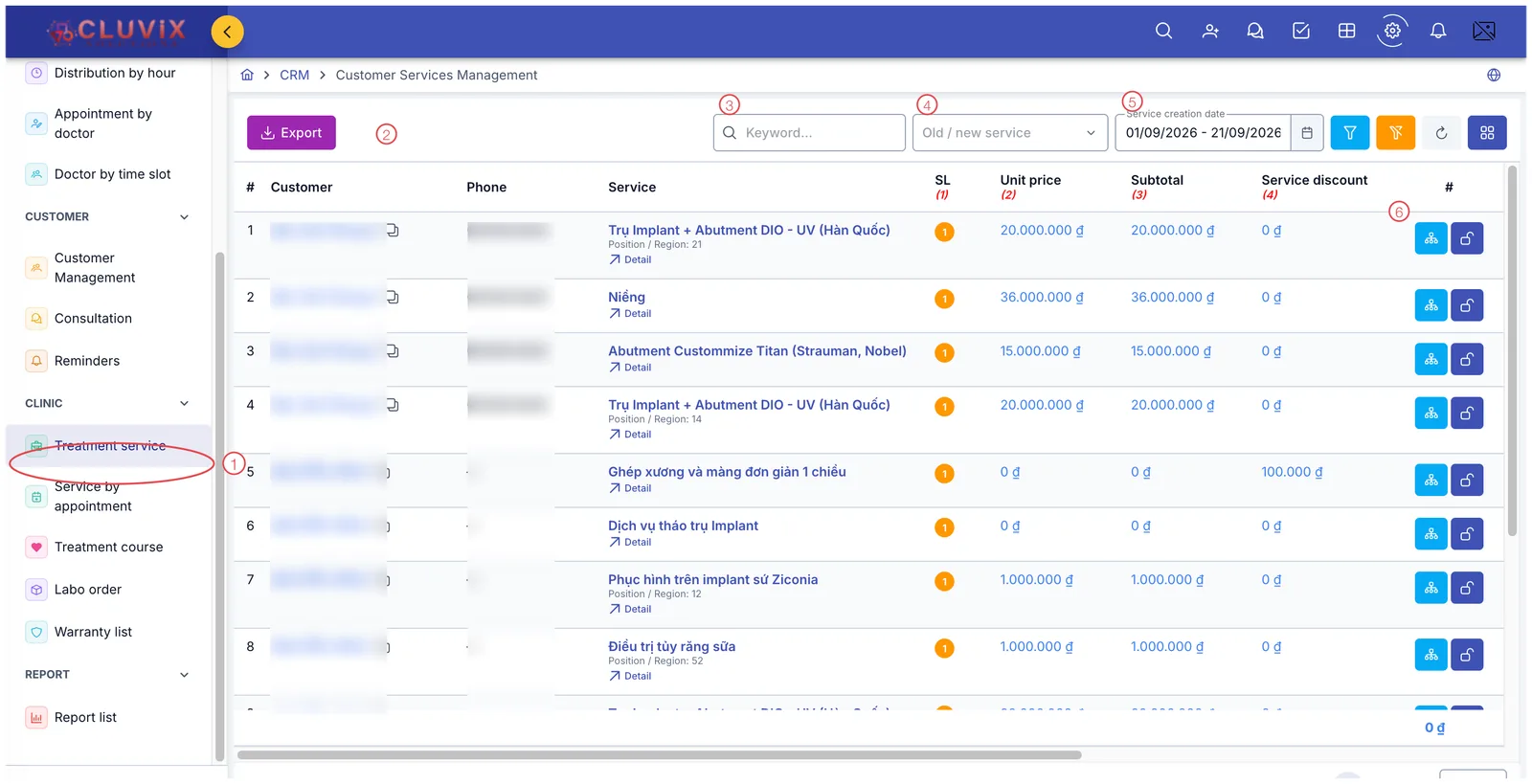
Illustration of the Treatment service screen
| Mark | What it is |
|---|---|
| 1. Treatment service menu | Inside the Clinic group. |
| 2. Export | Download the list as a file. |
| 3. Keyword | Search by customer or service name. |
| 4. Old / new service | Filter newly sold services versus existing ones. |
| 5. Service creation date | The period in which services were sold. |
| 6. Row buttons | View the related diagram and lock the service. |
This screen is about money: the Unit price, Subtotal and Service discount columns carry the software's own (1) (2) (3) (4) labels showing where the final figure comes from — the same convention as on orders. Under the service name a Position / Region line shows which tooth was treated.
Use it when: reviewing what a customer bought, reconciling service revenue, or finding a forgotten service.
2. Service by appointment
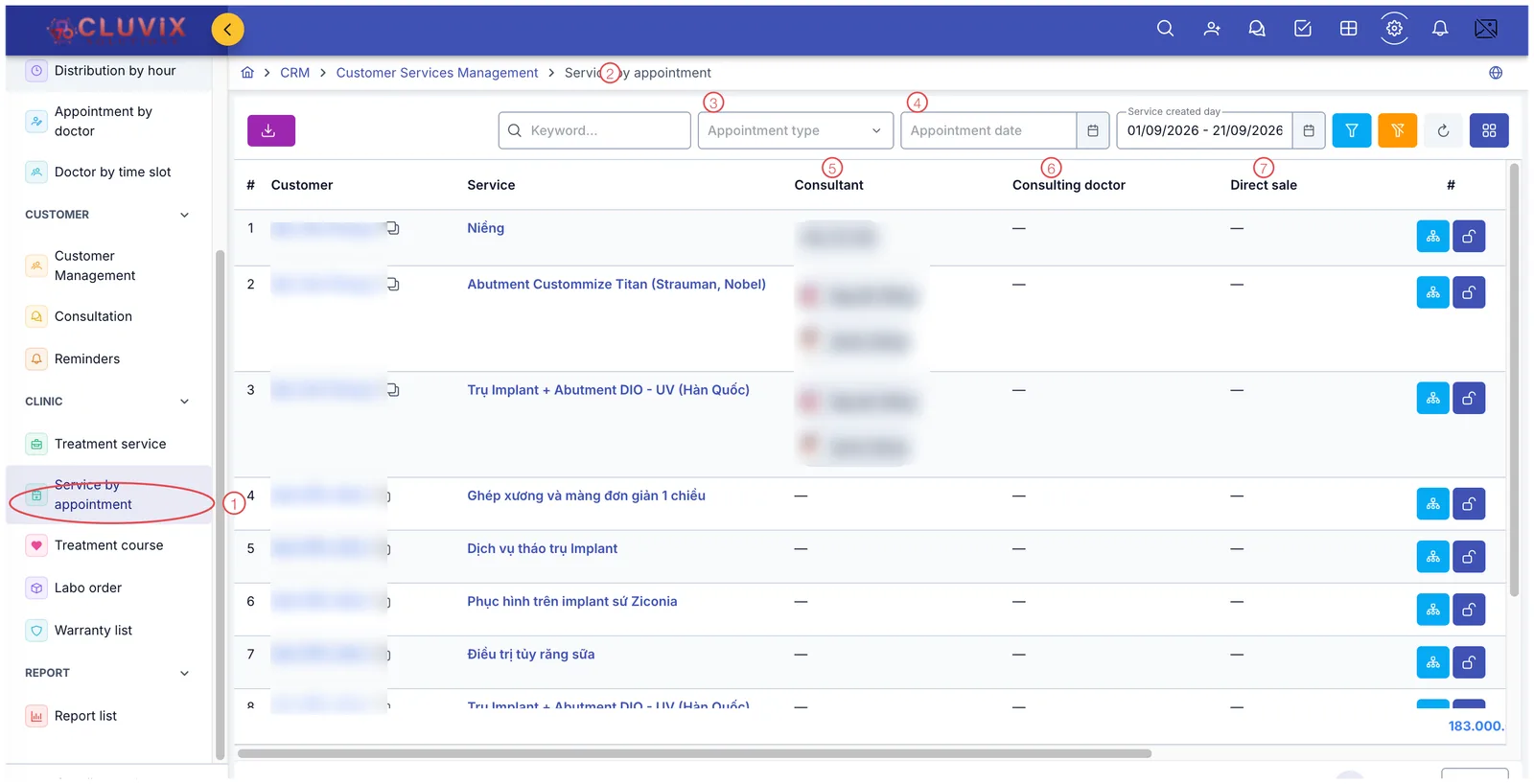
Illustration of the Service by appointment screen
| Mark | What it is |
|---|---|
| 1. Service by appointment menu | Directly below Treatment service. |
| 2. Breadcrumb | Customer Services Management › Service by appointment — the same data, a different view. |
| 3. Appointment type | Filter by type of appointment. |
| 4. Appointment date | Filter by the booked date. |
| 5. Consultant | Who consulted on that service. |
| 6. Consulting doctor | The doctor involved in the consultation. |
| 7. Direct sale | The direct sales person. |
The same service list as screen 1, with the money columns dropped and who is responsible added — so this is the screen for assigning work and crediting staff, not for checking figures.
Use it when: the front desk is preparing for today's appointments, or a manager wants to see which consultant is following which service.
3. Treatment course
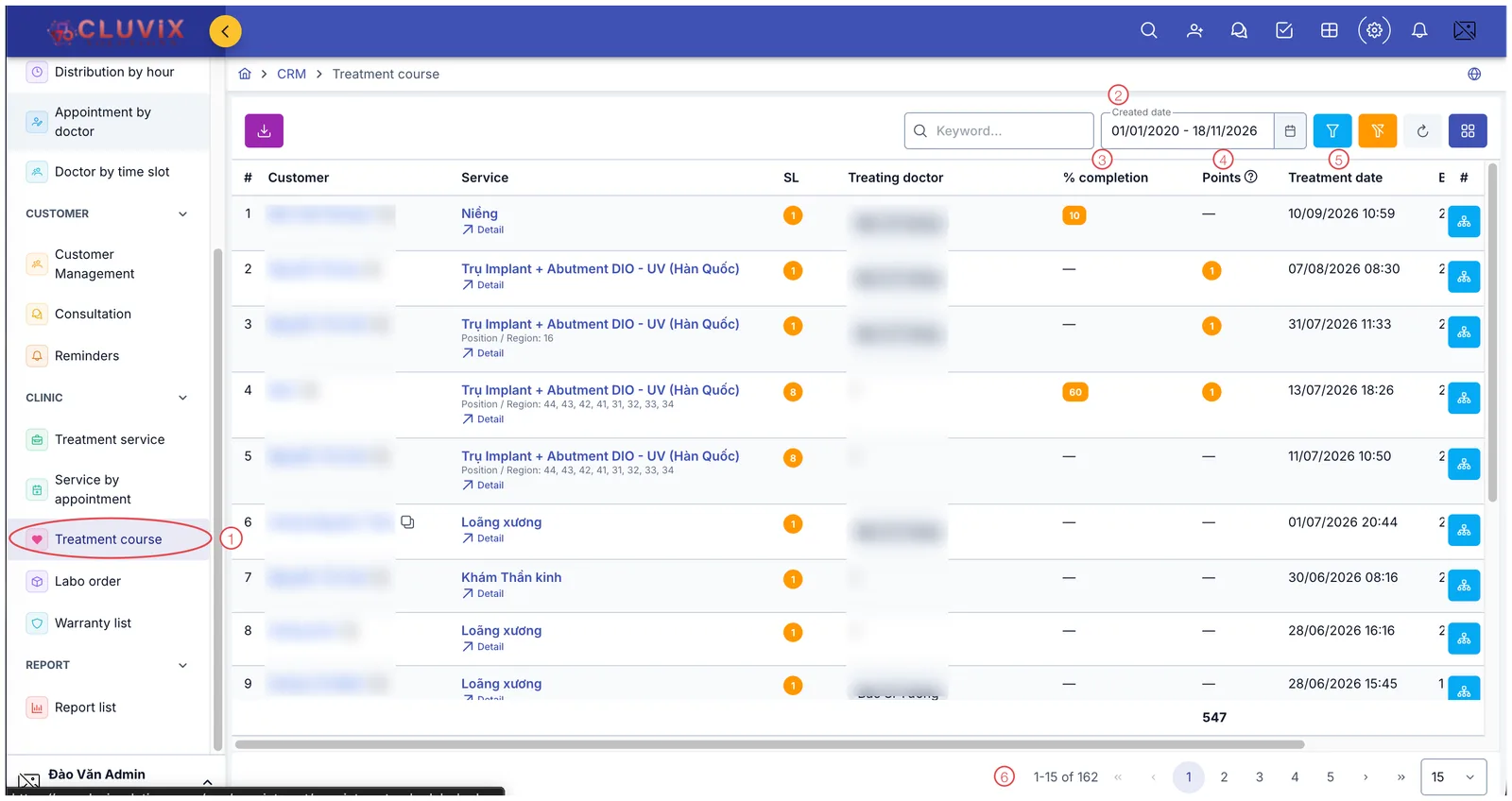
Illustration of the Treatment course screen
| Mark | What it is |
|---|---|
| 1. Treatment course menu | Below Service by appointment. |
| 2. Created date | The period in which the sessions were performed. |
| 3. % completion | How much that session advanced the service. |
| 4. Points | Points credited to the performer. |
| 5. Treatment date | When the session took place. |
| 6. Row count | e.g. 1-15 of 162 — the total number of sessions recorded. |
Every row here is one performed session, exactly what you create in Record a Treatment.
In the illustrations, Treatment service shows 13 rows while Treatment course shows 162 — same clinic, same period. Not a bug: 13 is the number of services sold, 162 is the number of sessions performed against them.
Use it when: checking how many sessions a doctor did today, tracking a long plan, or calculating points for staff.
General tips
- All three screens are read-only lists with filters. To record a new session, open the customer (patient) profile → Treatment tab.
- If a figure looks odd on a summary screen, open that customer and check their Order and Treatment tabs.
Related
- Record a Treatment — recording one session.
- Create an Order — where services are sold.
- Ways to View Appointments — the equivalent set for appointments.