Rehabilitation Treatment
This is the screen a rehabilitation department sees after clicking + Create on the Treatment tab. Unlike dentistry, one rehab session usually contains several technical steps performed by several technicians — and that is what this screen is built around.
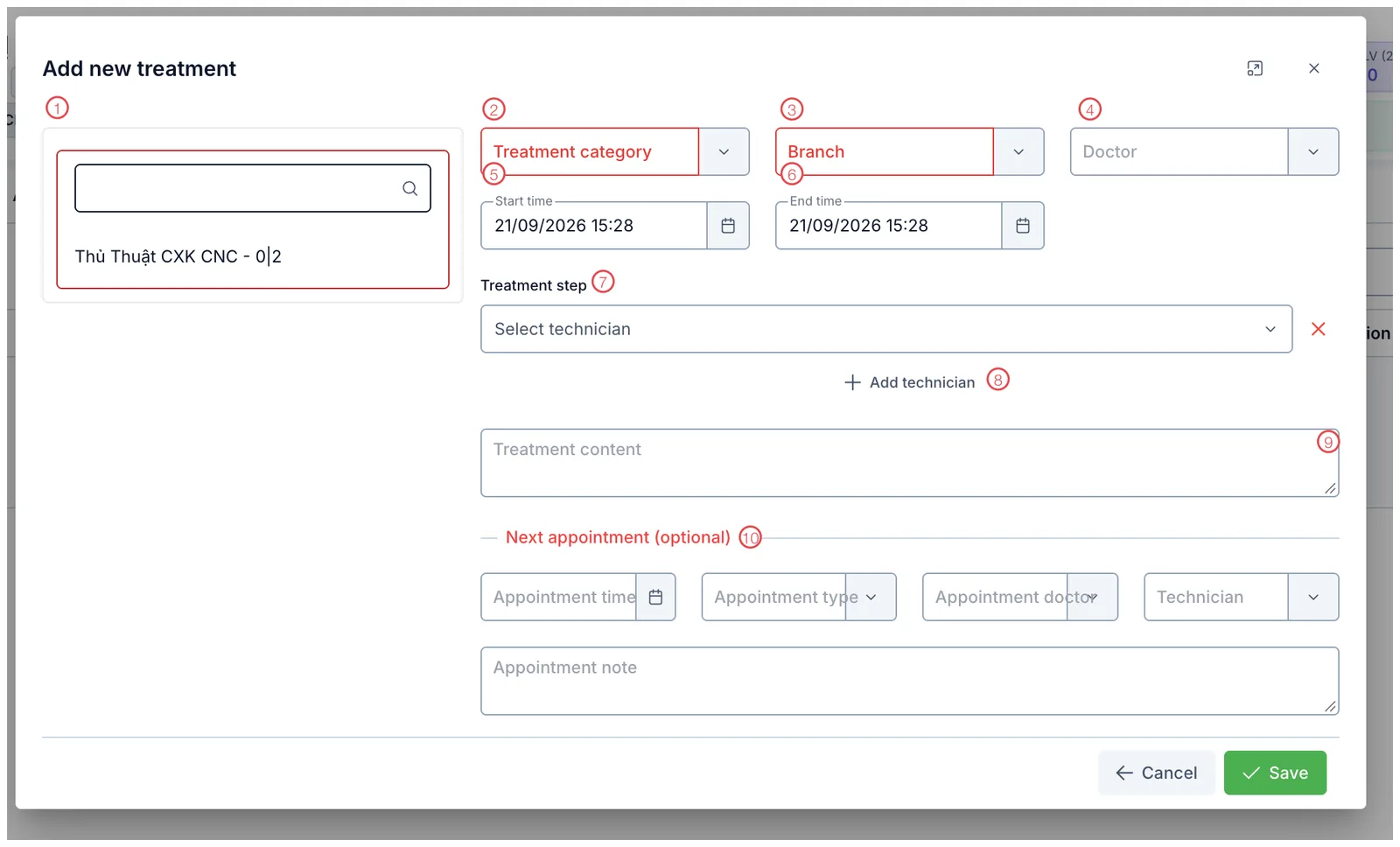
Illustration of the rehabilitation treatment screen
| Mark | What it is | Worth knowing |
|---|---|---|
| 1. Service list | Services the customer bought, with a counter like 0|2 — 0 sessions done out of 2. There is a search box for long lists. | |
| 2. Treatment category ⭑ | The kind of work, configured by your clinic. | |
| 3. Branch ⭑ | Where it is performed. | |
| 4. Doctor | The doctor in charge. | |
| 5. Start time | Pre-filled with now. | |
| 6. End time | When the session finished. | |
| 7. Treatment step | The technical step performed, paired with the technician who did it. | |
| 8. + Add technician | Adds another step / technician row. | |
| 9. Treatment content | How the session went and how the customer responded. | |
| 10. Next appointment (optional) | Book the follow-up: time, appointment type, doctor and technician. |
⭑ = required (outlined in red in the picture).
Steps and multiple technicians
Area 7 is the real difference here. Each row pairs one treatment step with the technician performing it. A session with three steps done by two people needs three rows — click + Add technician (8) for each.
The red ✕ on the right of a row removes it.
The software reads area 7 to know who did what. Lumping the whole session into one row means the people who did the other steps get no credit.
0|2 next to a service meansThe first number is sessions already done, the second is the total for that service.
0|2 means none of the two purchased sessions have been used. After saving this one it
becomes 1|2.
Related
- Record a Treatment — the shared steps and how to open the tab.
- Ways to View Treatments — reviewing sessions already done.
- Create an Order — selling the plan before treating.