Create a Warranty
A warranty is the clinic's commitment on work already done: crowns, implants, braces. The software stores the warranty card code, which service is covered, until when, and on which teeth.
Warranties are built for dental clinics, because a warranty card is tied to specific tooth positions. Other specialties do not use this tab yet.
Two steps, in this order
A warranty goes through two separate steps, and the order matters:
- Create the warranty code for the customer — a single code, effectively the card number.
- Create a warranty per service — each covered service is its own record, all attached to the code from step 1.
Without a code there is nothing for a warranty record to attach to, so nothing can be created.
Step 1: Create the warranty code
Open the customer (patient) profile → Warranty tab.
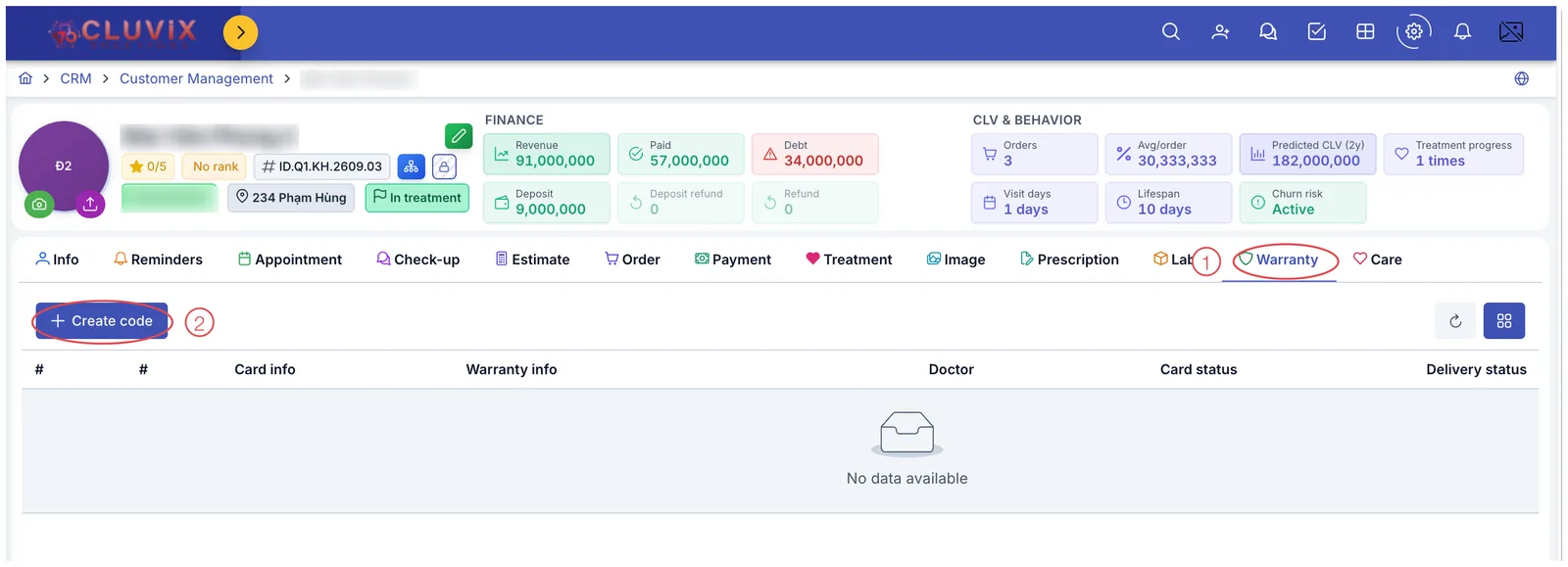
Illustration of the Warranty tab before a code exists
| Mark | What it is |
|---|---|
| 1. Warranty tab | Holds every card and warranty record for this customer. |
| 2. + Create code button | Only appears while the customer has no warranty code. |
Click + Create code and the window opens:
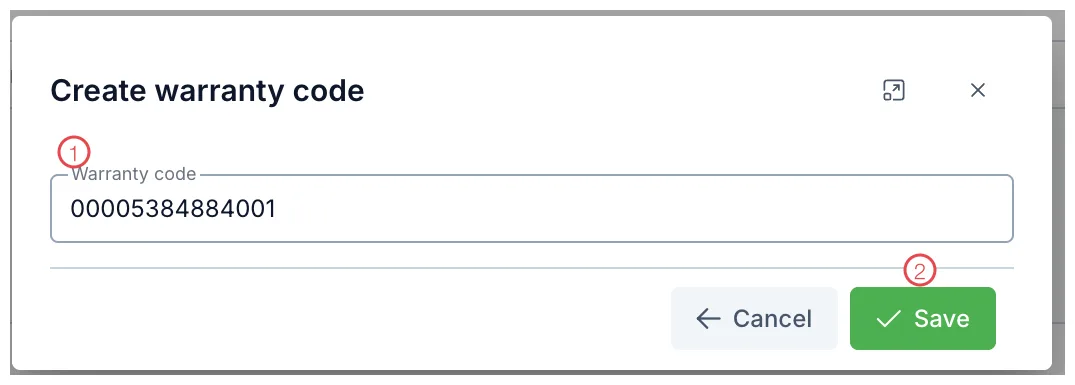
Illustration of the Create warranty code window
| Mark | What it is |
|---|---|
| 1. Warranty code | The software generates a number. Keep it, or replace it with your clinic's own convention. |
| 2. Save | Stores the code on the customer. |
The generated number is guaranteed not to clash with another customer. Hand-made codes like "BH001" collide as soon as several sites start entering data.
Step 2: Create a warranty per service
Once a code exists, the button on the Warranty tab changes to + Create warranty:
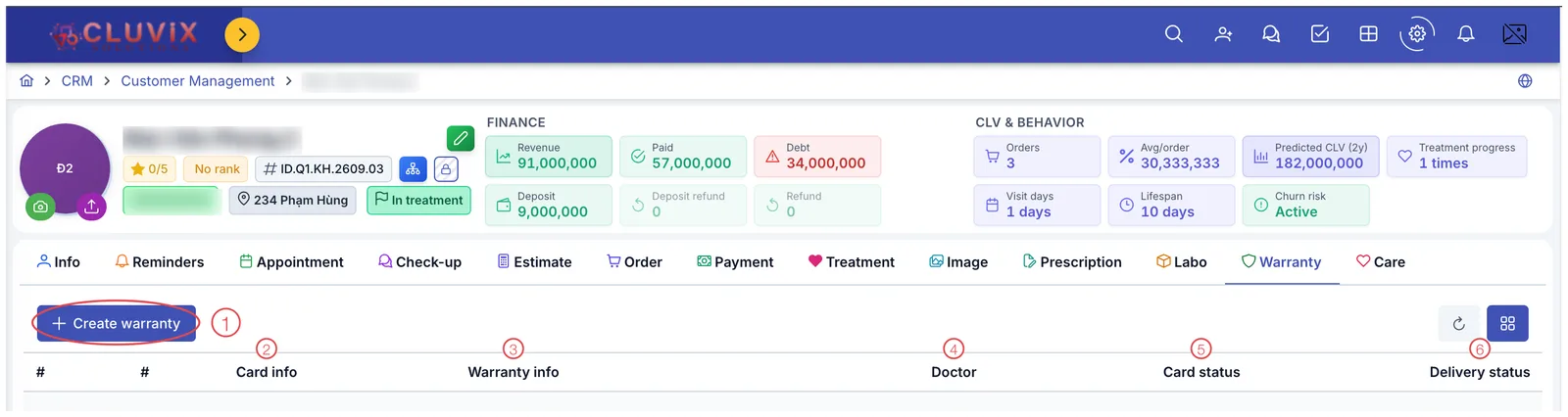
Illustration of the Warranty tab once a code exists
| Mark | What it is |
|---|---|
| 1. + Create warranty | Creates a warranty record for one service. |
| 2. Card info | The warranty card code and its details. |
| 3. Warranty info | The covered service, the warranty type and the expiry. |
| 4. Doctor | The doctor responsible for that work. |
| 5. Card status | Whether the card is still valid or expired. |
| 6. Delivery status | Whether the physical card has been handed to the customer. |
No code yet → the button reads + Create code. Code exists → it reads + Create warranty. The button name tells you which step you are on.
Filling in the warranty
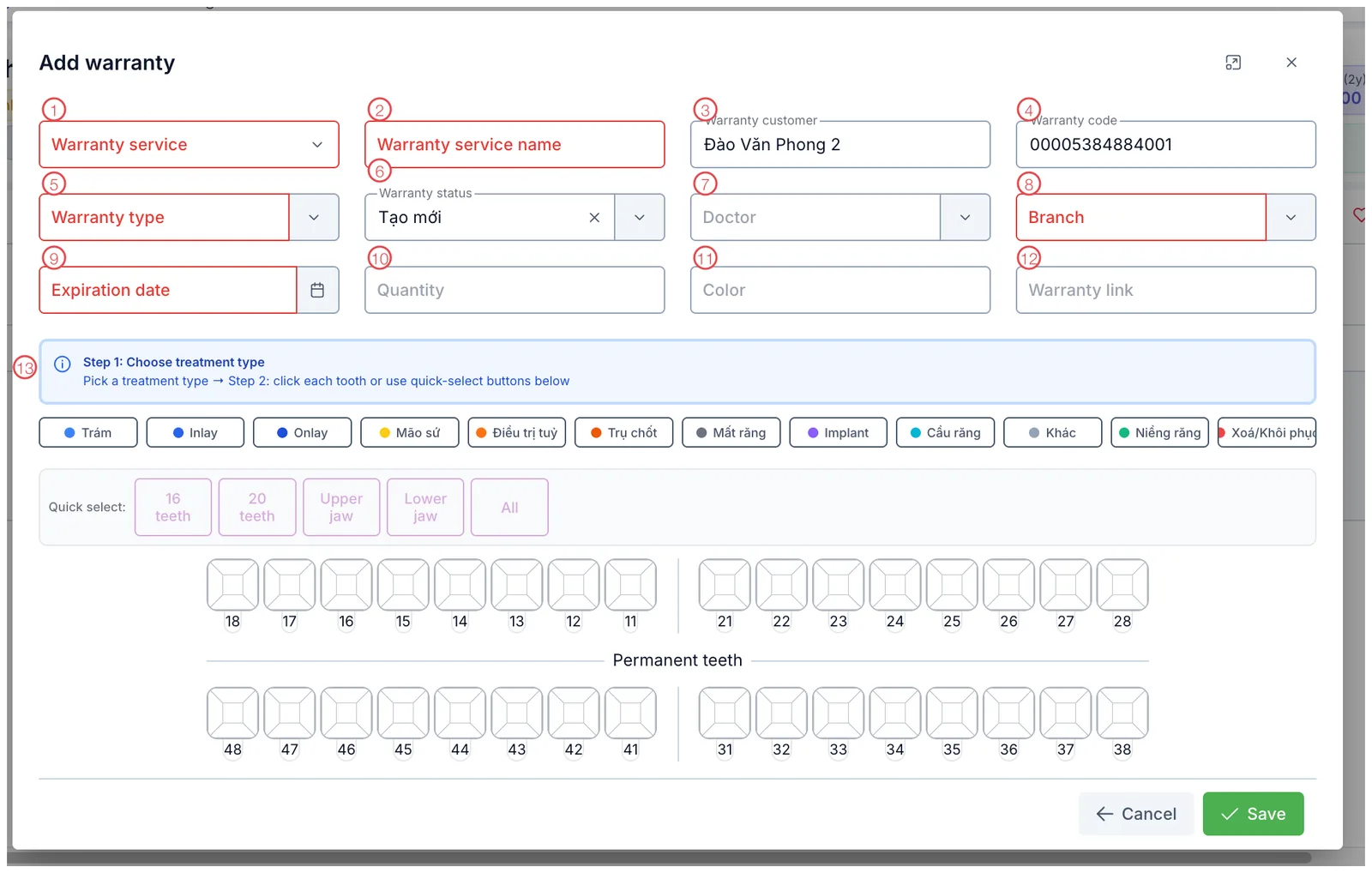
Illustration of the Add warranty window
| Mark | What it is | Worth knowing |
|---|---|---|
| 1. Warranty service ⭑ | The service the customer had that is now covered. | |
| 2. Warranty service name ⭑ | The name printed on the card — it can be worded for the customer rather than matching the catalogue exactly. | |
| 3. Warranty customer | Pre-filled with the customer whose profile is open. | |
| 4. Warranty code | The code from step 1, filled in for you. | |
| 5. Warranty type ⭑ | Your clinic's warranty classification. | |
| 6. Warranty status | Defaults to Tạo mới (newly created). | |
| 7. Doctor | Who performed the work, so responsibility is traceable later. | |
| 8. Branch ⭑ | The site issuing the warranty. | |
| 9. Expiration date ⭑ | The date cover ends. | |
| 10. Quantity | How many units are covered (e.g. number of crowns). | |
| 11. Color | The shade of the crown or material, so a remake years later can match it. | |
| 12. Warranty link | A lookup URL, if your clinic publishes one. | |
| 13. Tooth chart | Mark exactly which teeth are covered — same picker as the check-up screen. |
⭑ = required (outlined in red in the picture).
Choosing the teeth
The bottom of the window is the two-step tooth picker, identical to Record a Check-up:
- Step 1 — pick a treatment type (filling, inlay, onlay, crown, implant, bridge, braces…).
- Step 2 — click each tooth, or use Quick select (16 teeth, 20 teeth, Upper jaw, Lower jaw, All).
Marked the wrong tooth? Use Xoá/Khôi phục (remove/restore) and click it again.
Click Save to issue the warranty.
This is the figure the customer will quote back when they return with a complaint. Double-check Expiration date and Quantity before saving, especially when several teeth are done at once under different terms.
Color looks like a minor field, but when the customer comes back two years later to redo one tooth, it is the only thing that lets the clinic match the original shade.
Related
- Create an Order — the service must be on an order first.
- Record a Check-up — tooth numbering and the chart.
- Customer Details — where the Warranty tab lives.