Transfer a Deposit
Transferring a deposit means using money the customer already paid to settle a specific service. Before the transfer the money waits in the Deposit box and is not revenue; afterwards it counts as paid against that service.
This is the bridge between taking a deposit and a payment: the customer handed over the money earlier, and you are now recording what it was used for.
Step by step
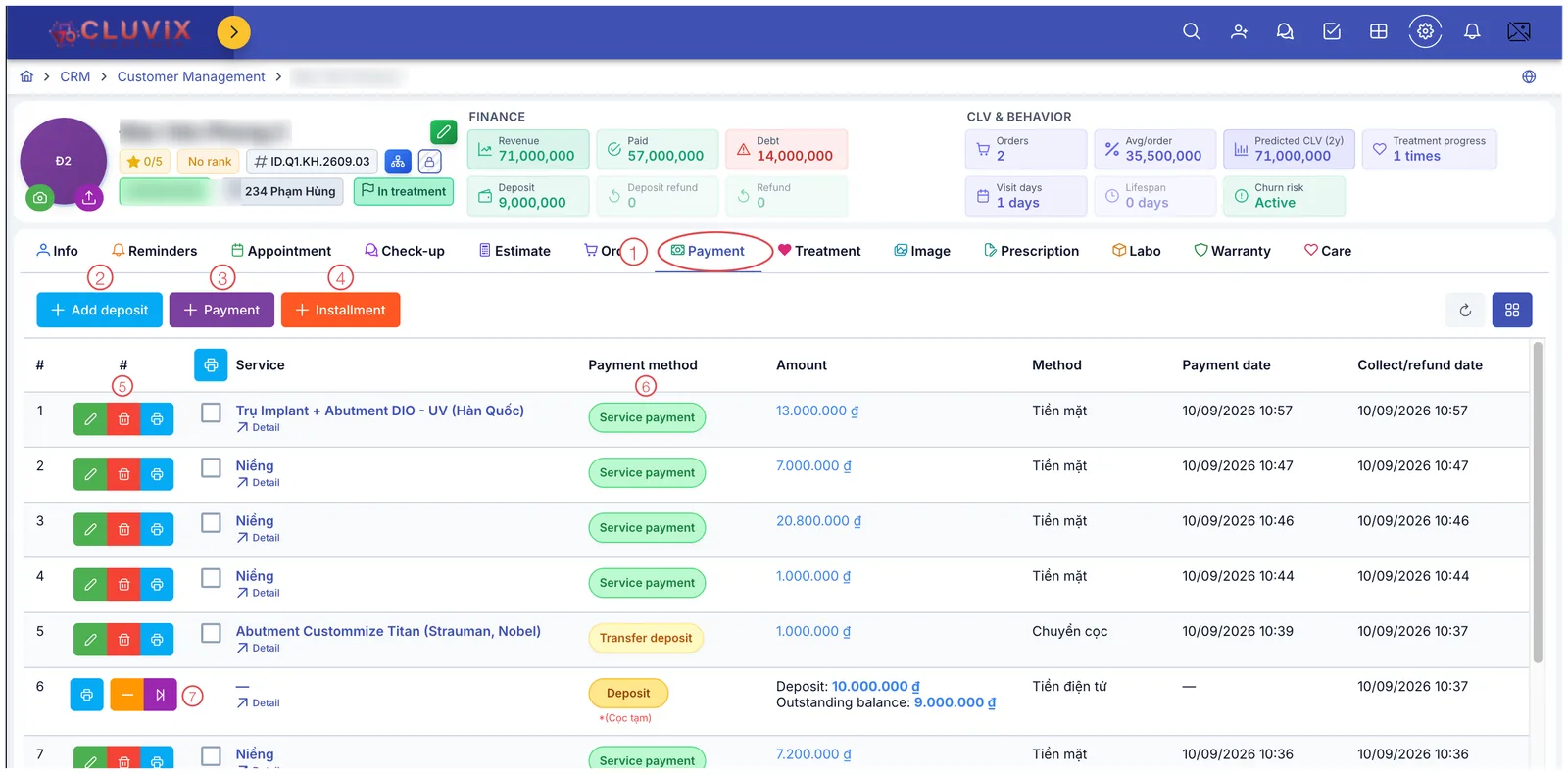
Illustration of the deposit row and its buttons
- Open the customer — go to CRM › Customer Management and click their name to open the customer (patient) profile.
- Choose the Payment tab (mark 1 in the picture).
- Find the deposit row — the one with the yellow Deposit chip and the two figures Deposit / Outstanding balance (mark 7).
- Click the purple button in that row. Do not click the orange one next to it — that is a refund.
- Pick the service that will receive the money.
- Enter the amount, or press Max to move the whole remaining deposit.
- Pick the Branch and check the Payment date.
- Click Save. A Transfer deposit row appears and the deposit row's Outstanding balance drops by exactly that amount.
The transfer button exists only on a deposit row, not on ordinary payment rows. A deposit that is fully used (Outstanding balance = 0) has nothing left to transfer.
Filling in the window
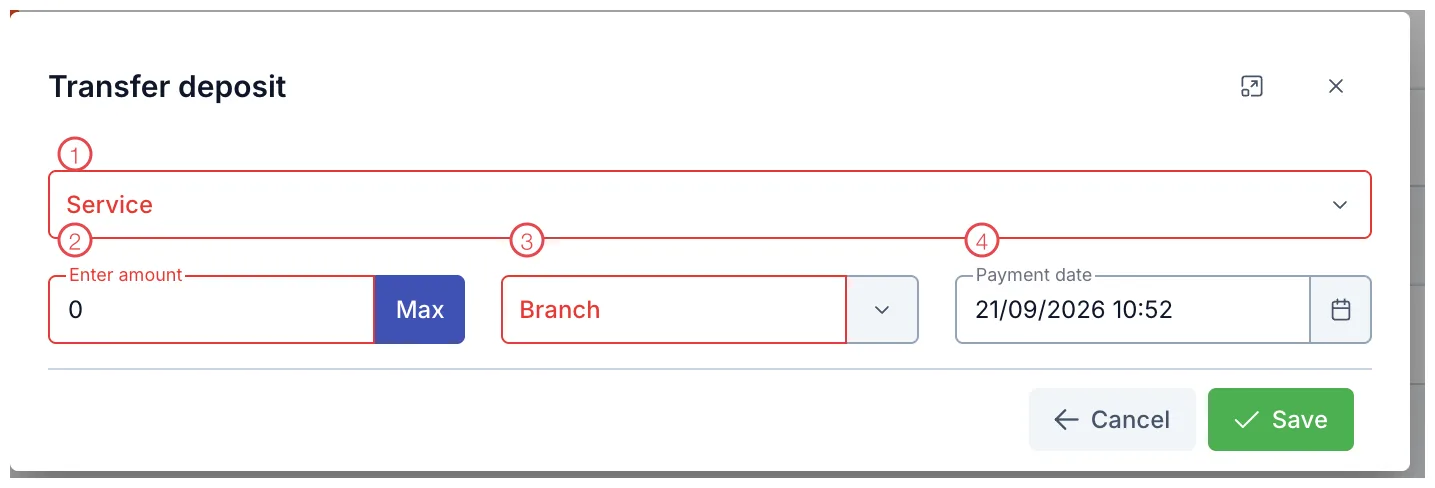
Illustration of the Transfer deposit window
| Mark | What it is | Worth knowing |
|---|---|---|
| 1. Service ⭑ | The service that will receive the money. Picked from the customer's services. | |
| 2. Enter amount ⭑ + Max | How much to transfer. Max moves the entire remaining deposit. | |
| 3. Branch ⭑ | The location recording the transaction. | |
| 4. Payment date | When it is recorded; pre-filled with now. |
⭑ = required (outlined in red in the picture).
The window is short because the money is already inside the software — there is no need to ask again for a payment method or an invoice number as when taking the deposit.
If the deposit is 10 million and the service is only 3 million short, transfer 3 million — the rest of the deposit stays available for the next service. Use Max when the customer wants the whole deposit spent on this service.
After saving
The Payment table gains a yellow Transfer deposit row, and at the same time:
- The deposit row's Outstanding balance drops by exactly the amount transferred.
- The Deposit box at the top of the profile goes down, Paid goes up.
- The Debt on that service decreases accordingly.
See Financial Information for what each box means.
Transfer (purple) spends deposit money on a service — the money stays with the clinic. Refund (orange minus) gives it back to the customer — the money leaves the till and lands in the Deposit refund box. The two buttons sit side by side, so check the colour.
Related
- Create a Deposit — taking the money, and the three deposit types.
- Create a Payment — collecting straight against a service.
- Financial Information — the Deposit, Paid and Debt boxes.