Create a Deposit
A deposit is money the customer pays before any specific service is agreed: to hold a slot, to lock in a promotional price, or to keep credit at the clinic. Unlike a payment — always tied to a service — deposit money belongs to no service yet and waits in the Deposit box on the profile.
Step by step
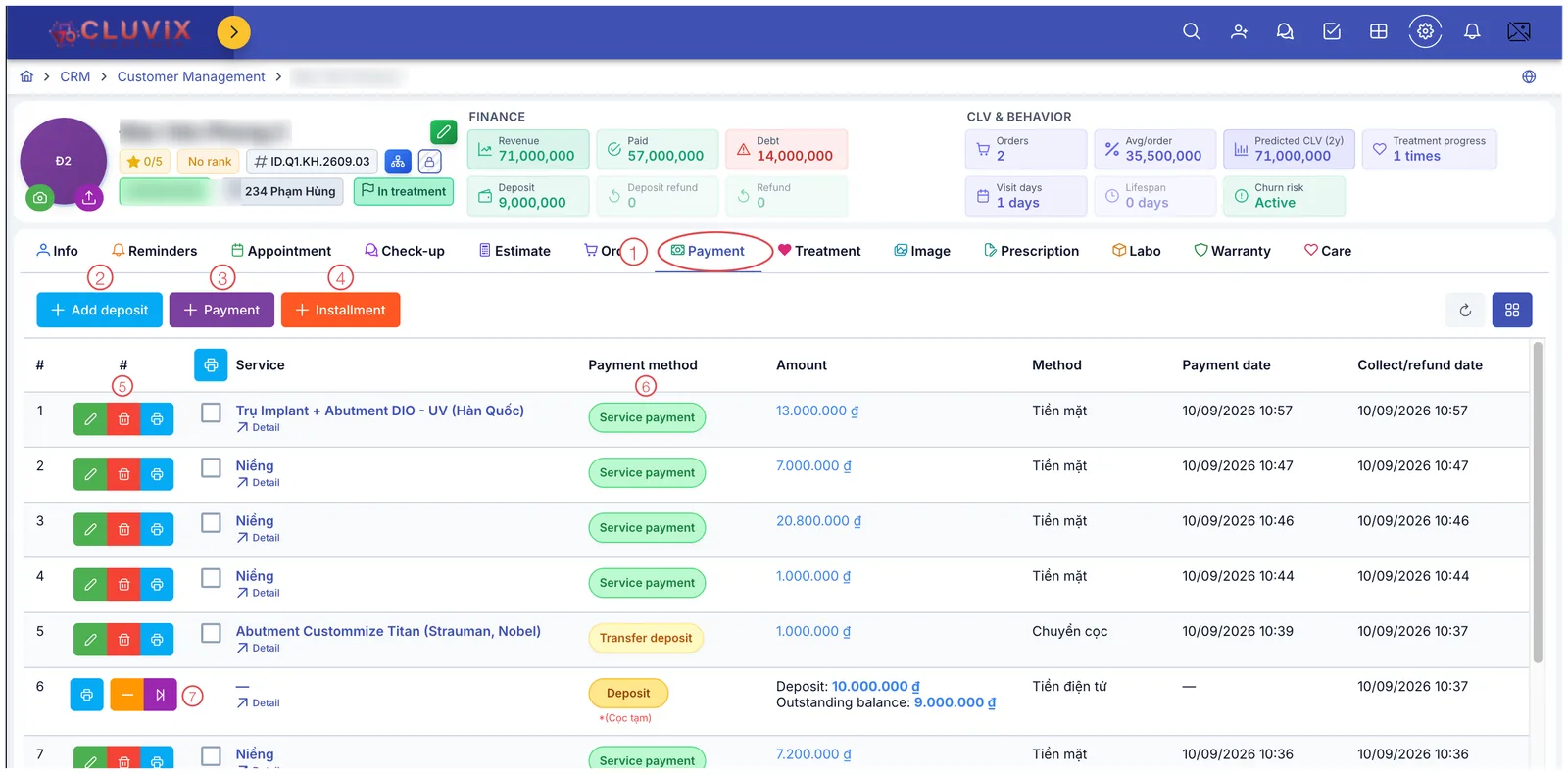
Illustration of where the Add deposit button sits
- Open the customer — go to CRM › Customer Management and click their name to open the customer (patient) profile.
- Choose the Payment tab (mark 1 in the picture).
- Click + Add deposit — the blue button, first of the three (mark 2).
- Type the amount the customer is handing over in the first field.
- Pick Branch and Payment method — the two required fields, outlined in red.
- Choose the deposit type — temporary, promotion-hold or consignment (see the table below).
- Write the reason in Content — required, and the only place this money is explained.
- Click Save. The deposit appears as a row in the table and the Deposit box at the top of the profile goes up accordingly.
Every field in the window
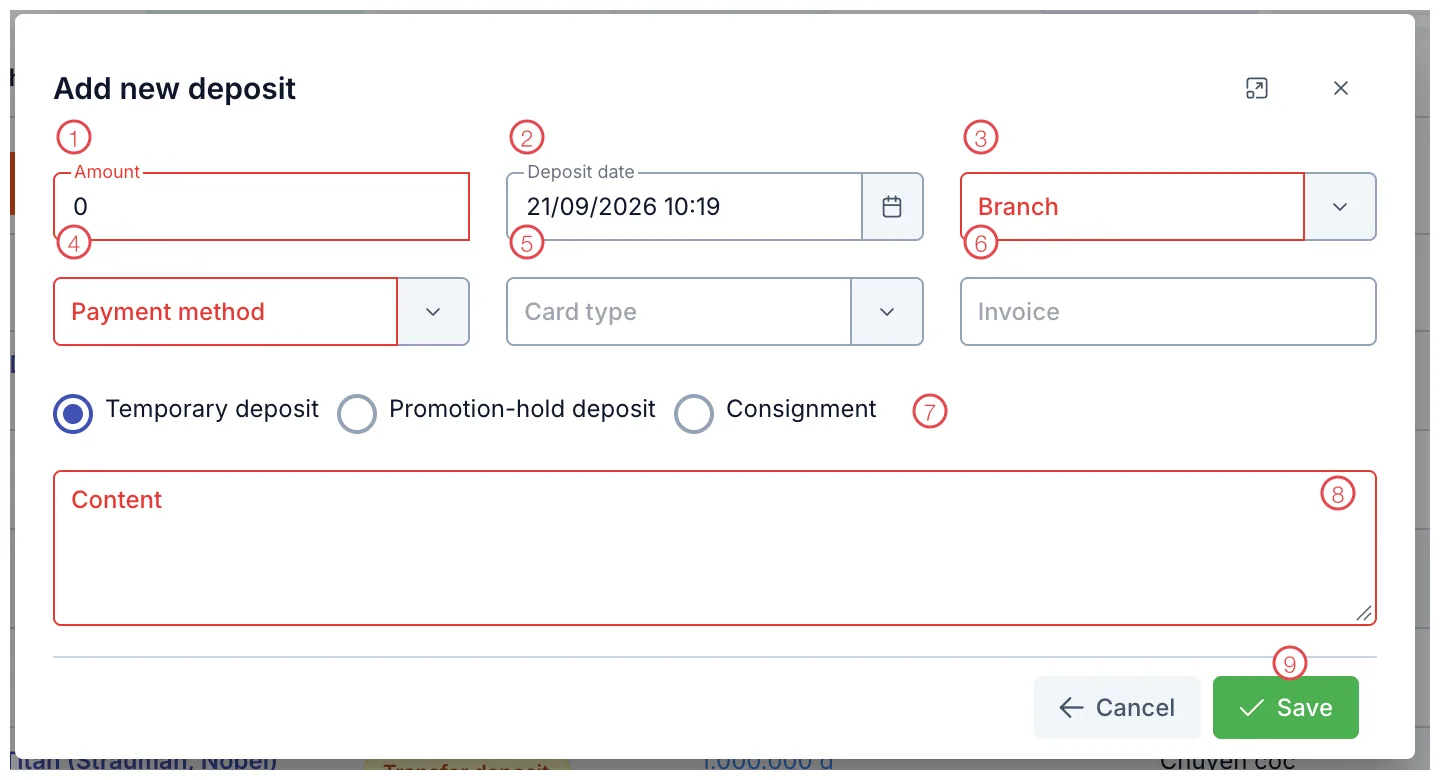
Illustration of the Add new deposit window
| Mark | What it is | Worth knowing |
|---|---|---|
| 1. Amount ⭑ | How much the customer is depositing. | |
| 2. Advance payment date | Pre-filled with now; change it when recording after the fact. | |
| 3. Branch ⭑ | The location receiving the money. | |
| 4. Payment method ⭑ | Cash, bank transfer, card… | |
| 5. Card type | More detail about the method (which bank or wallet). | |
| 6. Voucher No. | The invoice number or bank transaction reference for this money, if there is one. | |
| 7. The three deposit types | Pick exactly one — see the table below. | |
| 8. Content ⭑ | Why the deposit was taken and what was agreed. Required, because this is the only place the money is explained. | |
| 9. Save | Writes the deposit into the profile. |
⭑ = required (outlined in red in the picture).
The three deposit types
| Type | Use it when |
|---|---|
| Temporary deposit | The customer pays ahead to hold a slot, to be applied to a service later. The common case. |
| Promotion-hold deposit | The customer deposits to lock in a price or promotion even though the work happens later. |
| Consignment | The customer leaves credit at the clinic to draw on over several visits. |
Months later nobody remembers whether a 10-million deposit was holding a braces price or holding a slot for a relative. One line — "Deposit to hold the September clear-aligner promotion" — prevents the argument.
Tracking the deposit afterwards
The deposit becomes a row in the Payment table with a yellow Deposit chip and the type underneath. The row shows two figures:
- Deposit — the original amount.
- Outstanding balance — the part not yet applied to any service.
When the customer commits to a service, the money moves across as a Transfer deposit transaction — a new row appears and the deposit row's Outstanding balance drops.
The total unused deposit always shows in the Deposit box at the top of the profile, see Financial Information.
It has no edit or delete like an ordinary payment row. Instead there are three buttons:
| Button | Colour | What it does |
|---|---|---|
| Printer | Blue | Print a deposit receipt. |
| Minus | Orange | Refund the deposit — the money goes back to the customer and lands in the Deposit refund box on the profile. |
| Arrow | Purple | Transfer the deposit — apply it to a specific service. |
Until it is transferred to a specific service, a deposit is not revenue. That is why Deposit and Revenue are two separate figures on the profile.
Related
- Create a Payment — money tied straight to a service.
- Transfer a Deposit — applying a deposit to a service.
- Financial Information — the Deposit and Deposit refund boxes.