Record a Treatment
A treatment session is one occasion when the doctor actually works on the customer: filling one tooth, one rehab session, one laser pass. A customer buys one service but may need many sessions — each visit is one treatment record.
A service is what the customer bought and paid for, on an order. A session is one performance of it. A single "Braces" service can span dozens of sessions. See Ways to View Treatments to know which screen shows which.
Open the Treatment tab
Open the customer (patient) profile and click the Treatment tab.
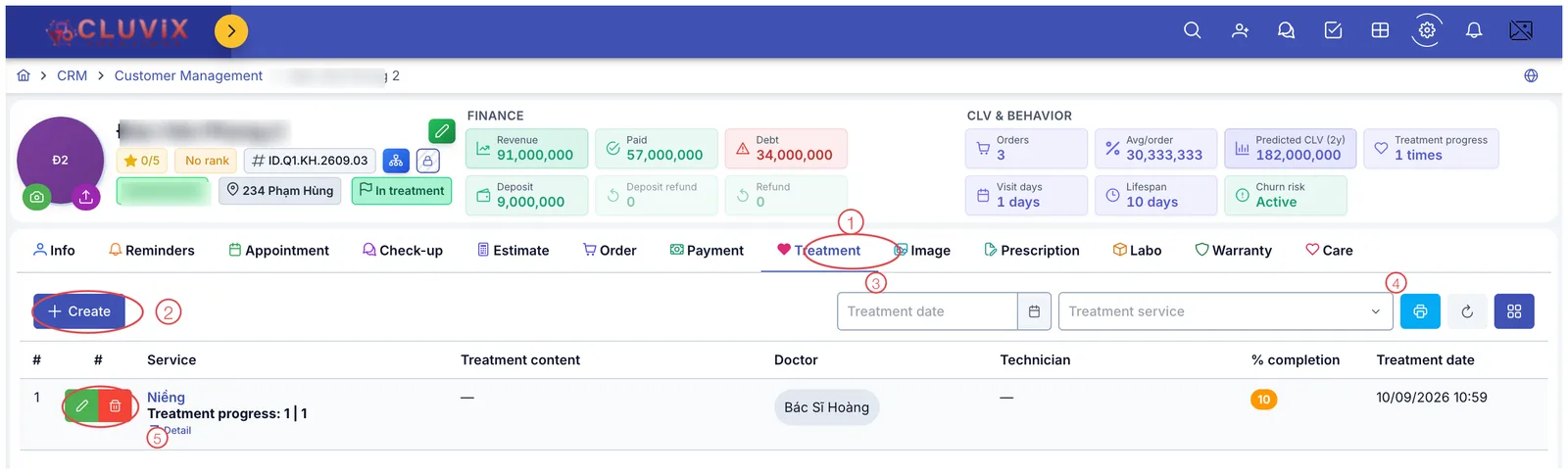
Illustration of the Treatment tab on a customer profile
| Mark | What it is |
|---|---|
| 1. Treatment tab | Every treatment session for this customer. |
| 2. + Create | Record a new session. |
| 3. Filters | Filter by treatment date and treatment service. |
| 4. Print button | Print the session list. |
| 5. Row buttons | Edit (pencil) and delete (bin) that session. |
The columns:
| Column | Meaning |
|---|---|
| Service | The service this session belongs to, with Treatment progress: 1 | 1 — sessions done out of the total. |
| Treatment content | What the doctor did. |
| Doctor / Technician | Who performed it. |
| % completion | How much this session moved the service forward. |
| Treatment date | When it happened. |
The shared steps
- Open the customer profile → Treatment tab.
- Click + Create.
- Pick the service being treated — only services the customer bought appear.
- Choose branch, doctor and any support staff.
- Write the treatment content — what happened in this session.
- Book the next appointment if more sessions follow (Next appointment (optional) at the bottom).
- Click Save.
Each specialty sees a different screen
This is the confusing part: the same + Create button opens a different window depending on the clinic's specialty. The software picks it from the primary department of the account you are signed in with — you cannot choose it.
| Clinic specialty | Entry screen | What is distinctive |
|---|---|---|
| Dental | Dental treatment | Treatment stage, % completion, Assistant, Treatment point, Overtime |
| Rehabilitation | Rehabilitation treatment | Treatment step and several technicians per session |
| All other specialties (aesthetics, dermatology, internal, paediatrics…) | Other specialties | Tick several services at once, counted by sessions remaining |
The three screens differ in the middle, but they open from the same place and save to the same list — afterwards the session appears in the Treatment tab exactly the same way.
Click + Create and look: a Treatment stage field means dental; a Treatment step field means rehabilitation; a tickable service list on the left means the third group.
Related
- Ways to View Treatments — how the three left-hand menus differ.
- Create an Order — the service must be sold first.
- Customer Details — where the Treatment tab lives.