Create an Order
An order is the record of what the customer agreed to: which services, at what price, with what discount. Everything afterwards builds on it — payments, treatments, warranties — which makes this the most important step in the Clinic group.
Steps 1 & 2: Open the order window
Go to CRM › Customer Management, click the customer's name to open their profile, then:
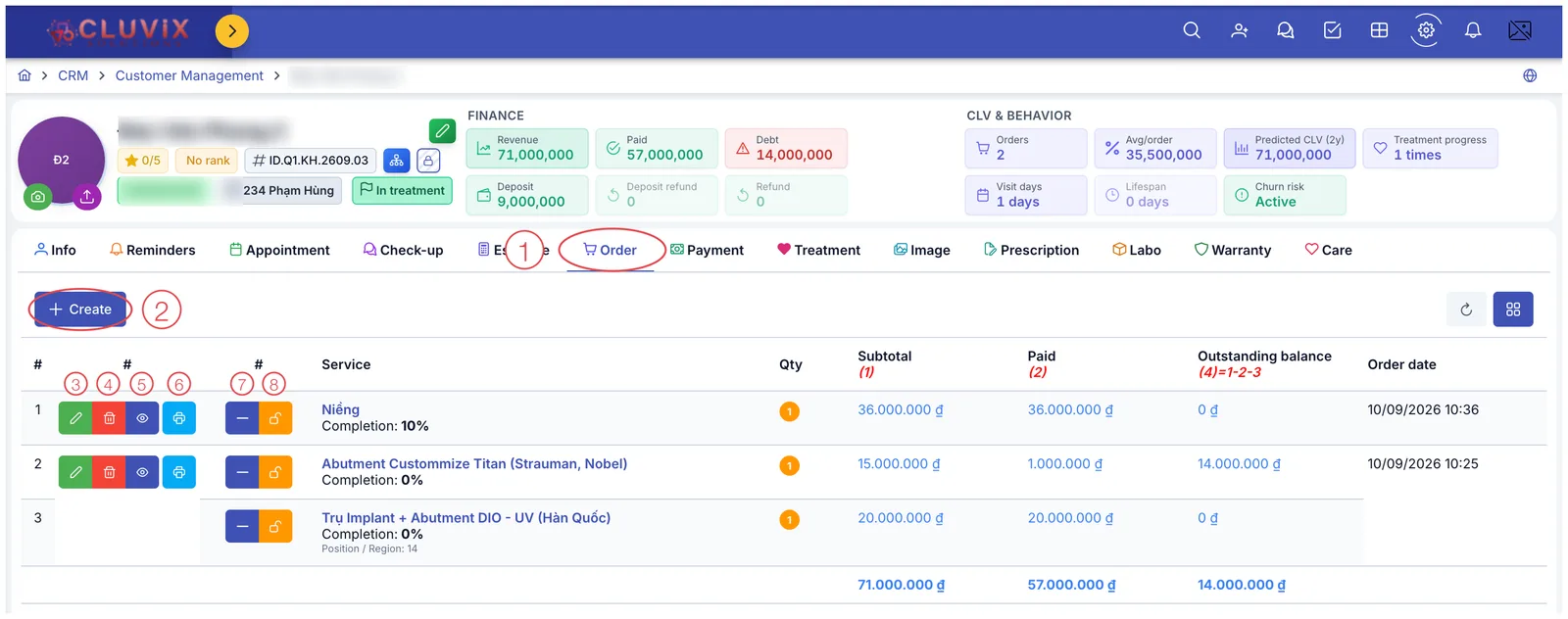
Illustration of how to open the order window
- Click the Order tab in the tab row.
- Click the blue + Create button at the top left.
The six action buttons on each order row
Every saved order carries a cluster of buttons (marks 3 to 8 in the picture) — what you can still do with that order after it has been saved:
| Button | Colour | What it does |
|---|---|---|
| 3. Pencil | Green | Edit the order — reopens the filled-in order window. |
| 4. Bin | Red | Delete the order from the profile. |
| 5. Eye | Dark blue | View details, read-only. |
| 6. Printer | Light blue | Print the order for the customer. |
| 7. Minus | Indigo | Return the service — the customer no longer wants it, so the unperformed part is given back. |
| 8. Padlock | Orange | Lock the service — no further changes to that service line. |
In the picture, row 3 only has the minus and padlock, without the edit/delete/print cluster of rows 1 and 2. A button appears only while that action is still possible — a missing button reflects the state of the service, not a lost permission.
Delete (button 4) removes the order as if it never existed — only for orders created by mistake. Return the service (button 7) keeps the history: the order stays, the unused part is given back, and the amount lands in the Refund box on the customer profile. If the customer has already paid, always return rather than delete.
The table below lists the customer's orders with Subtotal, Paid and Outstanding balance, and a grand total on the last row. A glance tells you what is still unpaid.
Note the formula under the last column — (4) = 1 − 2 − 3. Those are the software's own labels for the money columns, showing where the final figure comes from; they are not row numbers.
The Order information tab
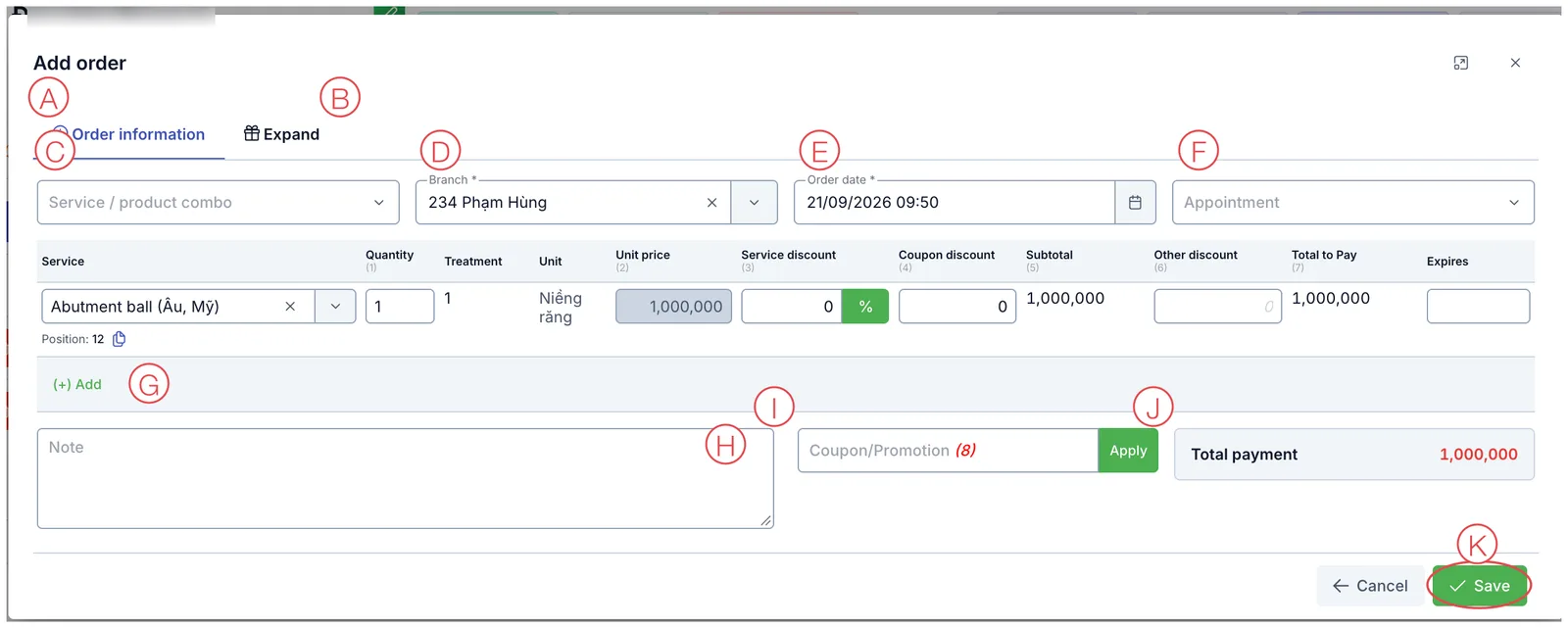
Illustration of the Order information tab
| Mark | What it is | Worth knowing |
|---|---|---|
| A | Order information tab | The main part: pick services and work out the money. Open by default. |
| B | Expand tab | Customer source, who is responsible, and installment settings (see below). |
| C | Service / product combo | Pick a ready-made package and the software fills in every service it contains. Leave empty when selling single services. |
| D | Branch ⭑ | Where the service will be performed. Required. |
| E | Order date ⭑ | Pre-filled with now. Required. |
| F | Appointment | Attach the order to an existing appointment, so you know which visit it came from. |
| G | (+) Add | Add another service line to the same order. |
| H | Note | Special arrangements with the customer, instructions for whoever does the work. |
| I | Coupon / Promotion | Type a code and click Apply; the software fills the Coupon discount column. |
| J | Total payment | What the customer owes for the whole order. Calculated, not typed. |
| K | Save | Writes the order into the customer's profile. |
⭑ = required.
Service lines and how the money adds up
Each row is one service. The money columns carry the software's own labels (1) to (8) under the header, showing which figure feeds which:
| Column | Meaning |
|---|---|
| Service | Picked from the clinic's catalogue. |
| Quantity (1) | How many units or sessions. |
| Treatment | The matching number of treatment sessions, derived from the service. |
| Unit | The service's unit of measure. |
| Unit price (2) | Price per unit, from the price list. |
| Service discount (3) | A discount for this service alone. The % button switches between percentage and fixed amount. |
| Coupon discount (4) | Filled automatically when you apply a coupon at I. |
| Subtotal (5) | The line total after the service discount and coupon. |
| Other discount (6) | Anything beyond the two above — a loyal-customer (patient) gesture approved by management. |
| Total to Pay (7) | What the customer actually pays for this line. |
| Expires | The validity date of the service, if your clinic sets one. |
Under the service selector sits a Position line (e.g. Position: 12) — the tooth positions being treated, carried over from the check-up. The two-square icon copies it.
Service discount is for the service's own promotion, Coupon discount is filled from a code, and Other discount is for exceptions that need approval. Putting everything in one column makes it impossible to tell later where the discounts came from.
The Expand tab
Click Expand (mark B) to record who brought the customer in and who is responsible for this order — this drives commission, so do not leave it empty.
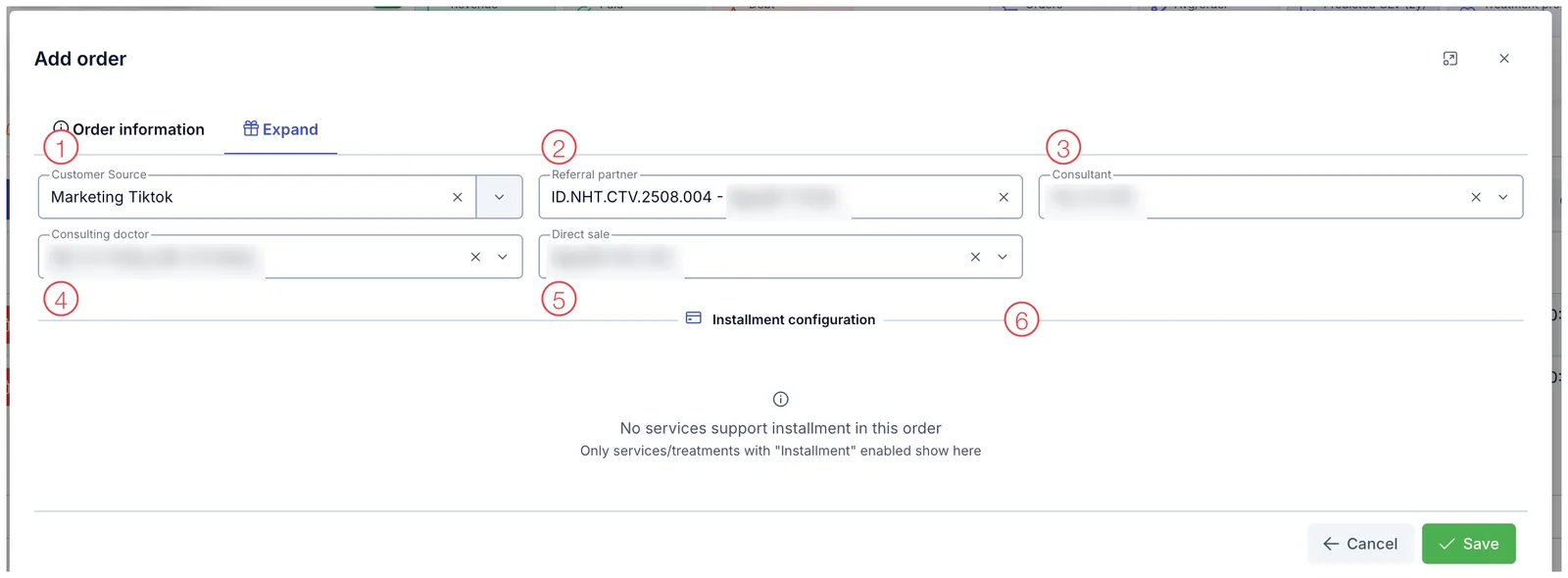
Illustration of the Expand tab
| Mark | What it is |
|---|---|
| 1. Customer Source | How the customer found the clinic (Marketing Tiktok, re-engagement campaigns…). |
| 2. Referral partner | The affiliate who referred them, picked by partner code. |
| 3. Consultant | The consultant who closed this order. |
| 4. Consulting doctor | Doctors involved in the consultation — more than one can be selected. |
| 5. Direct sale | The direct sales person. |
| 6. Installment configuration | Where the installment schedule is set up. |
About the installment section
Area 6 only shows settings when the order contains a service with "Installment" enabled. Otherwise the software says:
No services support installment in this order Only services/treatments with "Installment" enabled show here
That is not an error. To sell a service in installments, an administrator must first enable the Installment option on that service in the catalogue; once such a service is in the order, this area shows the fields for splitting the amount into terms. Details: Create an Installment Plan.
Services that need a tooth position
Some services — dental ones above all — are configured to require a tooth position. For those, clicking the Quantity field opens a tooth chart right under the service line:
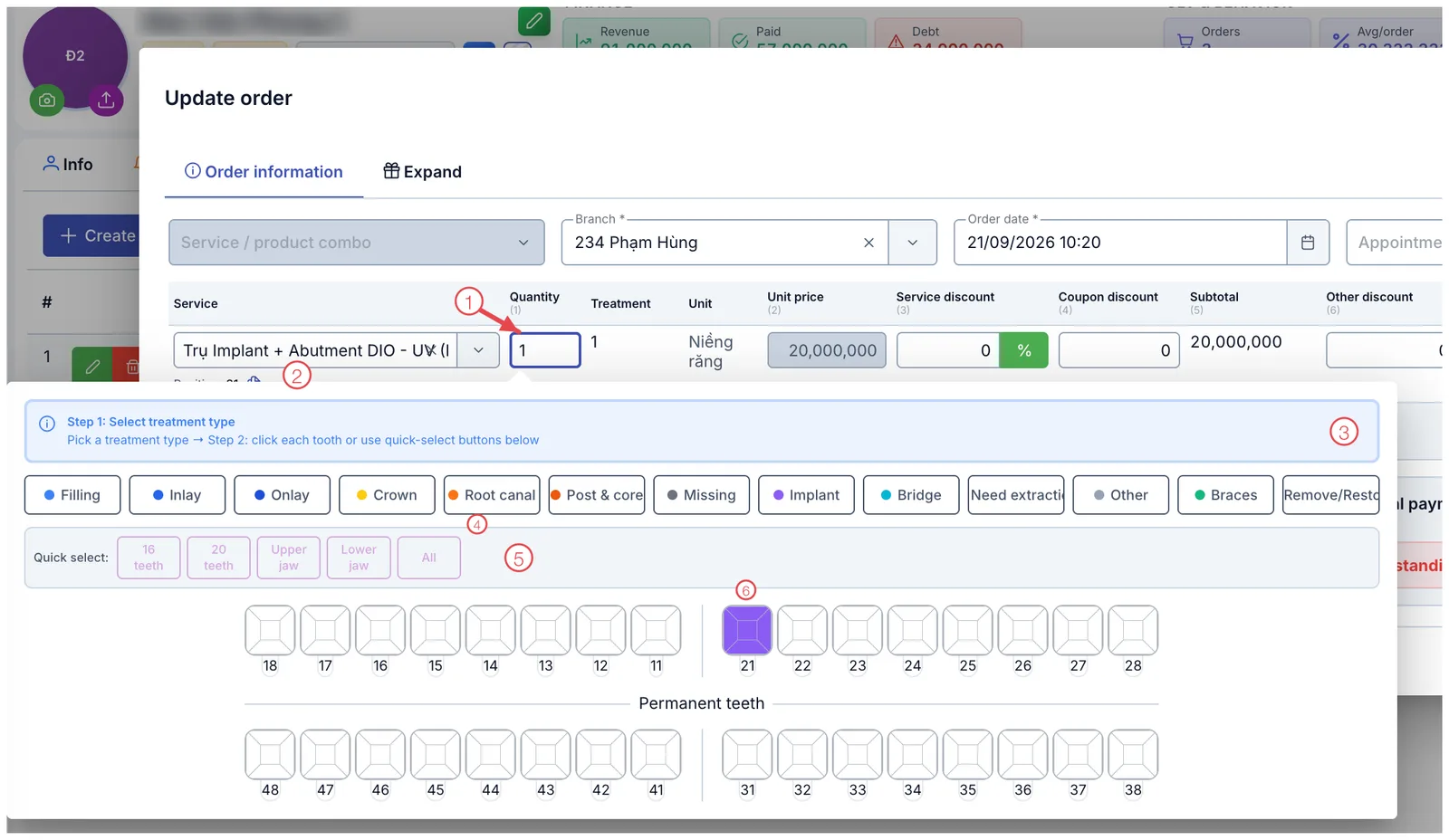
Illustration of the tooth-position picker inside the order window
| Mark | What it is |
|---|---|
| 1. Quantity field | Click here to open the picker. The quantity then counts the teeth you select. |
| 2. Position line | The teeth chosen so far (e.g. Position: 21). The two-square icon copies the list. |
| 3. Guidance bar | Reminds you of the order: pick a treatment type first, then click the teeth. |
| 4. Treatment types | Filling, Inlay, Onlay, Crown, Root canal, Post & core, Missing, Implant, Bridge, Need extraction, Other, Braces, and Remove/Restore to undo a mark. |
| 5. Quick select | Whole groups: 16 teeth, 20 teeth, Upper jaw, Lower jaw, All. |
| 6. Tooth chart | Click each tooth. Selected teeth are filled in (tooth 21 in the picture). |
The numbering system and the treatment types are the same as in the check-up screen — see Record a Check-up.
For a service without position tracking (a product, a care package), the Quantity field is just a number box. No tooth chart means the service does not need one — not an error.
Services with installments enabled
When the order contains a service with "Installment" enabled, the Installment configuration area on the Expand tab shows one card per such service:
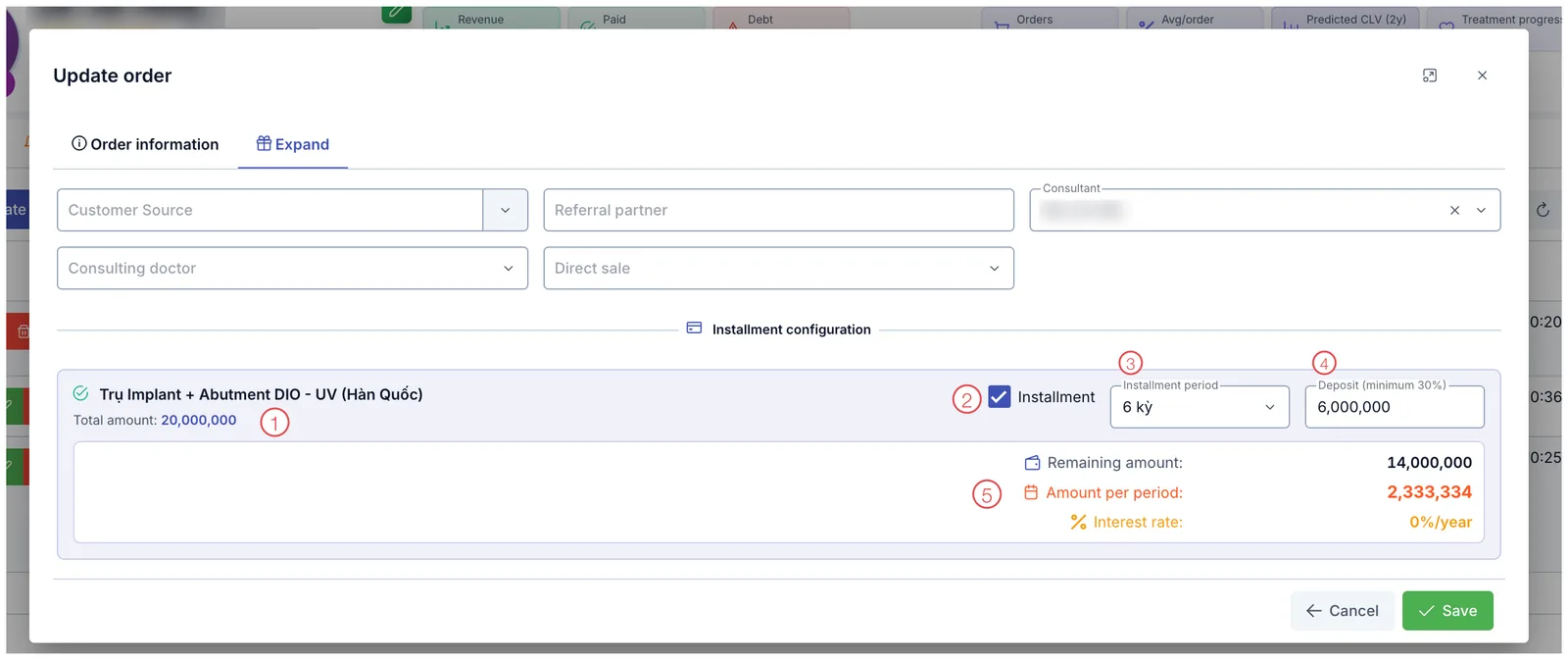
Illustration of the installment configuration
| Mark | What it is |
|---|---|
| 1. Service name and Total amount | The service being paid in installments and its full price. |
| 2. Installment checkbox | Turns installments on or off for this service alone. Unticked means a single payment. |
| 3. Installment period | How many terms (e.g. 6 kỳ — six terms). |
| 4. Deposit (minimum 30%) | What the customer pays up front. The label states the minimum your clinic requires. |
| 5. Calculated results | Remaining amount, Amount per period and Interest rate — computed by the software, not editable. |
In the example: a 20,000,000 service, 6,000,000 paid up front, split into 6 terms → 14,000,000 remaining, 2,333,334 per term, 0%/year interest.
The values in Installment period (6 kỳ = six terms) have not been translated yet.
What the customer cares about is how much per term. Confirm that figure and the number of terms with them at the desk, and there is nothing to argue about on collection day.
It means no service in the order has Installment enabled. That is a property of the service in the catalogue, set by an administrator — it cannot be switched on from the order window.
Track the terms already collected and the ones falling due on Create an Installment Plan.
After saving
Click Save (mark K) and the order appears in the Order tab, while the FINANCE figures at the top of the profile are recalculated — see Financial Information.
The usual next step is taking payment, or recording a deposit if the customer is not paying in full.
Related
- Create a Payment — collect money against the order.
- Create a Deposit — take money up front.
- Create an Installment Plan — split the amount into terms.
- Customer Details — where the Order tab lives.