Create a Prescription
A prescription records the medicines a doctor gives a customer after a visit: the diagnosis, the medicine list, the dosage and the instructions. It is stored on the customer (patient)'s profile and printed for them to take home.
Prescribing doctor is a required field. The front desk can open the screen to look at past prescriptions, but prescribing belongs to a doctor — the software records who did it.
Step by step
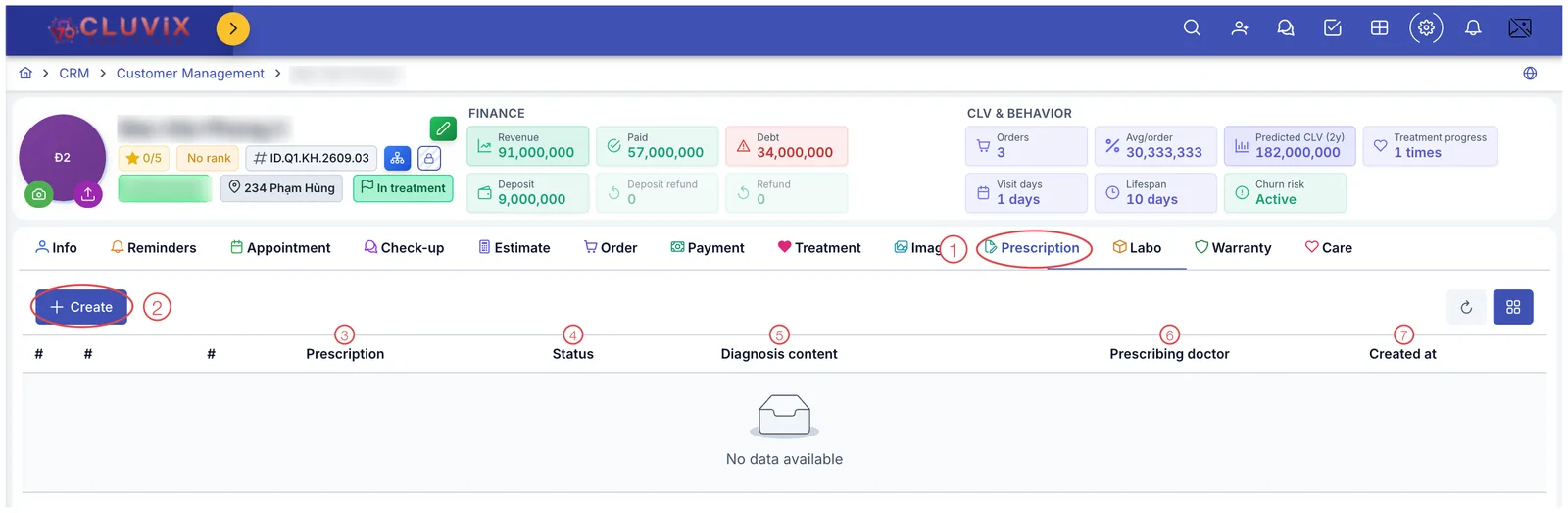
Illustration of the Prescription tab on a customer profile
- Open the customer — go to CRM › Customer Management and click their name to open the customer (patient) profile.
- Choose the Prescription tab (mark 1).
- Click + Create (mark 2).
- Pick a prescription template if your clinic has prepared one — the medicine list fills itself in.
- Fill in the diagnosis and choose the medicines (see below).
- Write the instructions for the customer.
- Click Save. The prescription appears as a row in the table, ready to print.
The table lists the prescriptions already written:
| Mark | Column | Meaning |
|---|---|---|
| 3 | Prescription | The name the doctor gave it. |
| 4 | Status | Prescribed, Dispensed or Cancelled — see Prescription. |
| 5 | Diagnosis content | The diagnosis attached to that prescription. |
| 6 | Prescribing doctor | Who is clinically responsible. |
| 7 | Created at | When it was written. |
Filling in the prescription
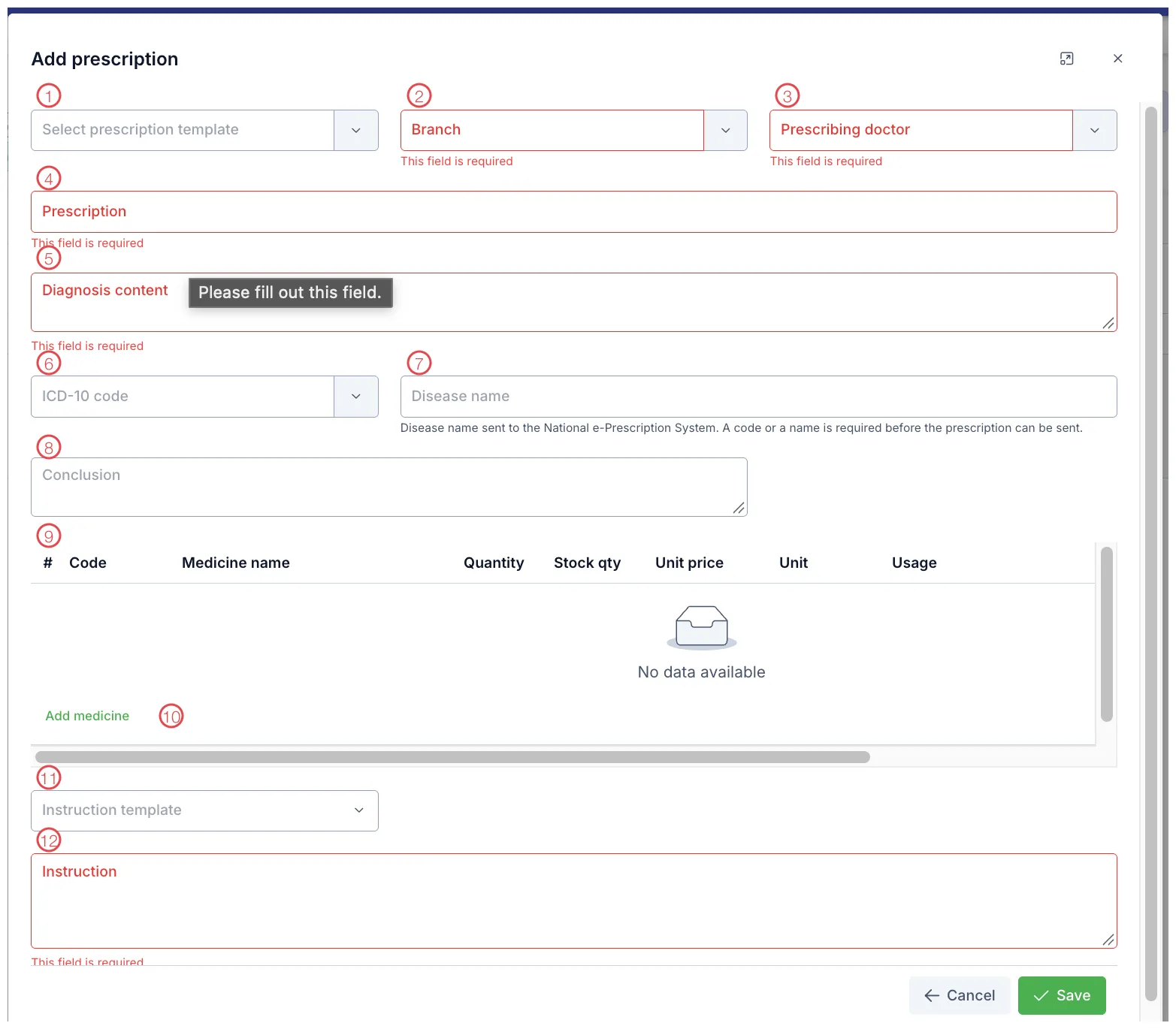
Illustration of the Add prescription window
| Mark | What it is | Worth knowing |
|---|---|---|
| 1. Select prescription template | A ready-made prescription for a common condition. You can still edit every line afterwards. | |
| 2. Branch ⭑ | The site issuing the prescription. | |
| 3. Prescribing doctor ⭑ | The doctor responsible. | |
| 4. Prescription ⭑ | A name, e.g. "After wisdom tooth extraction". | |
| 5. Diagnosis content ⭑ | The doctor's diagnosis, in words. | |
| 6. ICD-10 code | The international disease code, picked from the list. | |
| 7. Disease name | The name sent to the National e-Prescription System. | |
| 8. Conclusion | Any further conclusion; optional. | |
| 9. Medicine table | The medicines in this prescription (see below). | |
| 10. Add medicine | Adds a row to the table. | |
| 11. Instruction template | A ready-made instruction, so you do not retype it. | |
| 12. Instruction ⭑ | What the customer must do; printed on the prescription. |
⭑ = required — the software outlines the field in red with "This field is required" until it is filled.
Right under the Disease name field the software says: "Disease name sent to the National e-Prescription System. A code or a name is required before the prescription can be sent."
Neither field is needed to save the prescription, but one of them is needed to send it to the national system. Left empty, the prescription stays inside your clinic only.
The medicine table
Each row is one medicine:
| Column | Meaning |
|---|---|
| Code | The medicine's code in your clinic's catalogue. |
| Medicine name | Picked from the catalogue; type a few letters to search. |
| Quantity | How many units are prescribed. |
| Stock qty | How many are left in stock — check before prescribing, so the customer is not sent to an empty pharmacy. |
| Unit price | Price per unit. |
| Unit | Tablet, blister, box, ampoule… |
| Usage | The dosage: how many times a day, when, before or after food. |
Click Add medicine (mark 10) for another row. The table has a horizontal scroll bar underneath — drag it right to see every column on a narrow screen.
Prescribing something out of stock sends the customer home empty-handed after paying. If stock is low, switch medicine or tell them to buy outside while they are still with you.
"Twice a day, one tablet after food" beats "2x1 p.c.". Nobody is standing next to the customer (patient) at home to decode it.
Related
- Record a Check-up — the visit this prescription follows.
- Customer Details — where the Prescription tab lives.
- Prescription in the customer profile — dispense, print and submit to the National Prescription System after writing it.
- Pharmacy & drug store module — where the medicine catalogue and stock live.