Create a Payment
A payment records money actually received for services already listed on an order. Each collection is one row — paying in several goes creates several rows, and the software adds them up and reduces the debt.
The Payment tab
Open the customer (patient) profile and click the Payment tab.
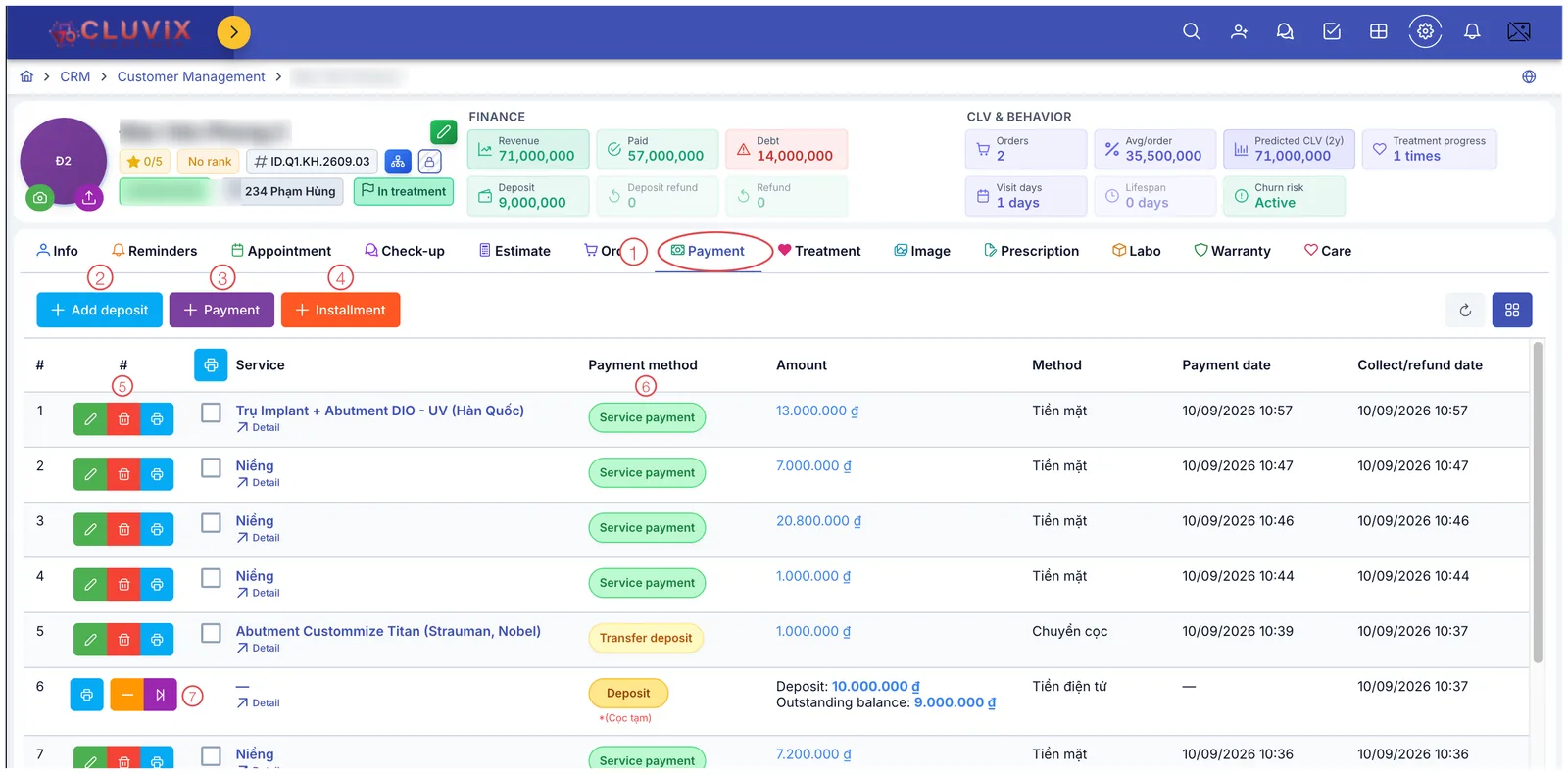
Illustration of the Payment tab on a customer profile
| Mark | What it is |
|---|---|
| 1. Payment tab | The customer's complete money history. |
| 2. + Add deposit (blue) | Money taken before it is tied to any service — see Create a Deposit. |
| 3. + Payment (purple) | Collect money for a specific service — this page. |
| 4. + Installment (orange) | Collect one installment term — see Create an Installment Plan. |
| 5. Row buttons | Edit (pencil), delete (bin), print a receipt (printer). |
| 6. Payment method column | A coloured chip telling you what kind of transaction the row is. |
| 7. Deposit row | A deposit row looks different from the rest (see below). |
The checkbox on each row plus the printer icon in the column header are for printing several receipts at once: tick the rows, then click the header printer.
Reading the payment table
| Column | Meaning |
|---|---|
| Service | The service being paid for. Click Detail to open the original order. |
| Payment method | Service payment (green) — money for a service; Transfer deposit (yellow) — existing deposit money applied to a service; Deposit (dark yellow) — the customer paying a deposit. |
| Amount | The value of that transaction. |
| Method | How the customer paid: cash, e-money, deposit transfer… |
| Payment date | When the transaction was recorded. |
| Collect/refund date | When the money actually moved in or out. |
The deposit row (mark 7) shows two figures: Deposit: 10,000,000 đ and Outstanding balance: 9,000,000 đ — meaning part of that deposit has been used and this much is still unattached. Under the chip it also names the deposit type, e.g. (Cọc tạm) — temporary deposit.
Its buttons differ too: no edit or delete, but print, an orange minus to refund the deposit, and a purple button to transfer it to a service. Details on Create a Deposit.
Filling in the payment window
Click + Payment (mark 3) and the Create window opens:
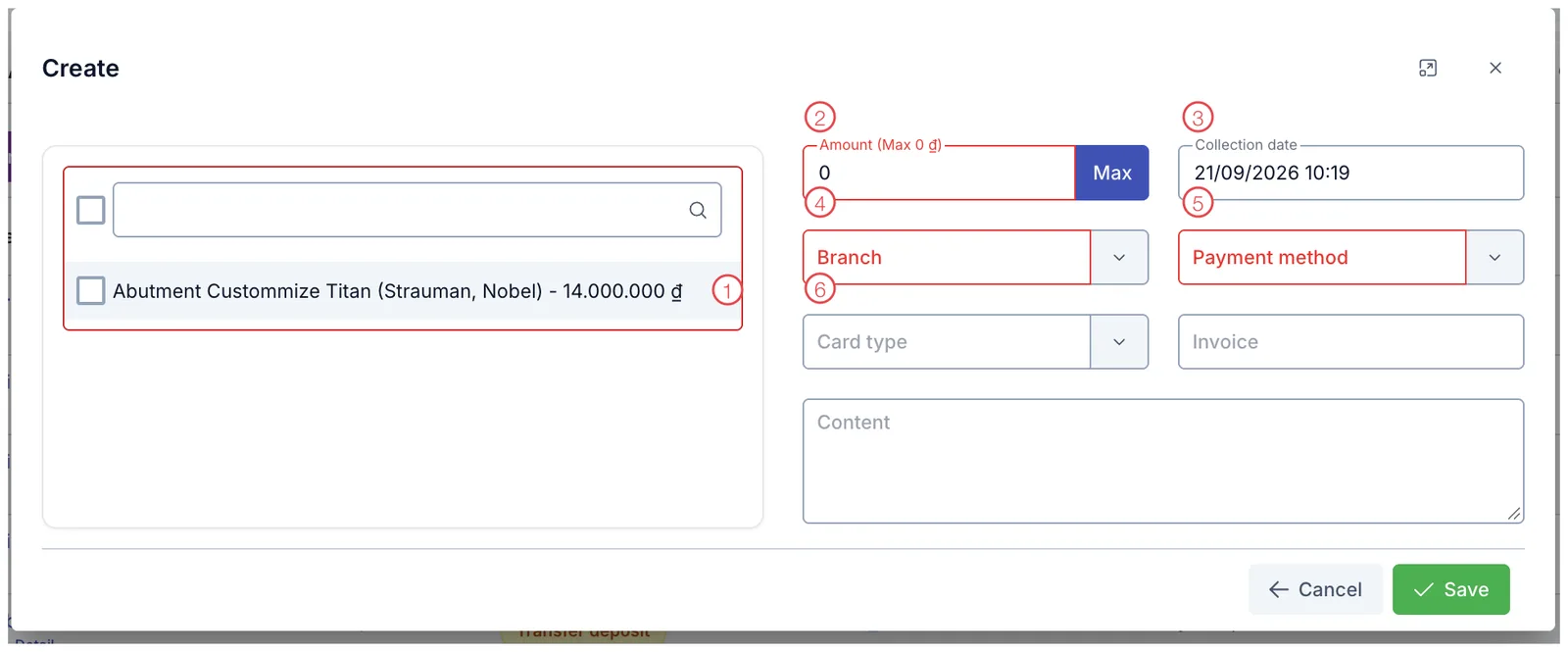
Illustration of the payment window
| Mark | What it is | Worth knowing |
|---|---|---|
| 1. Service list | Services not yet paid in full, each with the amount outstanding. Tick the ones being paid; there is a search box for long lists. | |
| 2. Amount + Max | What the customer is handing over. The label states the maximum collectable; Max fills exactly that. | |
| 3. Collection date | When the money was received. Pre-filled with now. | |
| 4. Branch ⭑ | The location receiving the money. Required. | |
| 5. Payment method ⭑ | Cash, bank transfer, card… Required. | |
| 6. Card type | Only for card payments — pick the matching card type. |
⭑ = required.
The remaining fields: Voucher No. for an invoice number or transaction reference, and Content for any note about this collection.
Max fills the entire outstanding amount. If the customer can only pay part of it, type what you actually received — the rest stays as debt and the next collection creates a new row.
With nothing ticked at mark 1, the money has nothing to reduce. Tick the service the customer (patient) is actually paying for, especially when several are in progress at once.
After saving
Click Save and the new row appears in the table, while Paid and Debt at the top of the profile are recalculated — see Financial Information.
Related
- Create an Order — an order must exist first.
- Create a Deposit — money taken before services are agreed.
- Create an Installment Plan — collecting term by term.
- Financial Information — where these figures surface.