Medical Records List
Every record the clinic has created sits here — searchable by patient, doctor, department or period. This is also where the doctor signs a record, and where the statutory medical forms are exported.
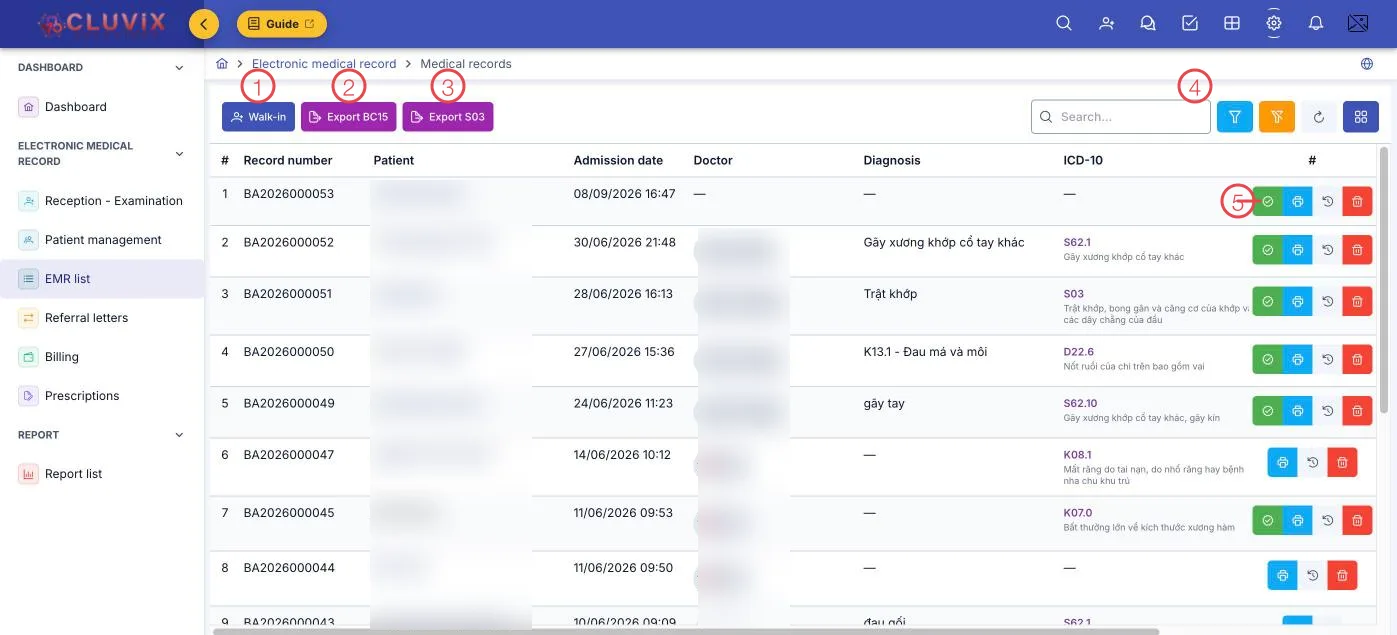
Illustration of the Medical records screen
| Area | What it is |
|---|---|
| 1. Walk-in | Register a new walk-in patient — it creates the visit and opens the examination page. |
| 2. Export BC15 | The health insurance fund usage report. |
| 3. Export S03 | The outpatient statistics register. |
| 4. Search and filters | Search by keyword; the funnel filters by Admission date, Doctor, Department, Branch, Record status and Payment status. |
| 5. Row buttons | Sign record, Print record, Audit log, Delete. |
The ICD-10 column shows both the code and the disease name from the ICD-10 catalogue — this is what makes the record fit for medical statistics, and it is the data behind the Top diagnoses report.
Record statuses
| Status | Meaning |
|---|---|
| Draft | Just created, the doctor has not finished writing it. |
| In progress | The visit is under way. |
| Completed | Signed, and locked. |
| Cancelled | The visit did not take place. |
Alongside it runs the payment status: Unpaid, Partially paid, Paid — filter on it to find records still short of payment.
Signing a record
Click Sign record (the tick icon, position 5). The dialog states plainly what is about to happen: once signed, the record becomes Completed and is locked. You tick the confirmation — "I confirm I have checked this record and take responsibility for its content" — add a signing note if you want (for example "signed after consultation"), then click Sign record.
Where the clinic uses a CA digital signature, the software also asks for the signature provider and the doctor's personal signing account and password. Those are used for that one signature only; the software does not keep them.
The right to sign belongs to doctors registered with the medical facility. Ask your clinic administrator if you need it.
A signed record cannot be deleted — exactly as an electronic medical record should behave. To change the content, amend the record and state why — see Amending a signed medical record.
Complete without digital signature
When the doctor signs from the Conclusion tab (the Sign with CA button), the dialog also has a Complete without digital signature button — for a doctor who has no certificate yet or whose certificate is failing. The record still moves to Completed and is locked, as with a manual signature. The button only appears when the clinic has not turned on Require digital signature to complete medical record in Digital signature.
Amending a signed medical record
A completed record is locked: every field on the Conclusion tab is read-only, and the top of the tab shows the orange Record completed box with an Amend button.

Illustration of the lock box on the Conclusion tab (Vietnamese interface)
- Click Amend and enter the Amendment reason (at least 10 characters).
- Click Amend finalized medical record.
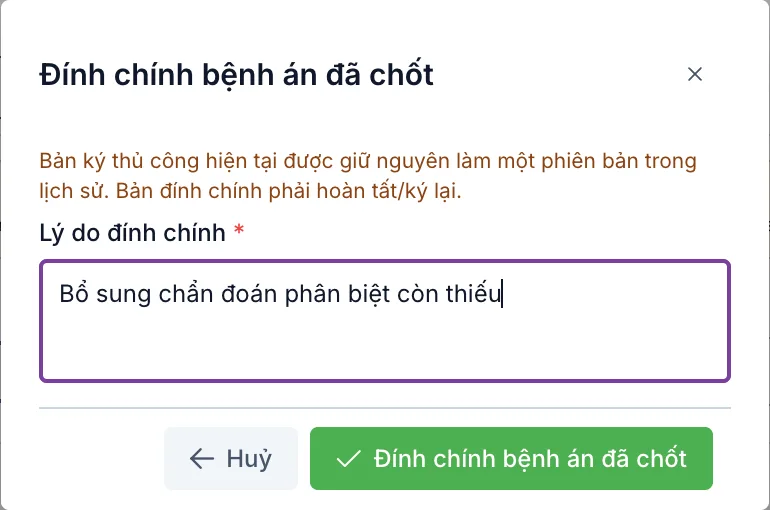
Illustration of the Amend finalized medical record dialog (Vietnamese interface)
The signed version is kept as a version in Signature & version history. The record reopens for editing; when done it must be completed or signed again, just like the first time.
Who can amend: the doctor who signed the record, within the Amendment period (days) the clinic sets in Digital signature; anyone with the Medical record — Amend signed medical record permission can amend at any time. After the period, without the permission, the dialog says "The amendment period set by the facility has expired — a user with amendment permission is required."
When the clinic requires approval: the dialog states "Amendments require approval at this facility: the request will wait for approval and the record will NOT open immediately." Once sent, the lock box shows Amendment request sent — awaiting approval with the sender and the time. The approver handles it under Pending my approval; once approved, the record opens for editing automatically.
Occasionally a request is approved but the record does not open (for example someone was saving the record at the moment of approval). The lock box then shows Approved but not applied with a Re-apply button — the requester, the approver or anyone with amendment permission clicks it to open the record, without sending a new request.
Click Signature & version history at the bottom of the Conclusion tab to see every signed version, who amended it, the reason, the approver, and to open the signed PDF of each version.
Visits within an episode are amended separately on the Timeline tab — see Treatment Episode Timeline.
The audit log
The clock-arrow button opens the Medical record audit log: who created it, who edited it, who signed it, who reopened it, and when. This is the audit trail that Circular 13/2025 requires of an electronic record, and the quickest answer when an old record has to be reconciled.
Printing and exporting
- Print record (the printer on each row) — a printout of that record.
- Export BC15 — the health insurance fund usage report.
- Export S03 — the outpatient statistics register.
BC15 and S03 are the forms used with the insurance and health authorities, exported straight from data you already have rather than compiled by hand.
Related
- Reception - Examination — where a visit begins.
- Billing — taking payment for these records.
- Prescriptions — the prescriptions these visits produce.