Treatment Episode Timeline
The Timeline is the running log of a multi-visit treatment episode — orthodontics, implant placement, physiotherapy… For each visit the doctor records the symptoms, the procedure done and the plan for the next visit; when a visit is done it is locked and signed. If a signed visit needs a correction, it is amended with a reason, and the earlier signed version is kept intact for later reference.
Opening the Timeline tab
From Reception - Examination, click the patient's name to open the examination screen, then choose the Timeline tab. The tab appears when the visit belongs to an Episode type medical record.
At the top is the episode card: the record code, the episode status (Episode open, Episode closed, Episode cancelled), the start date and Visits completed. Each visit is listed below, the newest at the bottom.
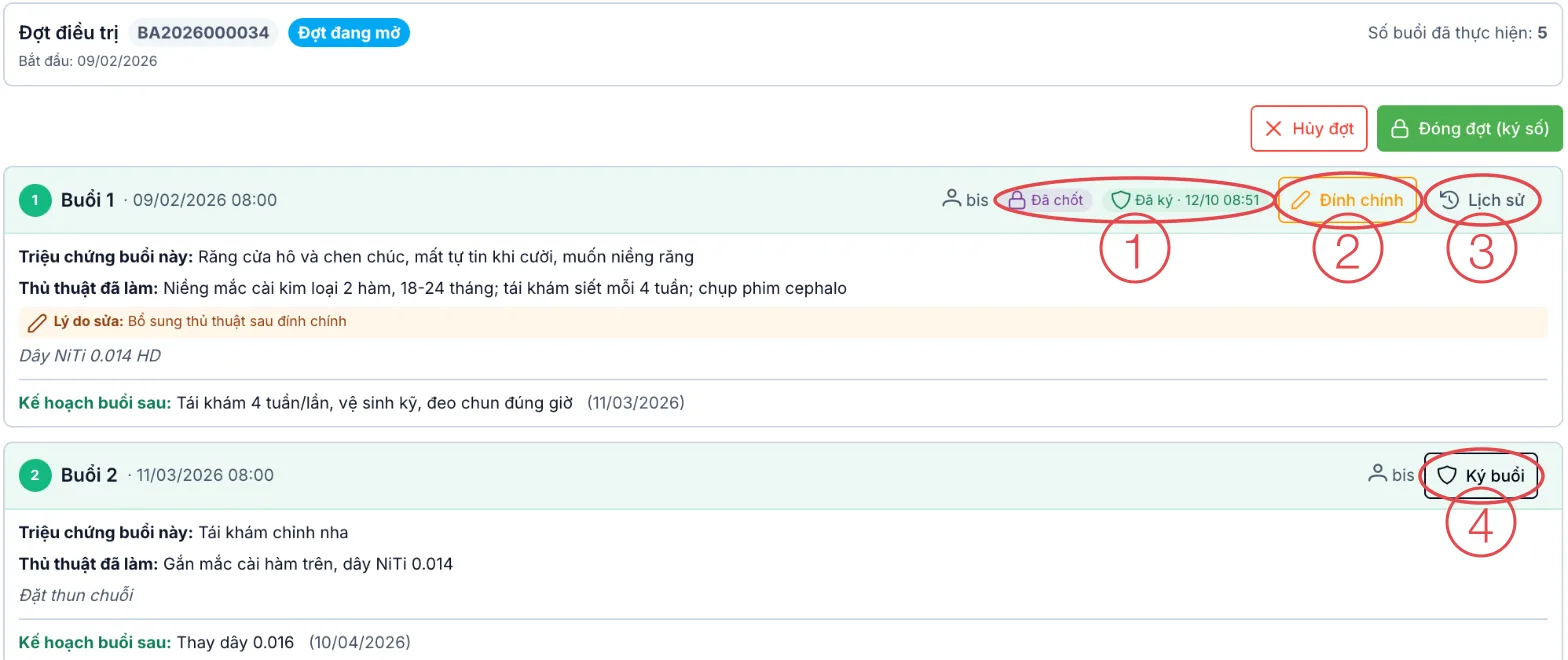
Illustration of the Timeline tab for an orthodontic episode (Vietnamese interface)
| Position | Meaning |
|---|---|
| 1. Locked · Signed badges | Locked: the visit has been saved on the Conclusion tab. Signed: the doctor has signed the visit, with the date and time. |
| 2. Amend | Reopens a signed visit for editing — see Amending a signed visit. |
| 3. History | The signed versions of the visit — see Visit version history. |
| 4. Sign visit | Shown on visits not yet signed — see Signing a visit. |
A visit that was edited after being locked also shows an orange Amendment reason line inside the visit card.
Recording a visit
The content of a visit is entered on the Conclusion tab of that visit. From the second visit of an episode onward, the top of the Conclusion tab shows a green strip Recording this treatment visit · Visit 2/5 — the first number is the current visit, the second the total number of visits in the episode. Clicking Update conclusion saves and locks the visit.
- The episode's original diagnosis is read-only on later visits, so every visit follows the same diagnosis. To change it, click Edit original diagnosis, enter a reason (at least 5 characters) and save.
- Editing a visit that is locked but not signed: on saving, the Amend a locked visit dialog asks for a reason (at least 5 characters). That reason appears as the Amendment reason line on the Timeline tab.
- A signed visit cannot be edited directly on the Conclusion tab — the software says "This visit is signed — use Amend on the Progress tab to edit its content."
Signing a visit
Click Sign visit on the visit card to open the Sign visit progress note dialog:
- The clinic has set up Digital signature: the doctor enters their own Digital signature account (CA) and CA password (not stored by the software), or signs straight away without entering anything when using a linked Viettel-CA (Mysign) account.
- The clinic has not set up a digital signature: the dialog says "The facility has not configured a digital signature — this visit will be recorded as a manual sign."
Once signed, the visit card shows the Signed badge with the date and time. The signature covers the whole visit: symptoms, procedure, plan, vital signs, prescriptions and paraclinical orders of that visit.
A visit can be signed while the episode is open. Once the episode is closed or cancelled, visits only show the History button.
Amending a signed visit
Use this when a signed visit was recorded incompletely or incorrectly. Click Amend on the visit card, enter the Amendment reason (at least 10 characters) and click Amend.
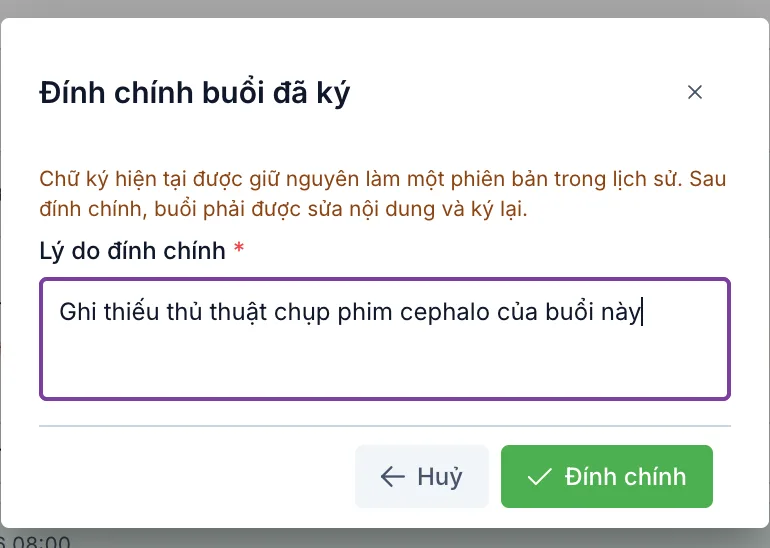
Illustration of the Amend signed visit dialog (Vietnamese interface)
After amending:
- The current signature is saved as a version in History — nothing is lost.
- The visit's signature is removed but it stays Locked; the software says "Visit amendment opened — you can now edit the content".
- Click Open visit to edit to go to that visit's Conclusion tab, edit the content and save.
- Back on the Timeline tab, click Sign visit to sign again.
Who can amend
| Who clicks | Can amend when |
|---|---|
| The doctor who signed the visit | Within the Amendment period (days) the clinic sets in Digital signature (0 means no limit). |
| Anyone with the Medical record — Amend signed medical record permission | Any time, even after the period has ended. |
Anyone else receives the message "You are not the signer/treating doctor and have no permission to amend a signed visit". The permission is granted in the staff role permissions.
When the clinic requires approval for amendments
If Digital signature has Require approval to amend signed medical records turned on, clicking Amend sends a request instead of opening the visit right away:
- The visit card shows the Amendment pending approval badge. Each visit can have only one pending request at a time.
- The approver handles it under Pending my approval together with other approvals.
- Approved: the visit opens for editing as described above. Rejected: the visit keeps its signed version.
Approval follows the template for the document type Signed treatment visit amendment. An administrator creates this template under System configuration › Approval workflow › Approval templates before turning on the approval switch.
Visit version history
Click History on the visit card to open Version history of visit n. Each row is one signing: version, method (digital or manual signature), signer, signed at, amended by, reason, approver and status.
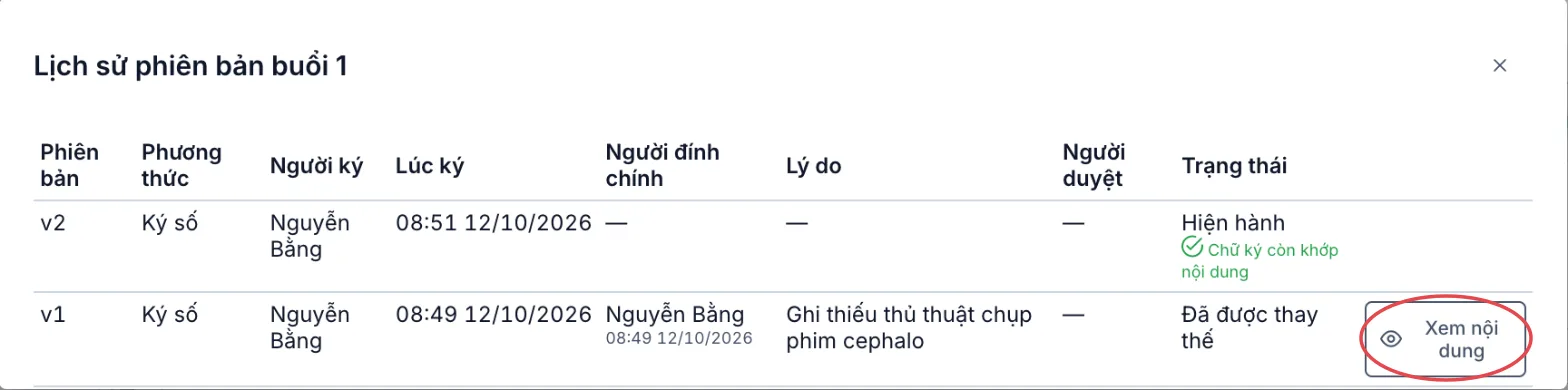
Illustration of the visit version history (Vietnamese interface)
- Current — the version in effect. The green line Signature still matches the content means the visit content has not changed since it was signed.
- Superseded — an earlier signed version before an amendment. Click View content (circled in red) to read exactly what that version said.
When a patient or an inspector asks "what did that visit say originally, who changed it and why", History has the full answer in one place — the earlier version, who amended it, the reason and the approver. Every amendment also appears in the record's Signature & version history and the medical record audit log.
Closing or cancelling the episode
When the last visit is done, click Close episode (sign) at the top of the tab to summarise and sign the whole episode — see Closing a treatment episode. If the patient will not continue, click Cancel episode and enter a reason (at least 5 characters).
Once an episode is closed or cancelled, its visits can no longer be signed or amended — even if the medical record is amended afterwards. Review and sign every visit before closing the episode.
Common errors
- "This visit has already been signed. The list has been refreshed." → someone else just signed this visit; the list has reloaded, check the new Signed badge.
- "This visit already has an amendment request awaiting approval — no new request can be sent." → wait for the approver to handle the existing request.
- "The treatment episode is closed — the visit cannot be amended" → the episode is closed or cancelled, see the warning above.
- "Digital signature account is incorrect or expired. Please re-enter." → check the doctor's CA account and password, then sign again.
Related
- Forms & Records — the documents attached to each visit.
- Medical Records List — signing records, closing episodes, amending records.
- Digital signature — amendment period and amendment approval.