Prescriptions
Every prescription a doctor writes during an examination arrives here. The pharmacy works from this screen to dispense, and the clinic reads it to see which prescriptions have been submitted to the National Prescription system (DQG).
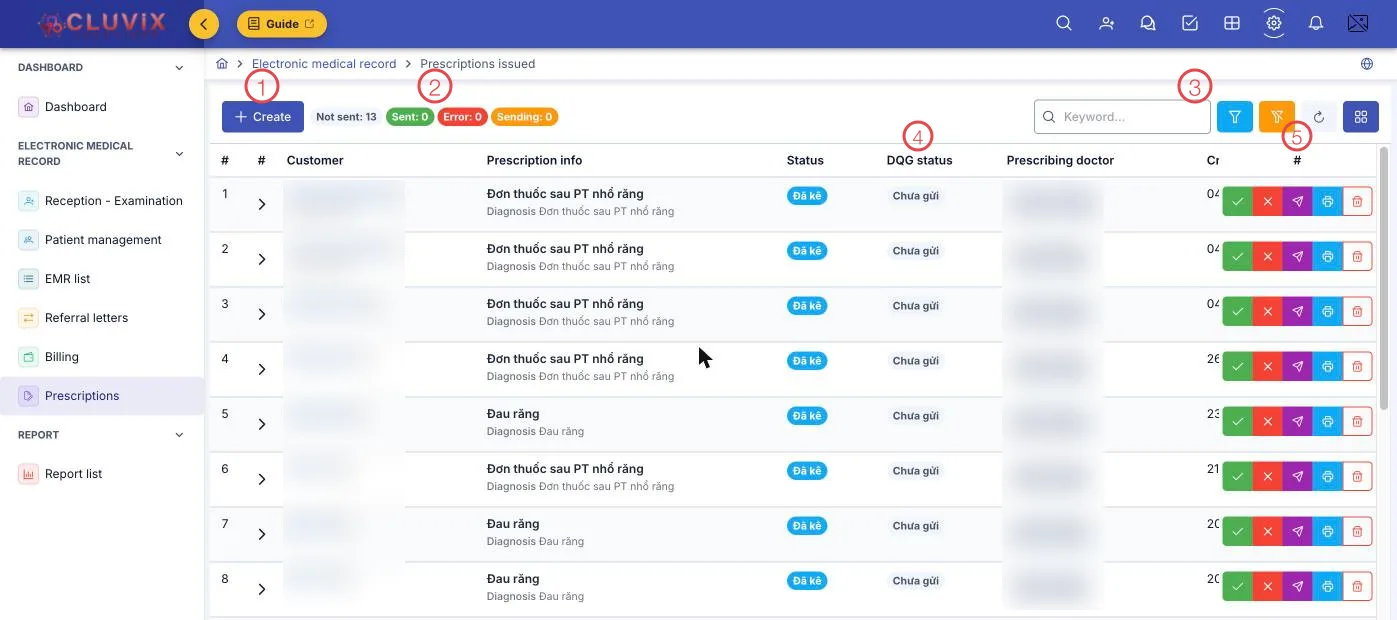
Illustration of the Prescriptions screen
| Area | What it is |
|---|---|
| 1. Create | Write a prescription right here, without going through a visit. |
| 2. Four status counters | Not sent · Sent · Error · Sending — prescriptions by submission state. Click one to filter by it. |
| 3. Search and filters | Search by prescription code or patient name; the funnel filters by status, date and prescribing doctor. |
| 4. DQG status column | Where each prescription stands with the National Prescription system. |
| 5. Row buttons | Dispense (tick) · Cancel prescription (cross) · Send to DQG (paper plane) · Print (printer) · Delete (bin). |
Click the ▸ arrow at the start of a row to expand it and see the medicines in the prescription: each item, the quantity prescribed, the quantity dispensed, the dose, how many times a day and for how many days.
Dispensing to the patient
The green tick is Dispense. The pharmacy clicks it when handing the medicines over — the software records the quantity dispensed for each item and takes it out of stock, so the medicine stock always matches what has actually gone out.
Qty prescribed and Qty dispensed sit side by side for exactly that reason: a part-filled prescription is visible at a glance.
The National Prescription system
Under the rules on electronic prescriptions, prescriptions written at a medical facility are submitted to the National Prescription system. In the software that is one button:
- Click the paper plane on a row to Send to DQG.
- The DQG status column and the four counters at position 2 show where each one stands.
- A prescription can be sent again with Resend to DQG, and the software keeps the number of attempts.
Select several prescriptions and click Send to DQG to submit them in one batch. Everything in a batch must belong to the same branch, because each branch submits under its own facility details.
Printing a prescription
The printer button prints the prescription on the clinic's template: patient details, diagnosis, the list of medicines with doses and instructions, and the prescribing doctor's name. This is the sheet the patient takes home.
Related
- Reception - Examination — the doctor prescribes in the Conclusion tab.
- Medical Records List — the record holding the diagnosis behind a prescription.
- Billing — the cost of medicines forms part of the visit total.
- Prescription (Pharmacy module) — the same prescriptions seen from the pharmacy side: dispensing by batch, submitting to the National Prescription System.