Forms & Records
Forms & records is where you create every document that goes with a visit: consent forms, procedure notes, surgery notes, safety checklists, treatment follow-ups, nursing care… Completed forms are attached to the medical record when it is signed and printed together with it, so the patient's file is always complete inside the software.
Opening the Forms & records tab
From Reception - Examination, click the patient's name to open the examination screen, then choose the Forms & records tab. The list shows every form of this visit.
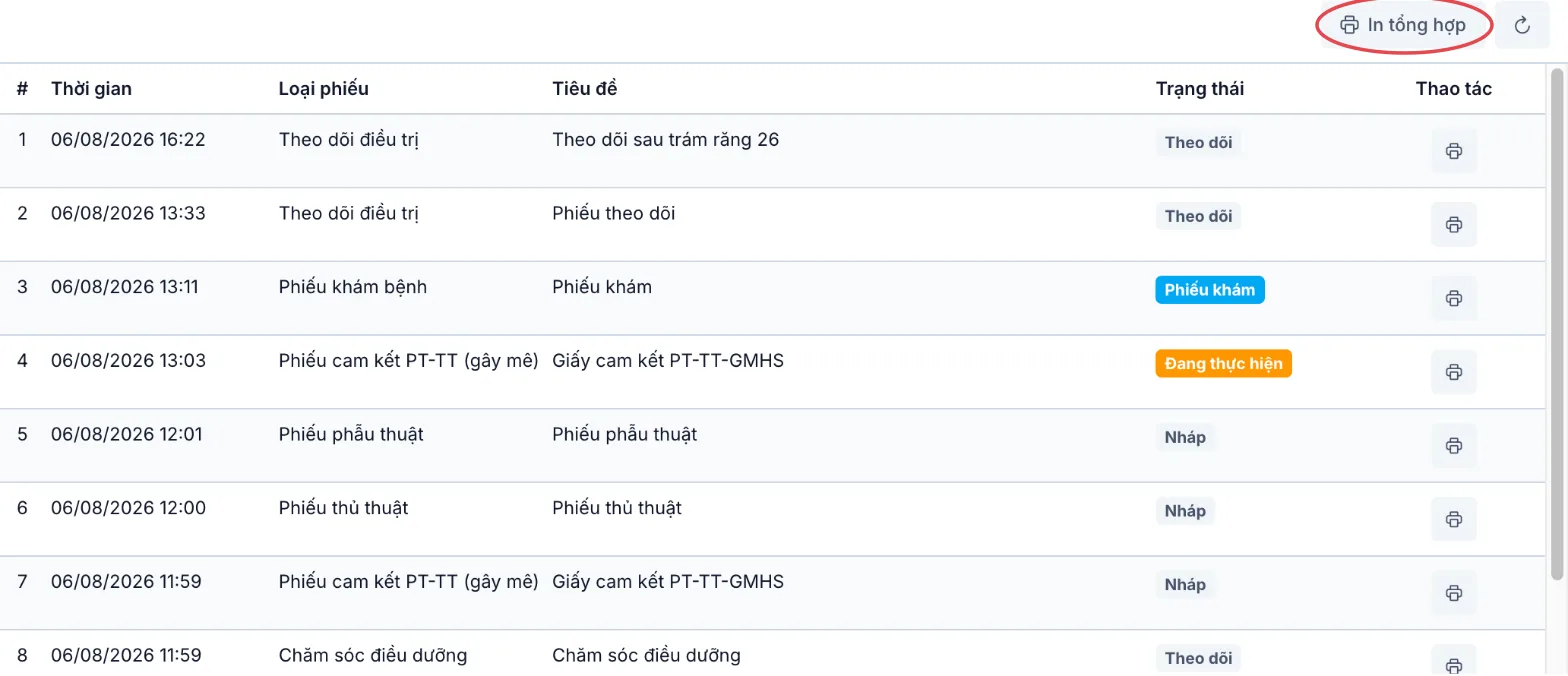
Illustration of the Forms & records list (Vietnamese interface)
The Status column tells you where each form is:
| Status | Meaning |
|---|---|
| Draft | Saved, not started yet. |
| In progress | Being worked on — for example during the consultation or the procedure. |
| Completed | Content finalised. Only Completed forms can be attached to the medical record. |
| Follow-up | Forms written many times, such as treatment follow-up and nursing care — they have no steps above. |
| Exam record | The examination record the software builds from the Exam and Conclusion tabs. |
The Actions column has a Print button for every form; while the medical record is not signed, forms that are not completed (except the Exam record) also have Edit and Delete. The Print combined button (circled in red) merges every entry of the same form type — for example 10 treatment follow-ups — into one printout.
Adding a new form
Click Add form / record. The template picker opens: the left column lists groups (General forms and specialty groups such as dentistry or rehabilitation), the right column lists the templates in the group. Type in the Search box to filter by template name or code (for example HC-06).
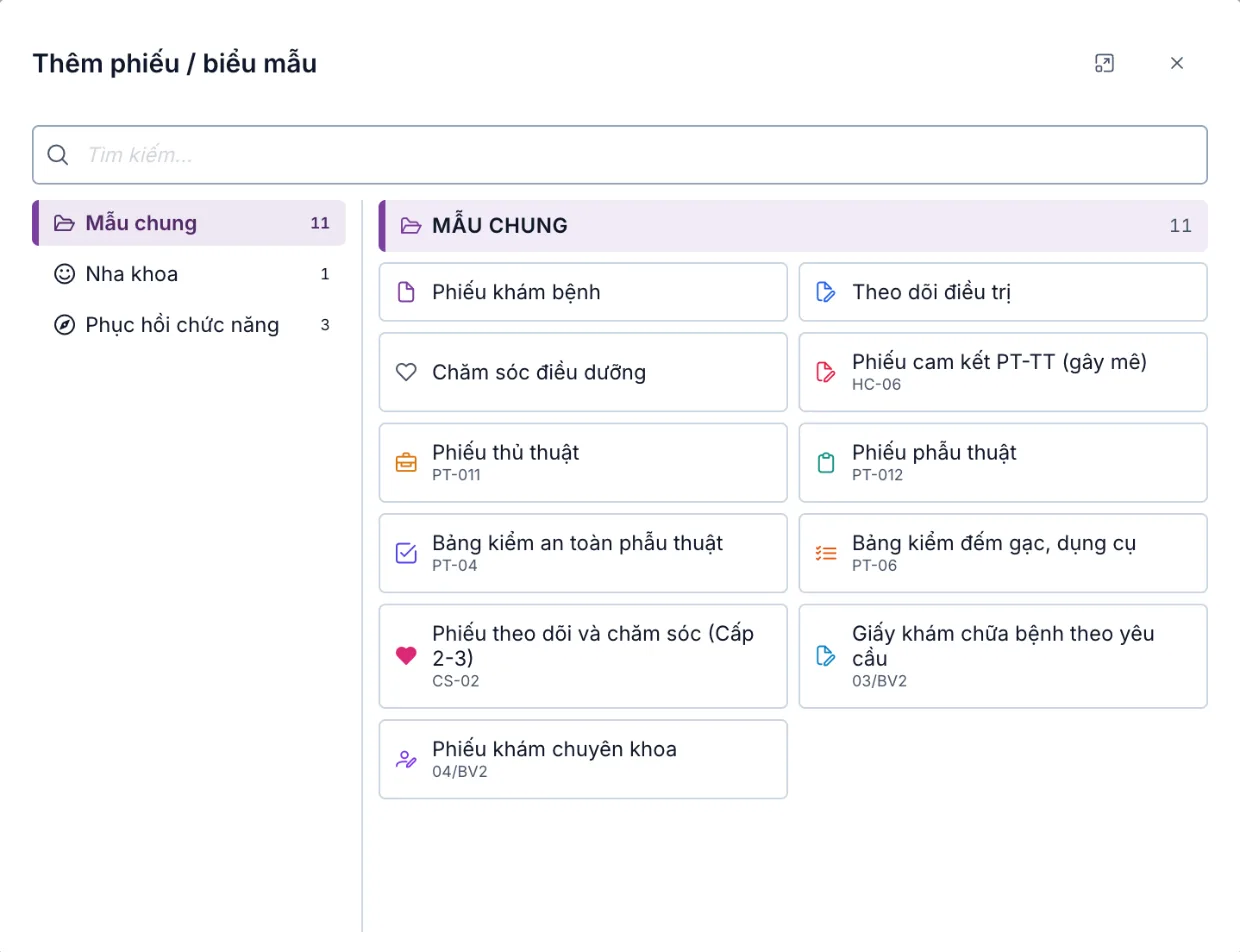
Illustration of the Add form / record dialog (Vietnamese interface)
Click a template to open the form, fill it in and click Save. The form appears in the list as Draft.
Starting and completing a form
Open the form again from the list. The top bar of the form has the step buttons:
- Start — the form moves to In progress.
- Complete — the form moves to Completed and is locked, showing the orange Document completed box.
Reopening a completed form
A completed form can only be edited by reopening it with a reason — every reopening is recorded.
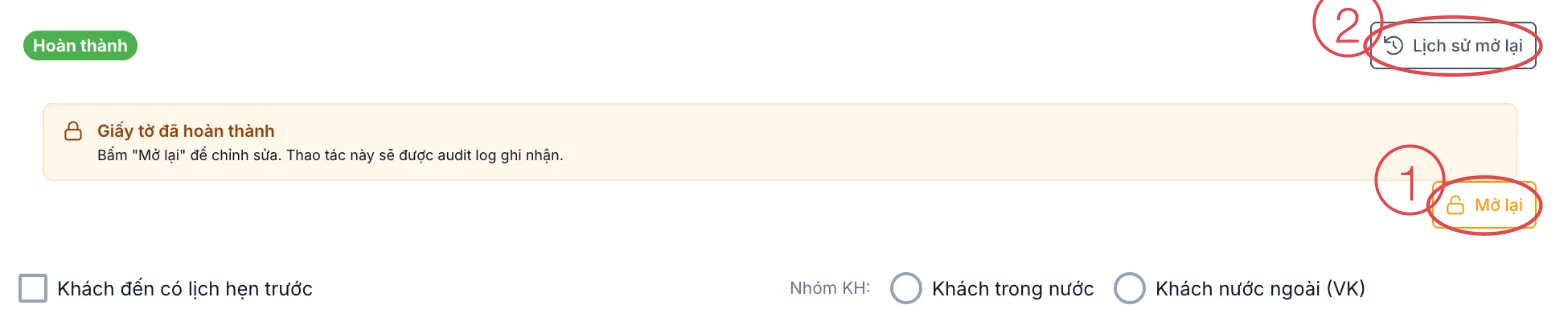
Illustration of the status bar of a completed form (Vietnamese interface)
- Click Reopen (number 1), enter the Reason for reopening — required — and click Reopen in the dialog.
- The form returns to In progress for editing; when done, click Complete again.

Illustration of the Reopen dialog (Vietnamese interface)
Who can reopen
A form can be reopened by:
- the person who created it;
- the doctor assigned on the form;
- the treating doctor of the medical record;
- anyone with the Medical record — Amend signed medical record permission.
Anyone else receives a message that they have no permission to reopen the document.
Reopen history
Click Reopen history (number 2) to see every reopening: who reopened it, when, the reason, the Status before reopening, the image of the Signature of the completed version and the full content of the earlier version. The old signature is kept, even after the form is signed again.
"Re-signing required" warning
For the surgery/procedure consent form (anaesthesia) and the on-demand care request form, if the form is reopened and its content changed while it still carries the old signature, it shows "Content has changed since it was signed — re-signing required". Ask the patient or their representative to sign again — the warning disappears once signed.
Consent forms and procedure notes are the clinic's legal evidence. Keeping the reopening reason, the earlier version and the earlier signature in the history lets the clinic answer straight away "what changed on this form, who changed it and why" when a question or complaint comes up.
Attaching forms to the medical record
On the Conclusion tab, the Medical record attachments section lists the forms of the visit with a count, for example 4/8 attached:
- Completed forms are ticked by default. Untick a form you do not want in the medical record.
- Forms not yet completed show Not completed and cannot be attached.
- When the medical record is signed, the attachment list is locked and printed with the record.
If the visit has a service that needs patient consent but no completed consent form (HC-06) is attached, this section shows This visit requires a consent form with a Go to Documents button — the record can be signed only after this form is added.
When the medical record is signed, the Forms & records tab shows Record signed - read only: forms cannot be added, edited or reopened. To make a change, amend the medical record first — see Amending a signed medical record.
Related
- Treatment Episode Timeline — record and sign each visit of an episode.
- Medical Records List — signing records with their attachments.
- Reception - Examination — where the examination screen opens.