Reception - Examination
This is the busiest screen in the clinic: today's queue. Reception takes in new arrivals, the nurse records vitals, the doctor opens the record and examines — all three start from the same list.
It opens filtered to today, so you see who is waiting straight away.
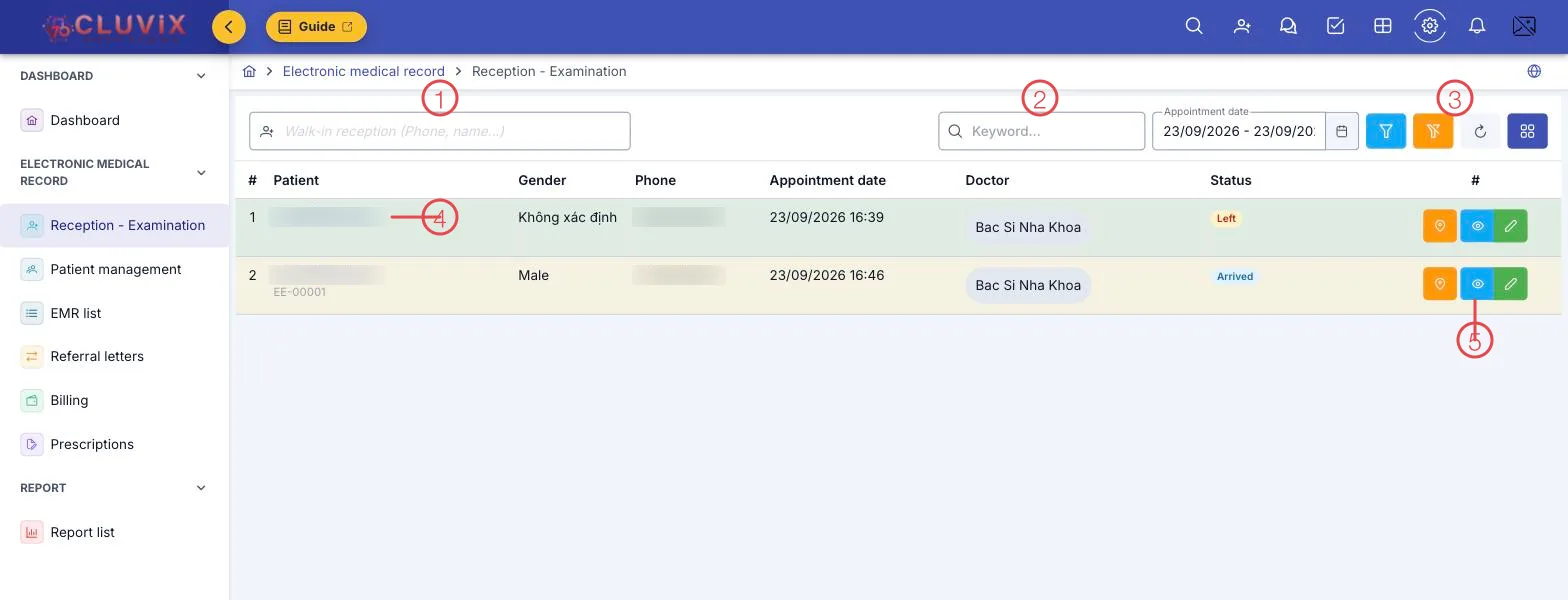
Illustration of the Reception - Examination screen
| Area | What it is |
|---|---|
| 1. Walk-in reception box | Type a phone number or a name, pick the person from the suggestions, and they are taken in — see below. |
| 2. Search and Appointment date | Search within the queue, or change the date range to look at another day. |
| 3. Filter, clear, refresh, columns | The funnel opens filters for Status and Appointment date; the brush clears whatever is applied. |
| 4. Patient name | Clicking the name opens the examination screen for that visit. This is how the doctor gets in. |
| 5. Row buttons | Check-in (map pin), Detail (eye), Edit (pencil) — plus Cancel and Delete, depending on the visit's status. |
Taking in a walk-in patient
A patient who turns up without an appointment does not need a booking made first. Type their phone number or name into the box at position 1 and the software lists matching people with their phone number and patient code. Click the right person and it creates today's visit, issues a queue number and puts them in the queue.
This box searches people who already have a record. For a first-time patient, create the customer record first — it takes seconds, and from then on a phone number is enough.
Arrival: recording vitals
When the patient is in front of you, click the orange map pin in the row's button group. The Check-in dialog opens in two parts:
- Check-in — arrival time, the consulting doctor, and the measurements: height, weight, blood pressure, pulse, temperature, respiratory rate, SpO₂; plus the reason for the visit, symptoms and medical history.
- Check-out — the time they leave and their status on leaving.
What is entered here goes straight into the medical record, so the doctor does not ask for it again.
What a visit's status means
The Status column says where the person is in the process:
| Status | Meaning |
|---|---|
| Not arrived | Booked, not seen yet. |
| Arrived | Checked in, waiting their turn. |
| In consultation | With the doctor or the consultant. |
| In treatment | In the treatment room. |
| Left | Checked out, done for today. |
Every status change is timestamped — so at the end of the day you can see how long people waited and how long they stayed.
Starting the examination
When it is their turn, the doctor clicks the patient's name (position 4). The examination screen opens with these tabs:
- Exam — vitals and clinical examination; dentistry also gets the tooth chart.
- Timeline — only for Episode medical records: the visits of the episode, signing visits, amending signed visits. See Treatment Episode Timeline.
- Orders — the services and paraclinical tests needed during the visit.
- Conclusion — Diagnosis & Sign, Prescription, Treatment.
- Linked — referral letters and earlier visits.
- Payment — the invoice for this visit alone.
- Forms & records — consent forms, procedure and surgery notes, treatment follow-up, nursing care. See Forms & Records.
- Visit history — the patient's earlier visits at the clinic.
The examination and diagnosis sections can be filled from the clinic's own exam templates, so the doctor only edits what is different about this case.
Related
- Medical Records List — the records of finished visits.
- Patient Management — each person's administrative record and history.
- Medical Records Overview — the whole path of a visit.