Overtime Requests
A shift that ran long because the clinic was busy, an evening on call, working a holiday — those hours only reach payroll if there is a request for them. This screen holds the whole life of one.

Illustration of the Overtime requests screen
| Area | What it does |
|---|---|
| 1. Create | Raises an overtime request. |
| 2. Search employee | One person's requests. |
| 3. Branch filter | One site only. |
| 4. Date picker | Filter by the overtime date. |
| 5. Status | Draft, pending, approved… |
The table holds OT date, Hours, Reason, Status and Approved by.
Raising one
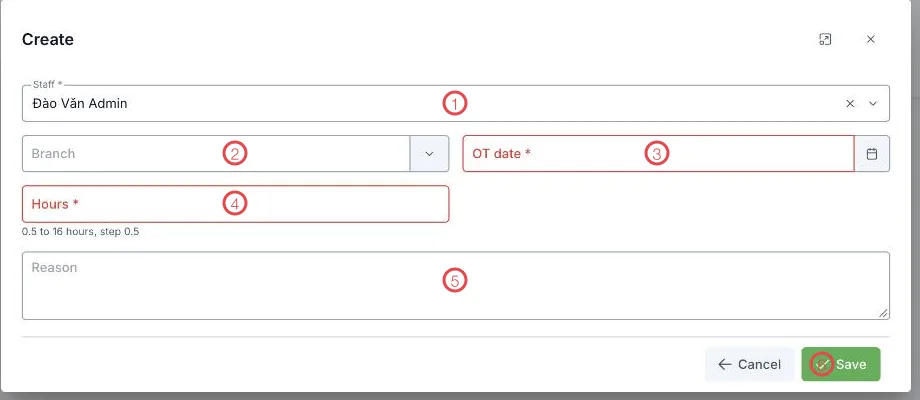
Illustration of the overtime request form
| Area | What goes in |
|---|---|
| 1. Staff (required) | Who worked the extra hours. |
| 2. Branch | The site where they arose. |
| 3. OT date (required) | The day worked. |
| 4. Hours (required) | 0.5 to 16 hours, in steps of 0.5 — half an hour is the smallest unit. |
| 5. Reason | Say why the extra hours were needed; the approver reads this first. |
| 6. Save | Records the request. |
Status and who can edit
A request can only be edited while it is Draft or Returned. Once submitted or approved it locks, so the hours cannot change behind the approver's back — to change them, the approver returns the request.
Approved hours flow into the OT column of the attendance sheet and into that pay period.
Requests raised the day before the pay run are the ones that get missed. Make it a rule: extra hours worked this week, request filed this week.
Related
- Attendance sheet — the OT column comes from here.
- Work schedule — the rostered shifts.