Work Schedule
Who is on which shift, on which day — a month on one grid. Once it is set, staff know their shifts and the attendance sheet has something to measure against.

Illustration of the Work schedule screen
| Area | What it does |
|---|---|
| 1. Month picker | Steps back and forward a month. |
| 2. This month | Back to the current month. |
| 3. Bulk assign | Rosters many days at once — see below. |
The legend shows what each colour means: Work, Leave, Holiday, Business trip and Weekend.
Bulk assign
Setting shifts day by day takes forever. Bulk assign does a whole range in one go:
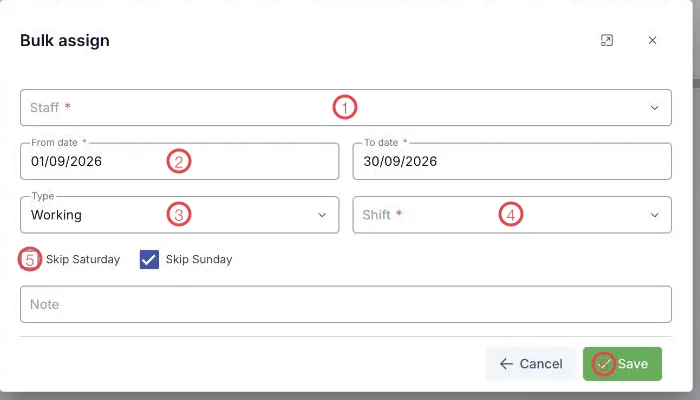
Illustration of the Bulk assign dialog
| Area | What goes in |
|---|---|
| 1. Staff (required) | Who to roster; you can pick several at once. |
| 2. From date – To date (required) | The range, defaulting to the month on screen. |
| 3. Type | Work, Leave, Holiday or Business trip. |
| 4. Shift (required) | The actual shift, e.g. morning or afternoon. |
| 5. Skip Saturday / Skip Sunday | Tick to leave weekends out. |
| 6. Save | Applies it across the range. |
The Note box is for recording why that batch was set.
Roster the month, then fix the exceptions
Run Bulk assign once for the standard pattern, then change only the unusual days. Far faster than setting each day.
Related
- Attendance sheet — what actually happened against the roster.
- Leave requests — approved leave colours the schedule.