Adding a Staff Member
Everyone working in the clinic needs their own account: to log in, to clock in, and so the software knows who did what on each customer's record. This page walks through the whole create-staff form — and stops for a proper look at Specialty department, a small field that decides which treatment form a doctor sees when planning care for a customer.
Opening the form
Go to Staff List — the toolbar has three buttons:
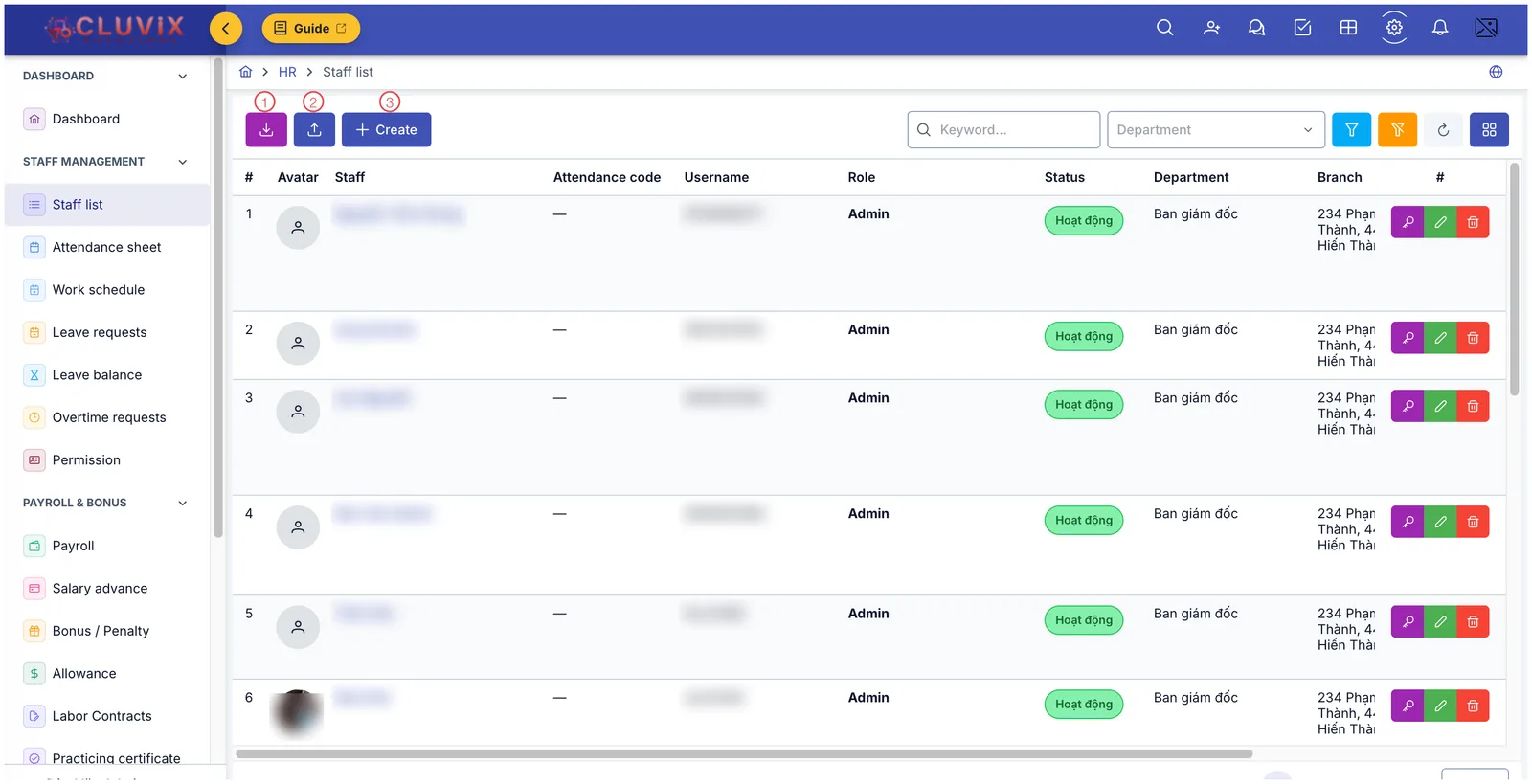
Illustration of the toolbar on the Staff list screen
| Button | What it does |
|---|---|
| 1. Export | Saves the staff list to Excel. |
| 2. Import | Loads several staff members at once from a file — see the last section. |
| 3. Create | Opens the form for adding one person. |
Filling in the record
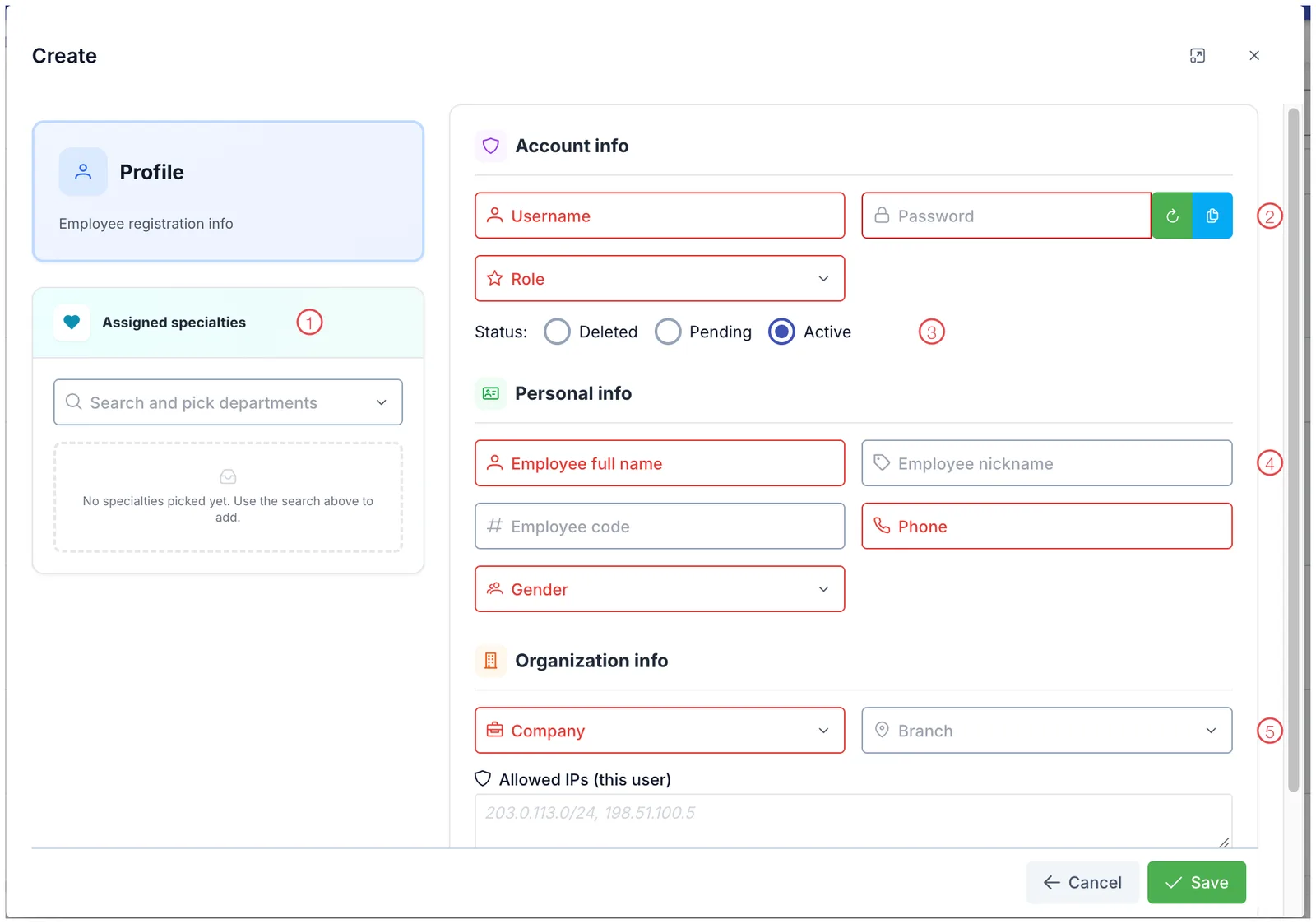
Illustration of the Create staff form
| Area | What to enter |
|---|---|
| 1. Specialty department | The department this person works in. For doctors and technicians it is the most important field on the form — see below. |
| 2. Account details | Username, Password (with buttons to generate and to copy), and the Role that decides what this person can see and do. |
| 3. Status | Active means ready to use straight away. Pending sets the account up now and opens it on the day they start. |
| 4. Personal details | Full name, Phone number and Gender are required. Add a Nickname if the name used around the clinic differs from the one on their papers, and a Staff code to match the attendance machine. |
| 5. Organisation | The Brand and Branch they work at, and the Department used for pay and for assigning work. |
Two less common fields sit in the same organisation block: Allowed IPs (this user only) restricts this person to logging in from certain networks — leave it empty to follow the brand-wide setting; and Pancake ID links the account to an outside chat system.
Click Save and the account is ready.
The green button generates a random password and the blue one copies it, ready to send. After their first login, remind them to change it themselves — a password sent over chat should not stay in use for long.
Choosing the department — the field that shapes a doctor's screen
Specialty department in the left-hand card looks like an administrative detail, but it changes the working screen that person gets.
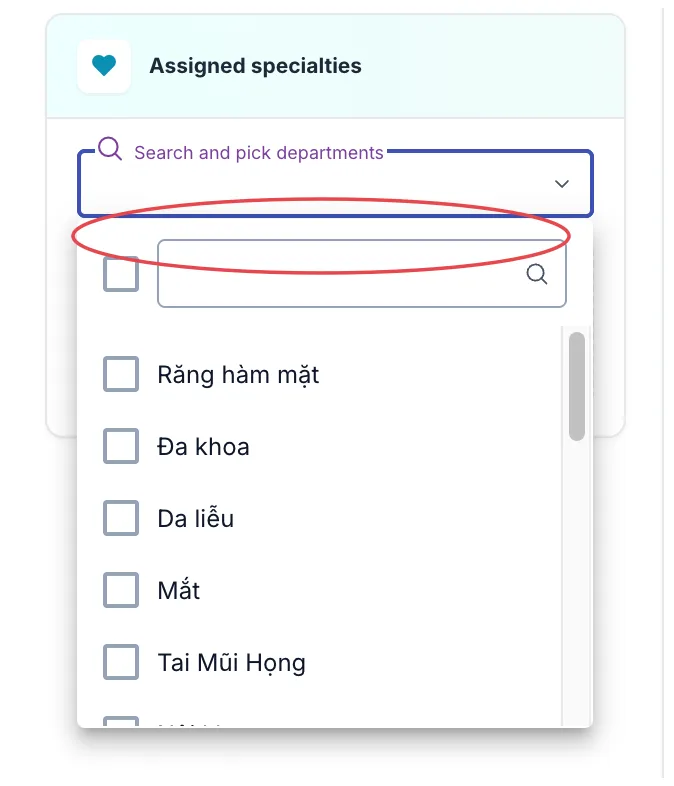
Illustration of the department picker
Click Search and select department and tick the departments this person covers — Dentistry, General, Dermatology, Ophthalmology, ENT and so on. You can tick several for someone who works across more than one.
Why it matters when planning treatment
When a doctor opens a customer's record and starts a treatment plan, the software looks at the primary department on their account and opens the matching form:
| Primary department | Treatment form shown |
|---|---|
| Dentistry | The dental form, with a tooth chart for picking individual teeth and surfaces |
| Rehabilitation | The rehabilitation form, following progress session by session |
| Every other department | The general form, recording the sessions of a treatment course |
Which means: a dentist whose account has no Dentistry department will not get the tooth chart when planning treatment. They can still record the work — they just lose the tool built for their speciality.
The primary department also decides which items appear in the left menu and in the specialty examination part of the medical record, so getting it right on day one saves a lot of time later.
When more than one is ticked, the software uses the department marked as primary to choose the form. If none is marked, it takes the first in the list. A doctor doing both dentistry and dermatology whose primary is dermatology will not see the tooth chart — set the primary to whichever work they do most.
Roles that do not treat customers (patients) can leave this field empty. The department only affects the treatment and medical-record screens — it has nothing to do with attendance or pay.
Resetting someone's password
Staff who forget their password do not need a new account. Open their record and use Reset password:
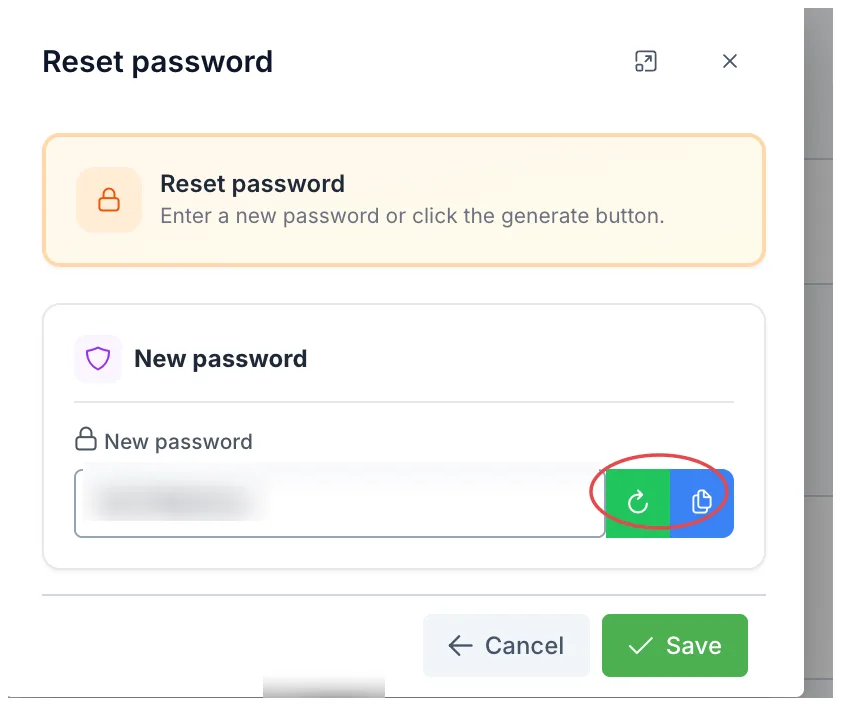
Illustration of the Reset password dialog
Type a new password, or click the green button to have one generated and the blue button to copy it for sending.
Adding many people at once from a file
Opening a new clinic, or taking on a whole shift, makes typing people in one by one slow. The Import button on the toolbar handles it in two steps shown on screen:
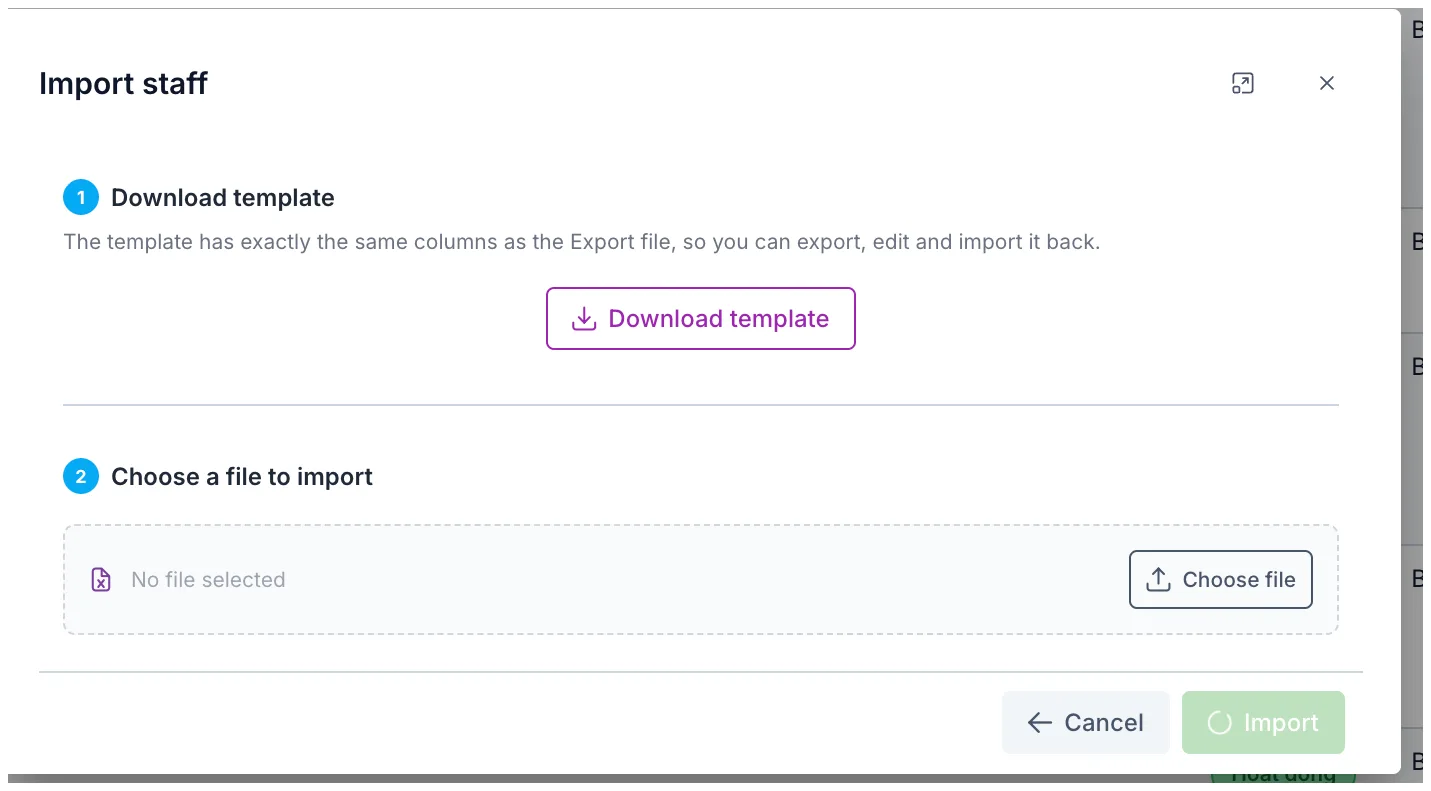
Illustration of the Import staff dialog
Download the template, fill in the list, then choose that file to upload. The template has the same columns as the export file, so the quickest route is to export what you already have, edit it directly and load it back.
When you click Export, the software asks what you want:
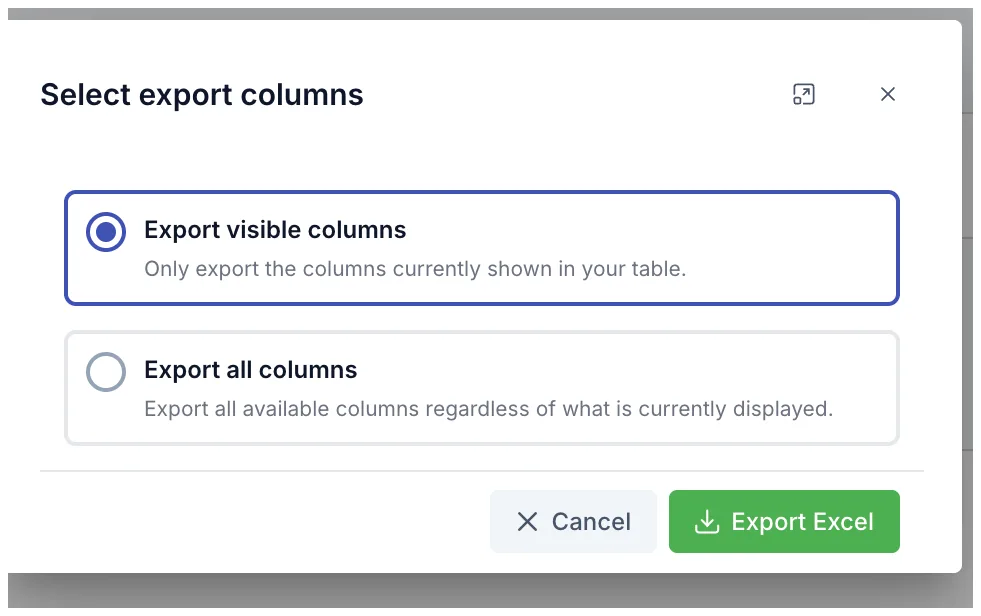
Illustration of the Choose columns to export dialog
Pick Export visible columns for exactly what is on screen, or Export all columns when you need the full file to edit and re-import.
Related
- HR Overview — everything the module covers.
- Role-Based Permissions — roles decide who sees what.
- Changing Your Password — staff changing it after the first login.