Roles and Permissions
Reception has no business seeing payroll; a partner should not be editing medical records. This screen defines roles and ticks exactly what each one may do.
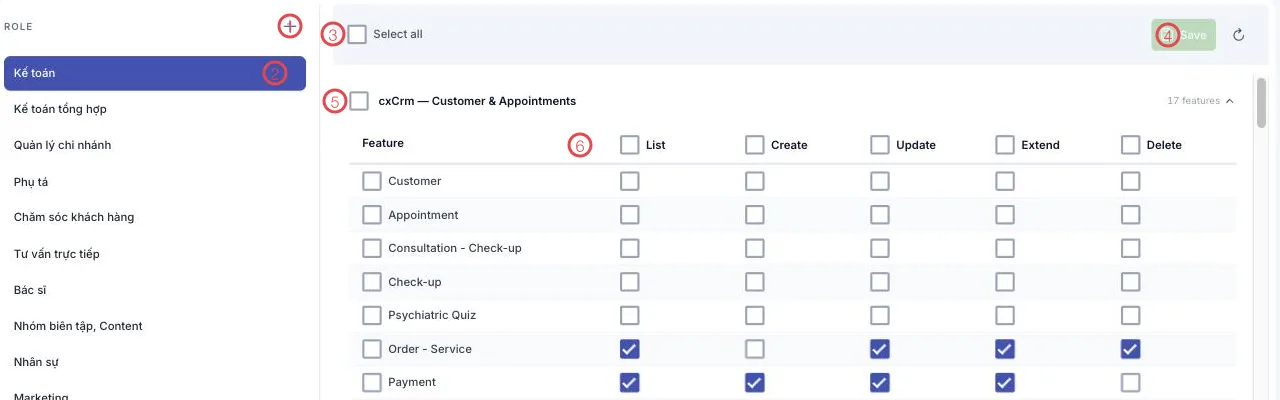
Illustration of the Role screen
| Area | What it does |
|---|---|
| 1. The + button | Adds a new role. |
| 2. The ROLE list | The roles you have: Accountant, Reception, Doctor, Telesales… Click one to open its permissions. |
| 3. Select all | Ticks everything currently shown. |
| 4. Save | Stores the changes. |
| 5. The module row | One block per module, with its feature count. Ticking here selects the whole module. |
| 6. The five permission columns | The level per feature — see below. |
The five levels
| Column | Allows |
|---|---|
| List | See and open that screen. |
| Create | Add new records. |
| Update | Edit existing records. |
| Extend | The screen's own special actions beyond add/edit/delete. |
| Delete | Remove records. |
Permissions are ticked per feature, not per module: within Customer (Patient) & Appointments you can let reception see and create Appointments while keeping them out of Treatment.
The order to work in
- Click + and name the role after the job: Reception, Assistant, Branch manager.
- Select it, work down the modules and tick what that job needs.
- Click Save.
- Go to the Staff list, open each person and assign the role.
Start narrow, widen later
Give a new role only what the job needs to function. Missing permissions take a minute to add; extra ones granted on day one rarely get reviewed.
Different roles, different data
Permissions do more than hide buttons — the server checks every action. The principles are in Role-based permissions.
Related
- Staff list — where roles are assigned.
- Adding a staff member — pick the role as you create the account.
- Role-based permissions — how the permission system works.