Introduction
Welcome to the CluvixHealth user documentation — a comprehensive clinic management software.
This is the general starting page, before you go into any specific business area (CRM, Medical Records, Pharmacy...). Each business area is its own module, with its own left-hand menu covering only that area — click a module card on the homepage to go straight into its own menu.
The System
What CluvixHealth is built to handle — read these to see how far the software fits the way your clinic is organised:
- Multiple Brands — one owner, several clinics, each one's data kept separate while shared staff work across them.
- Multiple Branches — one brand with several sites, clear per-site figures, and a chain-wide view for managers.
- Role-Based Permissions — who can see what, and who can do what.
- Account Security — two-step verification, device management, access logs.
- Access from Vietnam only — the software only opens to network addresses in Vietnam; access from abroad is blocked at the door.
- Zalo Integration — customer care (patient care) messages over Zalo.
- Google Calendar Sync — appointments on the doctor's own Google calendar.
- Unified Messaging — Facebook, Telegram, website chat and Zalo in one screen.
- Healthcare Connections — the national prescription gateway, digitally signed records, e-invoices.
- The Mobile App — the staff app: appointments, customers (patients), attendance, push notifications.
- Running the Platform — languages, time zones, scheduled background work, partner connections.
- The Customer Journey — the stages a customer (patient) passes through, from prospect to treated customer (patient).
In this section
- First Login — access the system for the first time with your issued account.
- Getting to Know the Interface — the module screen, top bar, left menu, notifications and account menu.
- Change Password — change your password, sign out an unknown device.
- Two-Factor Authentication — turn on phone codes, save backup codes, handle a lost phone.
- Switch Brand — move to another clinic or branch when one owner runs several clinics.
- Update Personal Info — edit your name, avatar and phone number.
- Install the Mobile App — get the staff app and sign in with your clinic code.
- When the Software Looks Wrong — self-fix steps and what to send support.
Modules
CluvixHealth is split into 13 modules, each covering one area of clinic work. After signing in, the modules appear as tiles on the module screen:
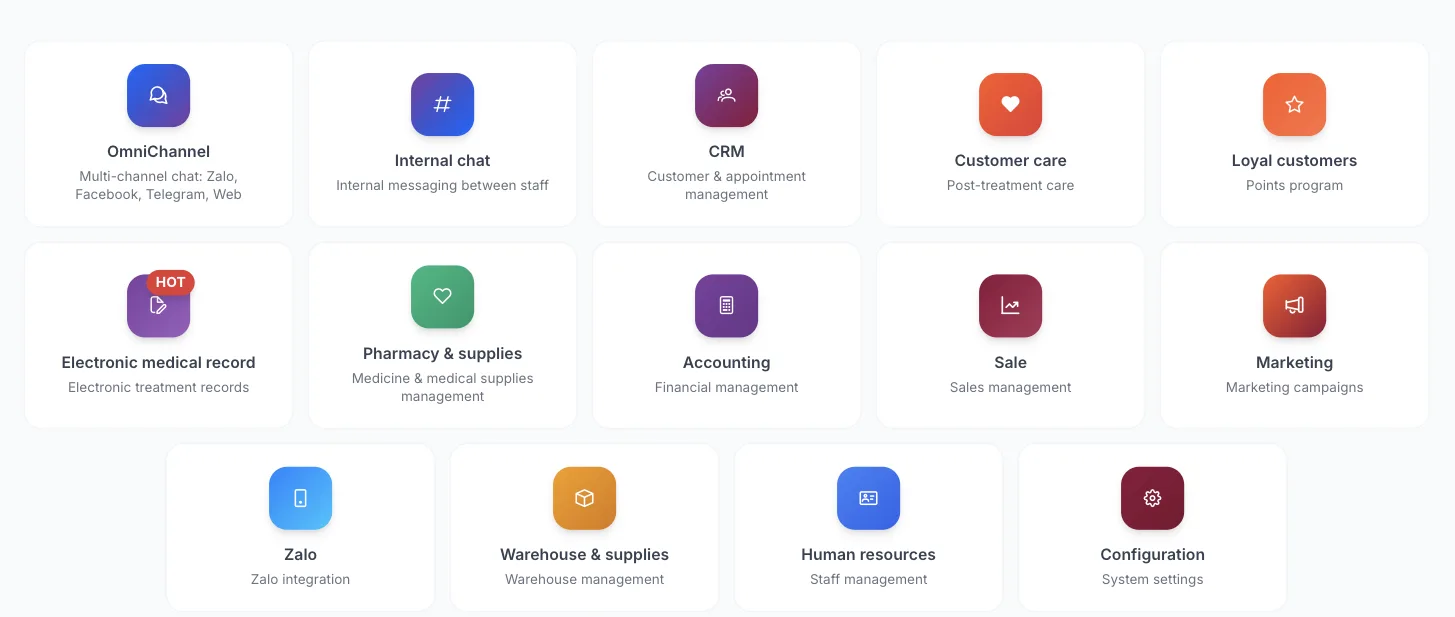
Module screen
Read the overviews to find which module your job lives in:
- CRM — customer (patient) records, appointments, consultations, treatment services, receivables.
- Electronic Medical Records — intake, examination, medical records, referrals, prescriptions.
- Pharmacy & drug store — medicine sales, pharmacy stock by batch and expiry, national prescription link.
- Warehouse & Supplies — stock in, out, transfers and stock takes for supplies and equipment.
- Accounting — income and expenses, cash funds, vouchers, e-invoices, accounting books.
- Sales — leads from Zalo and website forms, tickets assigned to consultants.
- Marketing — campaigns, conversion, staff KPIs, Facebook ads.
- Customer care — post-treatment follow-up, complaints, birthdays, reviews.
- Loyalty — reward points, referral partners and commissions, coupons, promotions.
- OmniChannel — reply to Zalo, Facebook, Telegram and website chat on one screen.
- Zalo — Zalo OA chat, ZNS campaigns, Zalo Mini App.
- Internal chat — staff messaging, group channels, record-based discussions.
- HR — staff, permissions, attendance, leave, overtime, payroll.
The shared working screen
Whichever module you open, the screen is split into the same areas — learn it once and it works for all 13 modules. The picture below is from CRM, but the other modules are laid out exactly the same way.
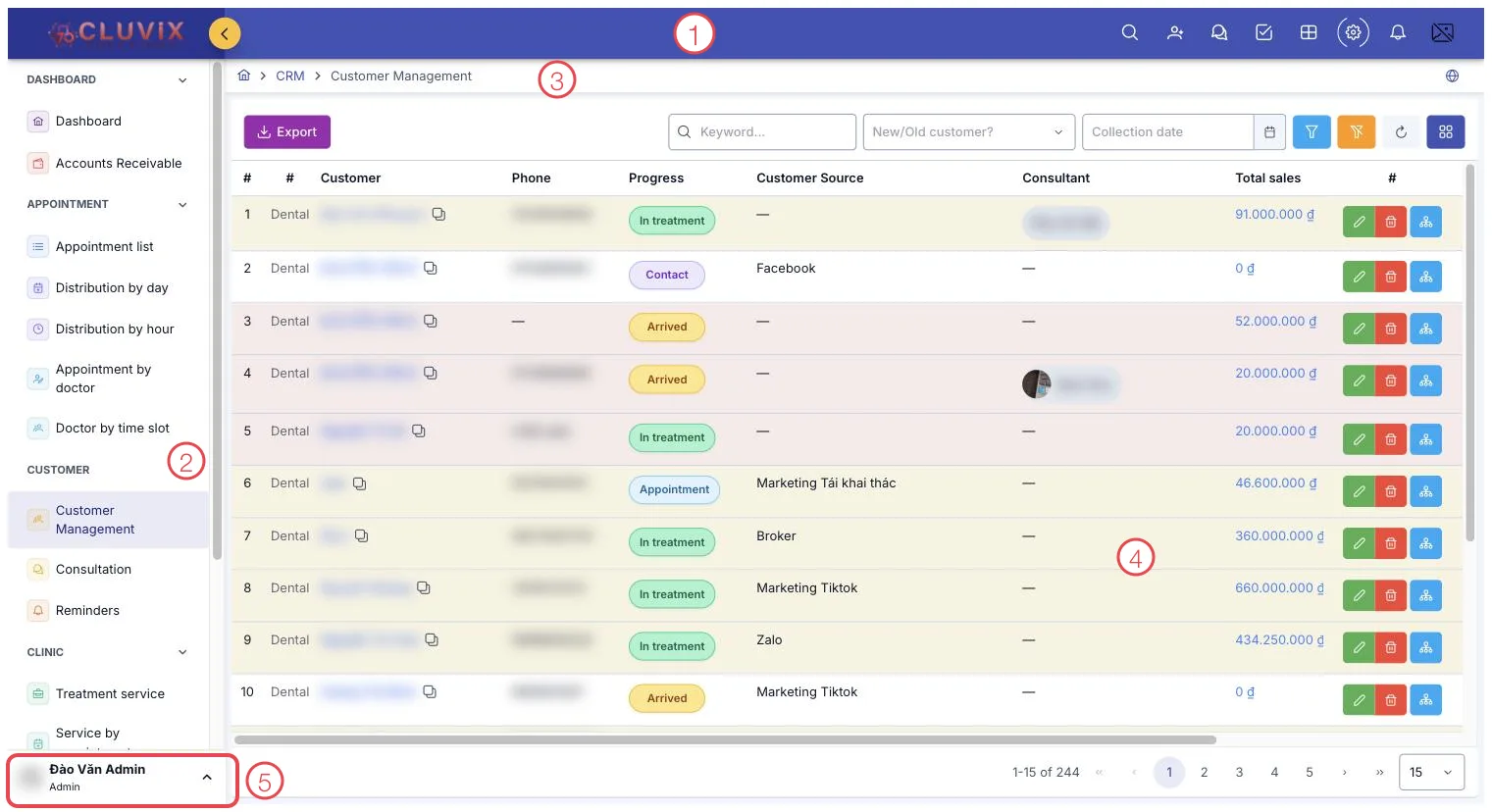
Illustration of the working screen
| Area | What it is |
|---|---|
| 1. Purple top bar | Clinic logo, the search box, the grid icon for jumping to another module, and the notification bell. |
| 2. Left menu | Every item in the module you are in, grouped by area. Click an item to open it. |
| 3. Breadcrumb | Tells you where you are, e.g. CRM › Customer Management. Click an earlier word to go back. |
| 4. Content area | The actual work: a toolbar on top (search, filters, create button, export), the data table below it, and page numbers at the bottom. |
| 5. Account block | Your photo and name at the bottom of the menu. Click it to change your password, switch brand or sign out. |
A closer look at each area: Getting to Know the Interface.
New to the software: read First Login, then open the overview of the module you use most — receptionists and consultants usually start with CRM.