Two-Factor Authentication
Two-factor authentication (2FA) means you also need a 6-digit code from your phone to sign in. Someone who knows your password still cannot get in, because they don't have your phone. Turn it on for any account that can see patient records or money.
Before you start
Install an authenticator app on your phone. Open the App Store (iPhone) or Google Play (Android), search for and install one of these free apps:
- Google Authenticator
- Authy
The app creates a new 6-digit code every 30 seconds and works without internet.
Step 1: Open the Two-factor auth screen
Click your name at the bottom of the left menu and choose Two-factor auth.
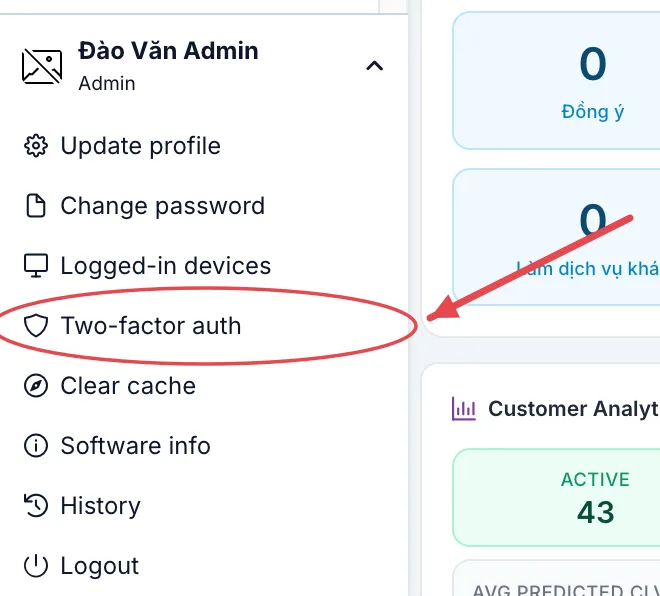
Two-factor auth menu item
This item is not in the avatar menu in the top-right corner.
If your clinic requires two-factor authentication, the software takes you to this screen right after you sign in. You cannot skip it: you must finish turning it on before you can work.
Step 2: Scan the code and confirm
The Two-factor authentication (2FA) screen opens. Follow the numbers in the picture (the QR code and secret are blurred in the picture — you will see them clearly on your screen):
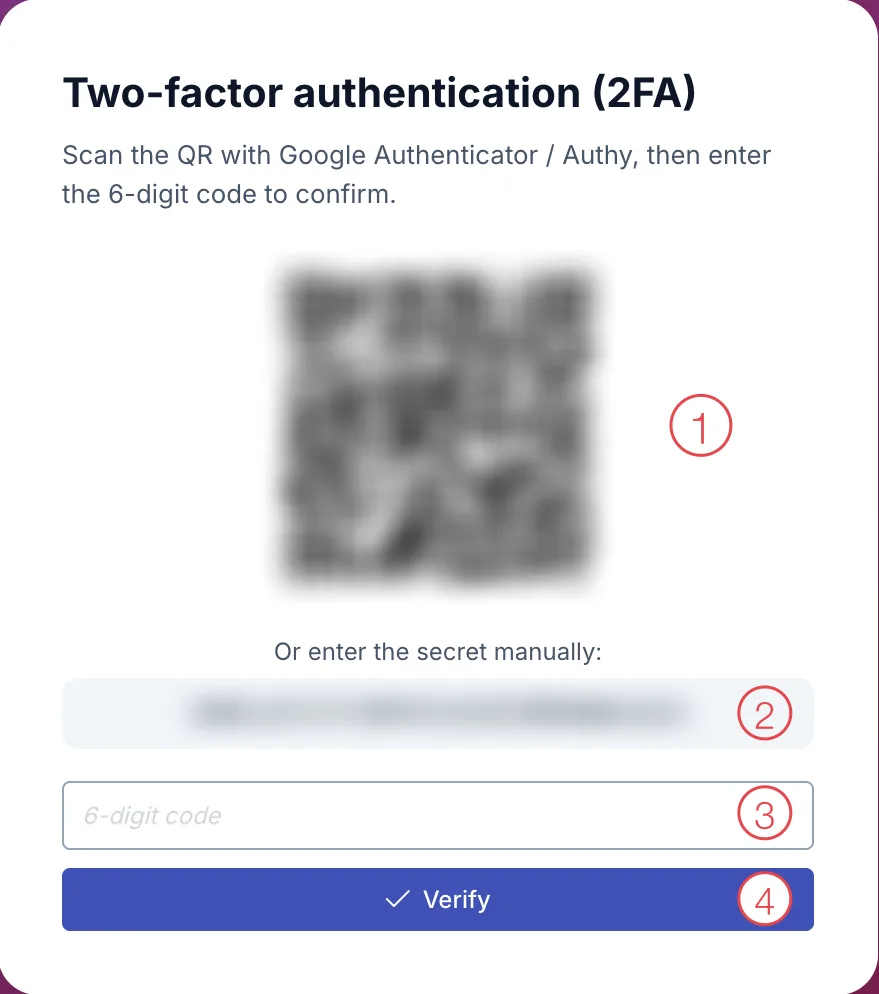
Turning on two-factor authentication
- QR code — open Google Authenticator (or Authy) on your phone, tap +, choose Scan a QR code and point the camera at the QR code on your computer screen. The app adds a CluvixHealth line with a 6-digit code.
- Secret — if the camera won't scan, choose Enter a setup key in the app and type this string.
- 6-digit code — type the code currently shown in the app.
- Click Verify.
"Invalid code" → the code changed while you typed, or your phone clock is off → wait for a new code and try again; if it still fails, turn on automatic time in your phone settings.
Step 3: Save your backup codes
After a correct code, the software shows Backup codes: 10 codes, each 8 characters (letters and numbers), with a copy button.
Backup codes are your spare key if you lose or change your phone. Click the copy button and keep them somewhere safe (on paper stored away, or in a password manager). Each code works only once. Once you click Done, this screen is gone for good.
Step 4: Click Done
Click Done. The software reloads and returns to the module screen. From your next sign-in you will be asked for a 6-digit code.
Signing in once it is on
After your username and password, the software asks you to Enter the 6-digit code from your authenticator. Open the app, type the code and click Verify. Details: First Login.
What "Trust this device" means
Ticking Trust this device (don't ask again) means that computer is not asked for a code for a number of days (set by your clinic, 30 days by default). After that it asks once again.
| Device | Tick it? |
|---|---|
| Your own computer or phone | Yes — saves typing a code every time. |
| Reception computer, shared computers | No — anyone sitting there would skip the protection. |
Lost or changed phone
Use the backup codes you saved in Step 3:
- Sign in as usual until you are asked for the code.
- Type one backup code (8 characters) into the same code box, then click Verify.
- Once in, cross that code off (it can't be reused), then follow Turn off two-factor authentication below and turn it on again with your new phone.
You cannot get in on your own. Tell your clinic manager so they can contact CluvixHealth support to reset two-factor authentication for your account.
Turn off two-factor authentication
Open Two-factor auth again. While it is on, the screen says 2FA is enabled. Enter a 6-digit code (or a backup code) and click Disable 2FA. On success you'll see 2FA disabled.
If your clinic requires two-factor authentication, you will be asked to turn it on again at your next sign-in.
For managers: require it for the whole clinic
Step 1. Open the Configuration module and, in the System block, click Company.
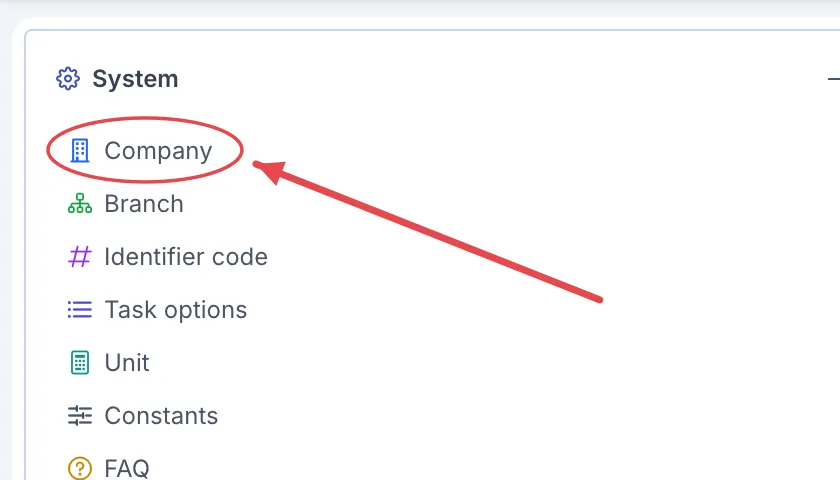
Company item in Configuration
Step 2. On your clinic's row, click the green pencil button (Edit) in the last column.

Edit brand button
Step 3. In the Update brand dialog, scroll down to 2FA policy:

2FA policy section
- Require for whole company — switch it on and every account must turn on two-factor authentication.
- Require for roles — only required for the selected roles (e.g. doctors, accountants). Leave empty if company-wide is on.
- Device trust days — how many days a device ticked "Trust this device" is not asked for a code again. Set 0 to always ask — good for clinics with shared computers.
Step 4. Click Save at the bottom of the dialog.
From their next sign-in, everyone who is required will be blocked until they finish turning on two-factor authentication. Remind them to install Google Authenticator on their phone first.
Common errors
- "Invalid code" → the code expired or the phone clock is off → use the newest code, turn on automatic time.
- "Too many incorrect codes. Please try again in …s" → wait for the countdown, then try again.
- The authenticator app has several CluvixHealth lines → older lines are from a previous setup and no longer work. Use the newest one and delete the old ones to avoid confusion.