Update Personal Info
Your personal details show up in many places: who created an appointment, who is in charge of a customer (patient), the staff list, internal chat. Keep your name and avatar correct so colleagues recognise you, and so the clinic can reach you when needed.
Step 1: Open the Update profile dialog
Click your avatar in the top-right corner and choose Update profile.
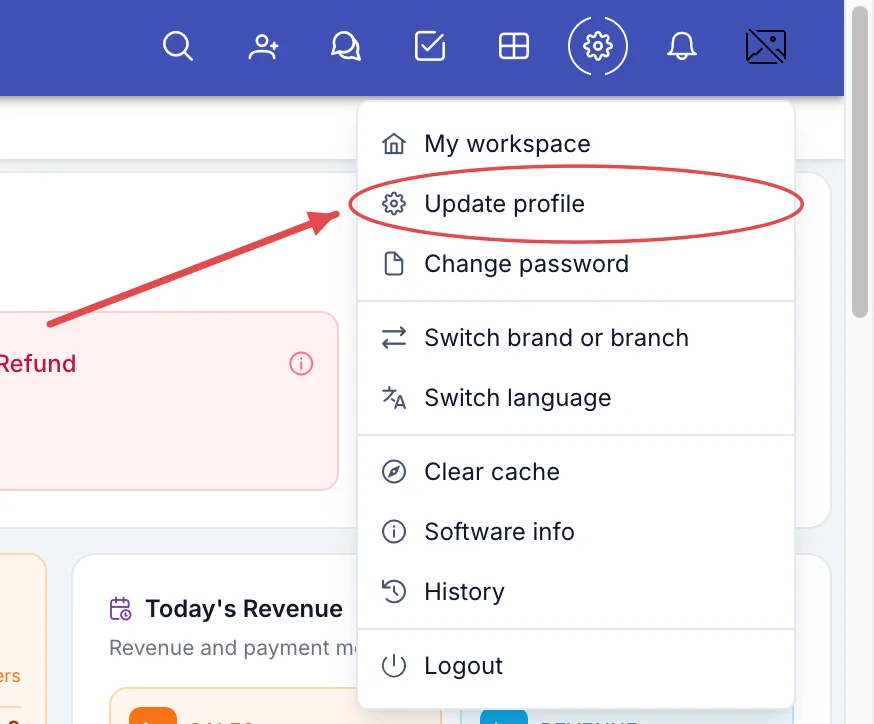
Update profile menu item
Step 2: Basic info and avatar
The Update personal info dialog opens. The card on the left shows your name, ID and department — view only. The right side has the boxes you can edit:
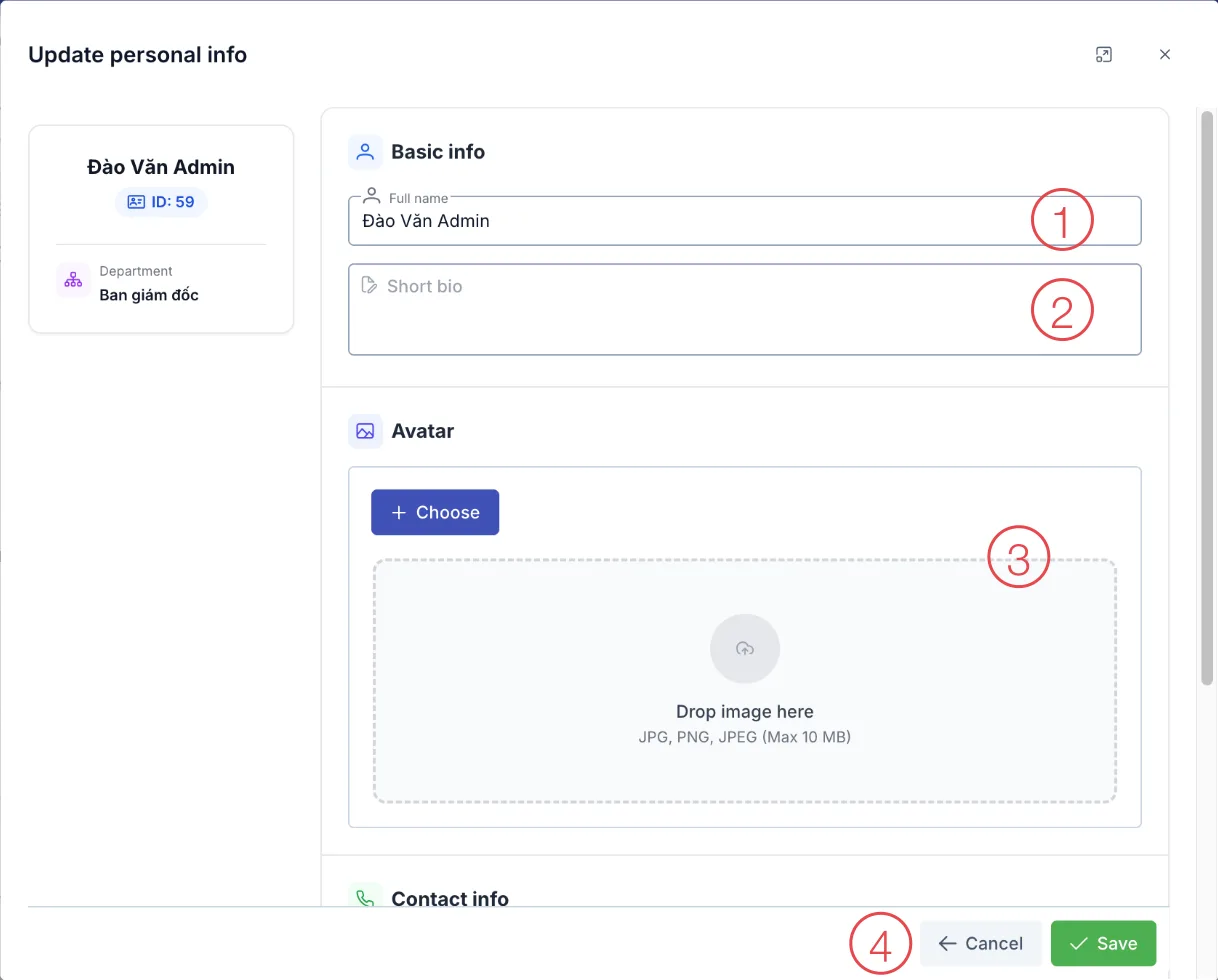
Basic info and avatar
- Full name (required) — your full name as on your ID. Example: Nguyen Thi Lan.
- Short bio — a few lines about you: specialty, position. Example: Morning receptionist, District 3 branch.
- Avatar — click Choose to pick an image from your computer, or drag an image into the dashed box. JPG, PNG, JPEG, up to 10 MB. If you already have an avatar you can remove it or pick another. Use a clear head-and-shoulders photo on a light background.
- Save — click once you have also filled in the part below.
Step 3: Contact info and social media
Scroll down inside the dialog for the rest (the phone number is blurred in the picture):
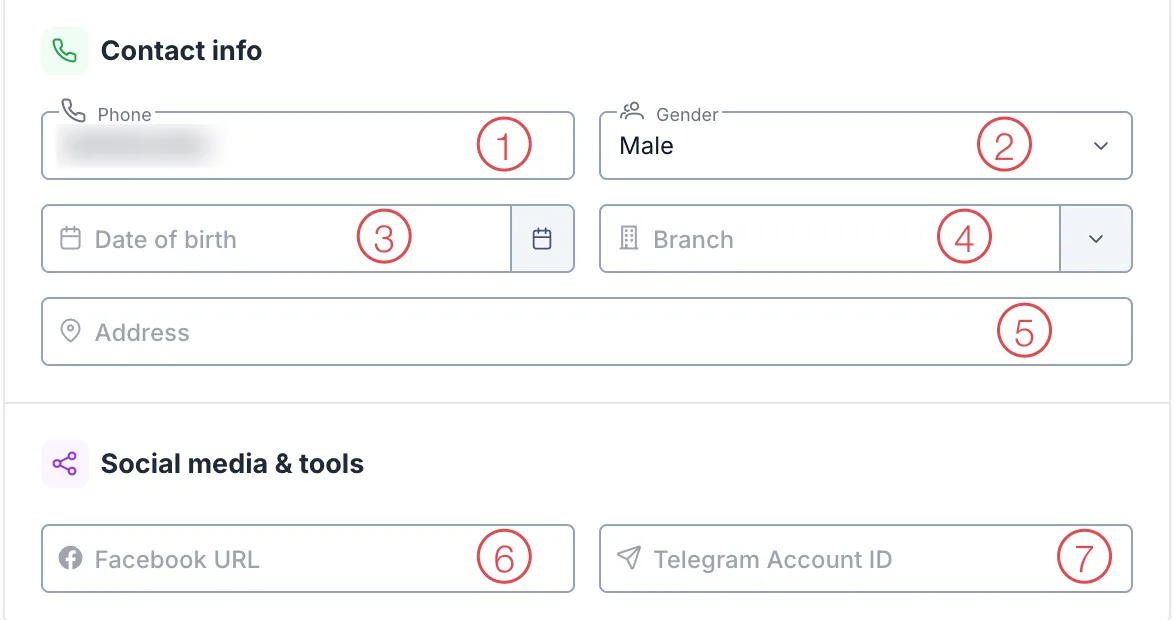
Contact info
| No. | Box | What to enter |
|---|---|---|
| 1 | Phone (required) | Mobile number, 10 to 12 digits. Example: 0901234567 |
| 2 | Gender (required) | Pick from the list. |
| 3 | Date of birth | Pick on the calendar. Future dates can't be chosen. |
| 4 | Branch | The branch you mainly work at. |
| 5 | Address | Contact address. |
| 6 | Facebook URL | Link to your personal Facebook page. Example: facebook.com/lan.nguyen |
| 7 | Telegram Account ID | Your Telegram account ID, if the clinic uses Telegram for notifications. |
Staff with the telesales role also see ID Pancake — your account ID in the Pancake software, provided by your manager if the clinic uses it.
Step 4: Save and check
Click Save. The software shows "Profile updated successfully" and your avatar in the top-right corner changes straight away, no reload needed.
What you can't change yourself
| Detail | To change it |
|---|---|
| Username | Ask your clinic manager. |
| Email, role, department, permissions | Ask your manager / HR to change it in the HR module. |
| Password | Change it yourself in Change Password. |
| Language | Change it yourself from the avatar menu → Switch language. |
| Brand, branch you work in | Change it yourself in Switch Brand. |
Common errors
- Red boxes, can't save → a required box is empty (Full name, Phone, Gender) or the phone number has fewer than 10 / more than 12 digits → fix it and click Save again.
- "File size cannot exceed…" → the image is too large (over 10 MB) → shrink it and pick it again. Tip: send it to yourself on Zalo and download it; the image will be smaller.
- "Only accepted: …" → the image isn't JPG/PNG (e.g. an iPhone HEIC photo) → take a screenshot of it or convert it to JPG and pick again.