Switch Brand
If one owner runs several clinics (for example a dental clinic and a dermatology clinic), each clinic is a brand in CluvixHealth. At any moment you work in one brand: the customers, appointments and revenue you see all belong to it. To work for the other clinic, switch brand.
If your clinic has only one brand, you don't need this feature.
Brand vs branch
| Brand | Branch | |
|---|---|---|
| What it is | A clinic / a separate trading name | One location of that brand |
| What switching does | All data in the software changes to the new brand | Only pre-filters the appointment list by branch |
| Required | Yes | No, can be left empty |
Step 1: Open the Switch dialog
Click your avatar in the top-right corner and choose Switch brand or branch.
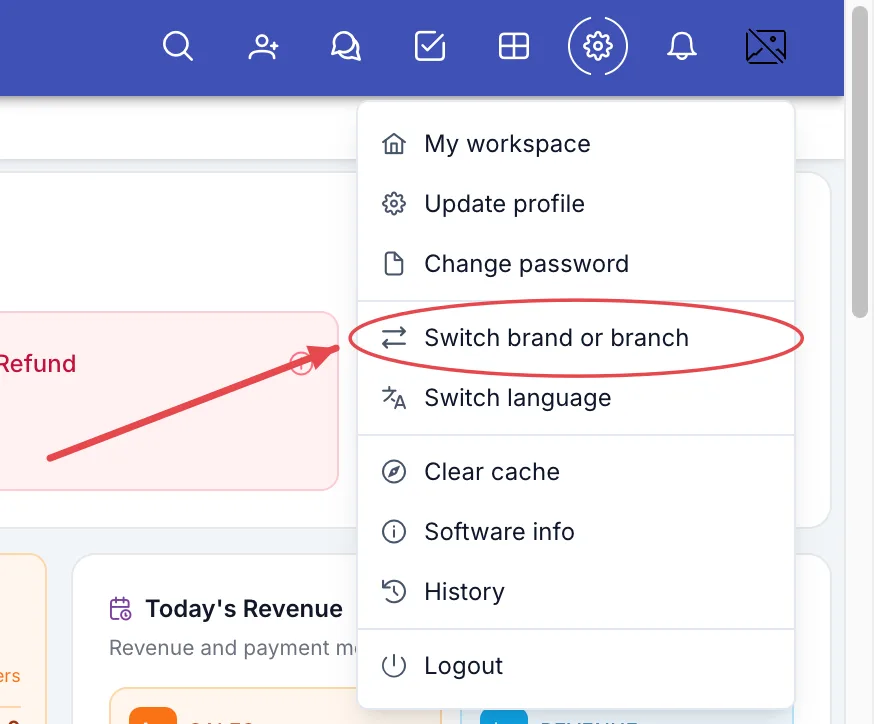
Switch brand or branch menu item
Step 2: Choose brand and branch
The Switch dialog opens. Follow the numbers in the picture:
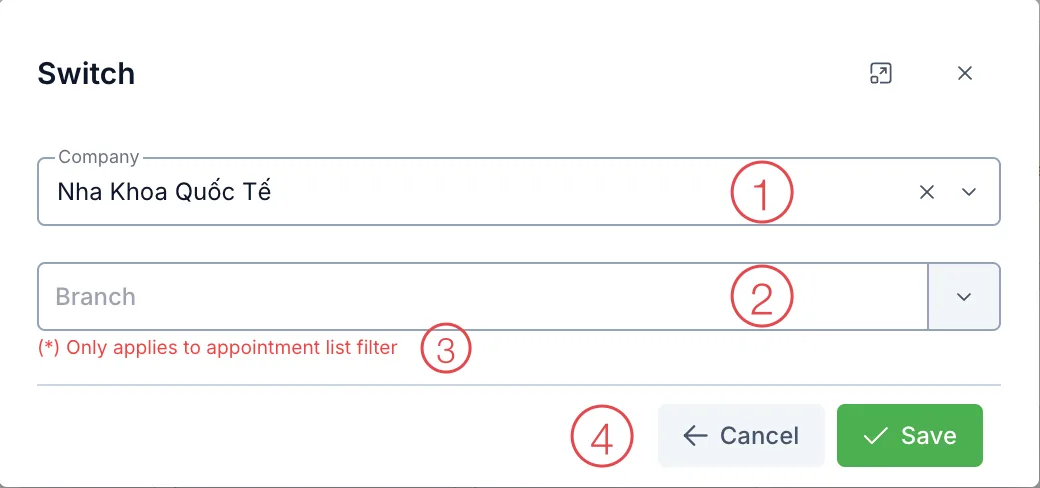
Switch brand dialog
- Company (required) — click the box and choose the clinic you want to work in. The list only includes brands your account is assigned to.
- Branch (optional) — the location you are at. Only active branches of the selected brand are listed. If you switch to another brand and the old branch doesn't belong to it, this box clears so you can choose again.
- Red note "(*) Only applies to appointment list filter" — choosing a branch only makes the appointment list filter to that branch; it does not restrict other data.
- Click Save.
Step 3: Check
The software reloads the page and confirms the switch. From now on every screen shows the new brand's data. If you click Save without changing anything, the dialog just closes.
Booking appointments or taking payments while in the wrong brand records them in the other clinic. After switching, open the customer or appointment list to confirm they are your clinic's customers (patients) before carrying on. If you have several browser tabs open, reload (F5) the others.
The "Select a company" screen at sign-in
If your account has no active brand yet, right after sign-in you see Select a company — with the same two boxes. Choose and click Start working. This screen has no cancel button: you must choose before using the software.
If it shows No company assigned → your account isn't assigned to any clinic → click Log out and tell your manager.
Common errors
- "Access denied" → the brand or branch you chose is no longer assigned to your account (your manager just removed it) → reload the page and choose again; if it persists, tell your manager.
- "No active company selected" → the Company box is empty → choose a brand.
- The brand you need isn't in the list → your account isn't assigned to it → ask your manager to add it.