First Login
Every clinic using CluvixHealth has its own web address. Open that address, enter the account you were given, and you are ready to work — nothing to install on your computer.
Before you start: you need 3 things
All three are given to you by your clinic manager (or whoever manages the software). If anything is missing, ask them first rather than guessing.
| You need | What it looks like |
|---|---|
| Sign-in link | Your clinic's own name in front of .cluvixsolutions.com. Example: abcdental.cluvixsolutions.com |
| Username | One word, no spaces. Example: reception.lan |
| Password | The password issued to you. |
Why does each clinic have its own link?
The part in front of .cluvixsolutions.com is your clinic's own name. Each clinic's data
(customers (patients), appointments, medical records…) is kept separately, so your account only works
on your own clinic's link. On another clinic's link you will get an error even with the
right password.
Once the page is open, click the star icon in your browser's address bar to bookmark it. Next time just click the bookmark. Use an up-to-date Google Chrome, Microsoft Edge or Safari.
Open the sign-in page
Open a browser on your computer, type the link your clinic gave you into the address bar
at the top (for example abcdental.cluvixsolutions.com) and press Enter. The Login
page appears as below.
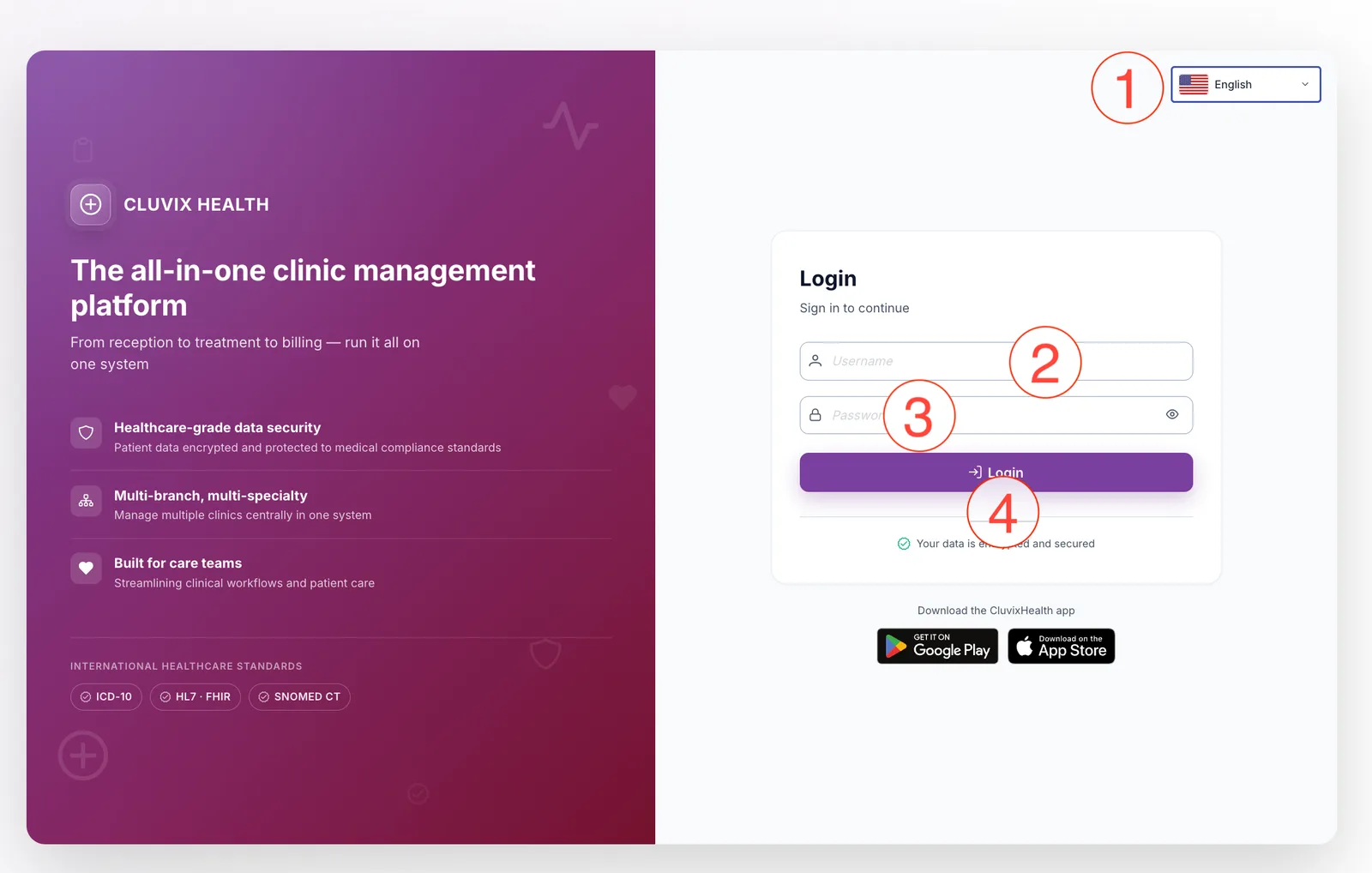
Login screen
Follow the 4 numbers in the picture:
1. Choose your language
The box in the top-right corner changes the display language. Click it and pick the language you prefer. Your choice is saved to your account, so the software opens in that language the next time you sign in.
2. Enter your Username
Click the Username box and type the username you were given. Upper or lower case does not matter.
3. Enter your Password
Click the Password box and type your password. To check what you typed, click the eye icon at the end of the box — the password becomes visible; click again to hide it.
Passwords are case-sensitive: Abc123 is not the same as abc123. If it keeps failing,
check whether Caps Lock is on.
4. Click Login
Click the purple Login button (or press Enter). The button changes to "Logging in..." for a moment.
When sign-in succeeds, a Login Successful message appears, followed by a "Syncing data..." screen. The first time, this can take a few seconds while your clinic's lists are loaded onto your computer — do not close or reload the page; it moves on by itself.
After signing in
If you are asked for a 6-digit code
If two-factor authentication is on for your account, you will see an extra screen, Enter the 6-digit code from your authenticator:
- Open the authenticator app on your phone (Google Authenticator or Authy).
- Type the 6-digit code currently shown for CluvixHealth into the 6-digit code box. The code changes every 30 seconds — use the one on screen now, not an old one.
- On your own computer, tick Trust this device (don't ask again) so you are not asked for a code on this computer next time.
- Click Verify.
On the reception desk computer or any computer several people use, leave it unticked. Otherwise anyone who sits at that computer skips the 6-digit code protection.
If you are asked to select a company
If one owner runs several clinics, the first time you may see Select a company. Pick the clinic you work at; the branch is optional and can be left empty. Click Start working.
If the screen says No company assigned, your account is not linked to any clinic yet — click Log out and tell your clinic manager.
The module screen
Once inside, you see a grid of modules — each tile is one area of clinic work (CRM, Medical Records, Accounting…). Click the tile for the job you need to do; receptionists usually click CRM.
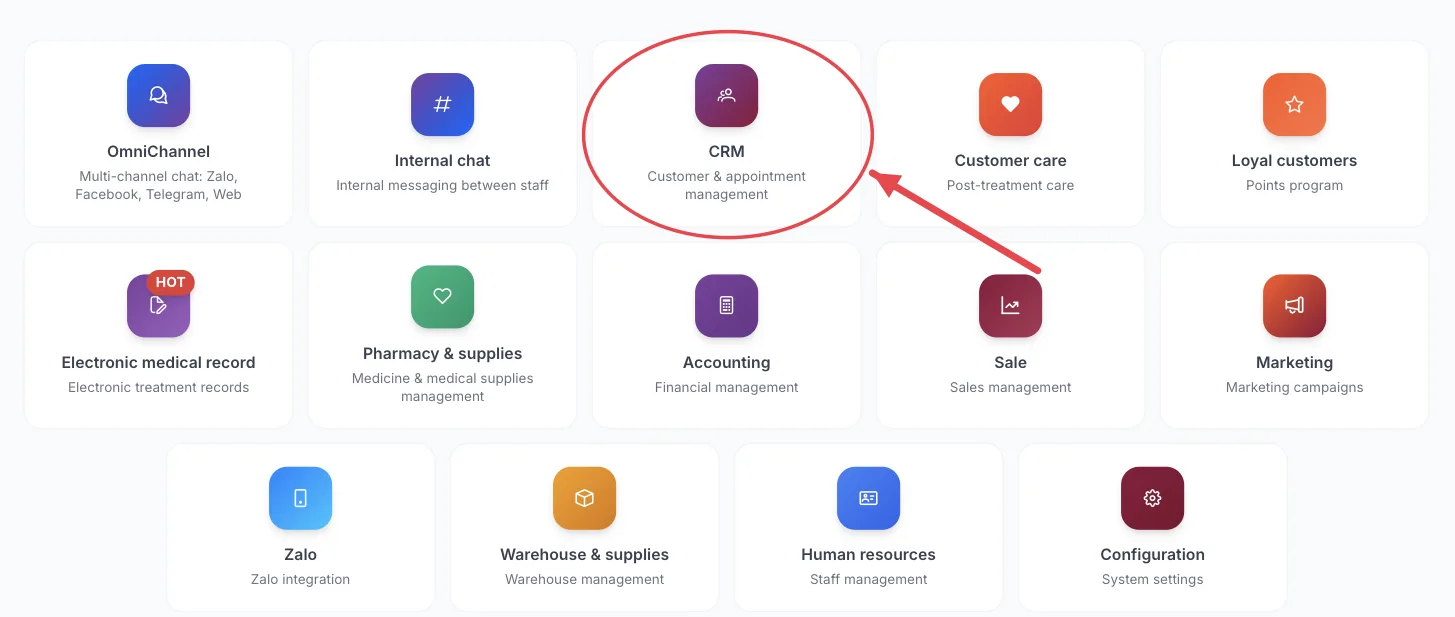
Module screen
To learn what each module does, see the module list.
The screen only shows the modules your account is allowed to use — seeing fewer tiles than a colleague is normal, not an error.
Common errors
- "Validation Error" → the username or password is wrong, or the account has been deactivated → type it again carefully (use the eye icon, check Caps Lock, check for extra spaces at the start or end). Still failing? Ask your manager to check your account.
- "Too many attempts. Please try again in … s" → an account that gets the password wrong 5 times within 5 minutes is locked for a short while to stop strangers guessing it → the Login button is greyed out; wait for the countdown to finish and try again. The lock lifts by itself.
- "Too many incorrect codes…" on the 6-digit code step → wait for the countdown, make sure your phone's clock is correct (a wrong clock produces wrong codes), then enter the newest code.
- The page does not open → check the spelling of the link (especially the clinic name part), check your internet connection, or try another browser.
- Forgot your password → there is no self-service reset on the login page. Ask your clinic manager to reset your password.
Below the login box are Google Play and App Store buttons to download the CluvixHealth staff app. The app uses the same username and password as the web version — see Install the Mobile App.
Related
- Getting to Know the Interface — what each button on the screen does.
- Change Password — change the issued password to your own right after your first sign-in.
- Install the Mobile App — sign in on your phone with your clinic code.