Change Password
Change the password you were issued to one of your own right after your first sign-in, and change it again whenever you suspect someone else knows it. Once changed, every device signed in to your account is signed out.
Step 1: Open the change password dialog
Click your avatar in the top-right corner and choose Change password.
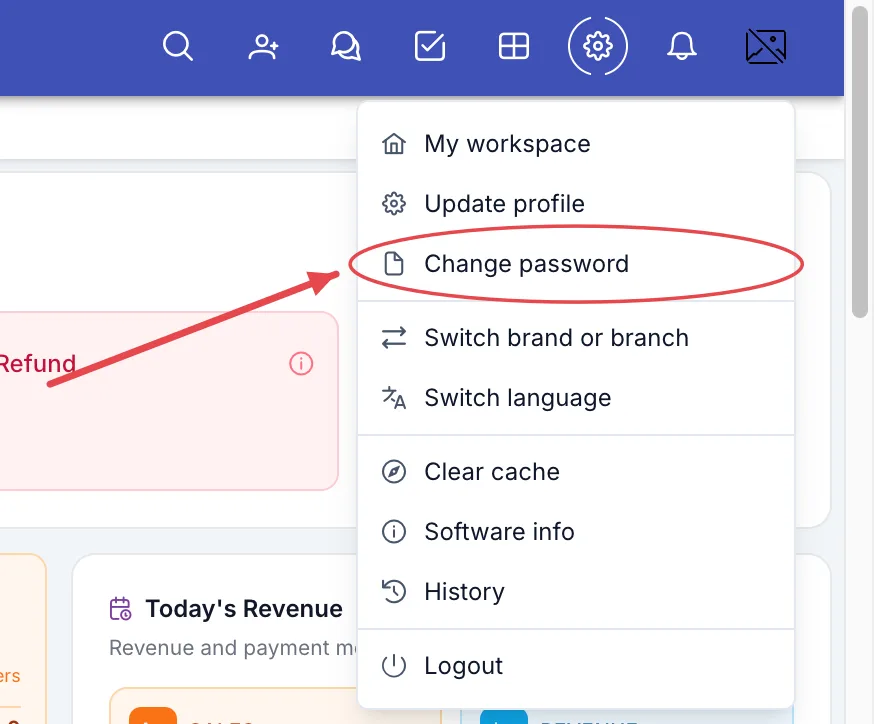
Change password menu item
You can also click your name at the bottom of the left menu and choose Change password — it opens the same dialog.
Step 2: Fill in the 3 boxes
The Change password dialog opens. Follow the numbers in the picture:
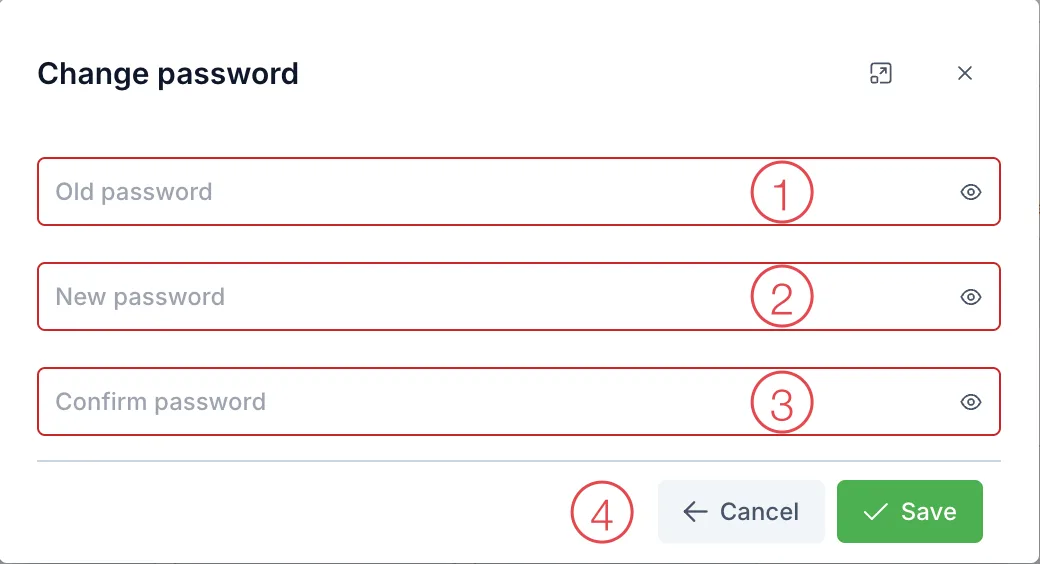
Change password dialog
- Old password — the password you currently sign in with.
- New password — the password you want, at least 6 characters. A coloured bar below shows how weak or strong it is while you type.
- Confirm password — the new password again, exactly the same.
- Click Save.
The red borders when the dialog first opens just mark required boxes; they are not errors. Click the eye icon at the end of each box to see what you typed.
Choosing a safe password
- 8 or more characters mixing upper case, lower case and numbers — for example join an easy
sentence:
DentalClinic2024Happy. - Don't use birthdays, phone numbers, the clinic name or
123456. - Don't reuse your Facebook, Zalo or email password.
- Don't stick the password on the screen or write it in a notebook left at the desk.
Step 3: Sign in again
If everything is correct you will see "Password changed. You will be logged out for security.", and about 1–2 seconds later you are taken back to the login page. Sign in again with your new password.
Changing your password signs your account out on all computers and phones, including the one you are using. If you are signed in on the reception computer and the mobile app, both need to sign in again. This is deliberate: anyone else using your account is pushed out at once.
Common errors
- "Old password is incorrect" → the Old password box is wrong → use the eye icon, check Caps Lock, type it again.
- "Password must be at least 6 characters" → the new password is too short → add characters.
- "Password confirmation does not match" → the two new password boxes differ → retype the confirmation exactly.
- Forgot the old password too → you cannot change it yourself. Ask your clinic manager to reset your password.
Signing out an unknown device
If you signed in on someone else's computer and forgot to sign out, you can push that device out without changing your password.
Step 1. Click your name at the bottom of the left menu and choose Logged-in devices.
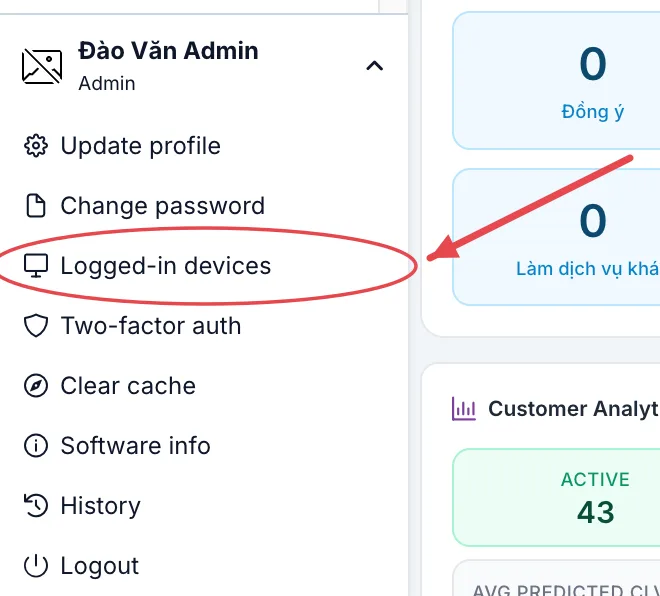
Logged-in devices menu item
Step 2. The Logged-in devices dialog lists devices that have signed in: browser and operating system, network address (IP — blurred in the picture) and last used time.
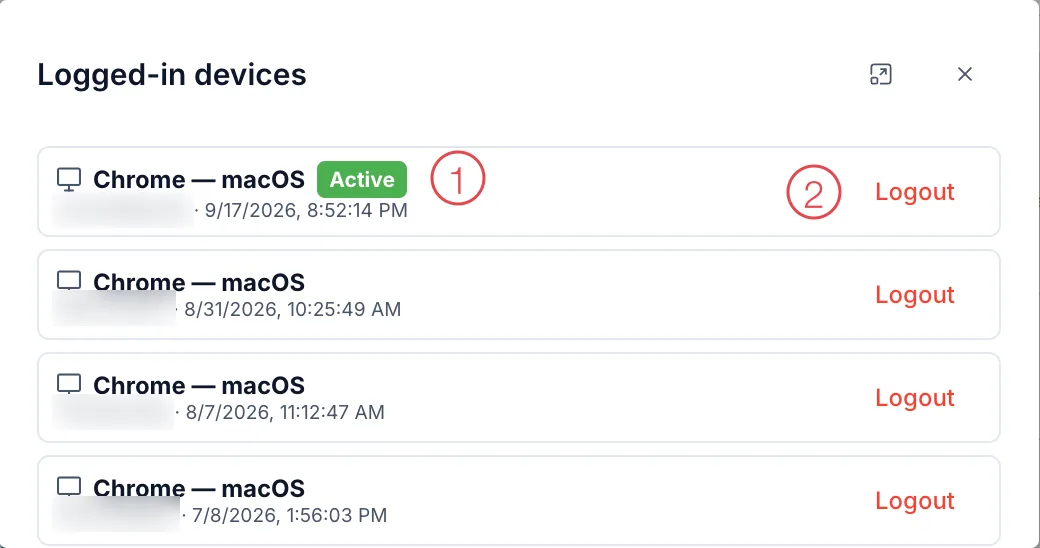
Logged-in devices list
- Active — this device is still signed in.
- Logout — click it on the row of the device to push out, then confirm "Log out this device? Its session will be terminated." The software shows "Device logged out".
Someone may know your password. Push that device out, change your password straight away, and consider turning on Two-Factor Authentication.