When the Software Looks Wrong
Most cases of wrong or missing data or a frozen screen can be fixed in a minute with the steps below. Work from top to bottom and stop as soon as the problem is gone. Only then contact support, with the details listed at the end of this page.
Step 1: Check the internet
Open another website (e.g. google.com). If it doesn't load → the problem is the network, not the software: check Wi-Fi or the cable, or ask whoever manages the clinic's network.
Step 2: Reload the page
Many display problems only need a reload:
| Computer | Normal reload | Hard reload (ignore the copy stored in the browser) |
|---|---|---|
| Windows | F5 | Ctrl + Shift + R |
| Mac | ⌘ + R | ⌘ + Shift + R |
Use a hard reload when the clinic has just been updated but the screen still looks old, buttons don't respond, or the layout looks broken.
Reloading loses anything you typed but haven't saved. Copy long text somewhere first.
Step 3: Check the brand and the filters
"I can't see the customer / appointment I just created" is often not a bug. In the Appointment list below, for example, the list is empty only because the date filter is set to today:

Empty list caused by a filter
- Date box being filtered — widen the date range.
- Orange funnel button (Clear filter) — reset all filter conditions to default.
- "No data available" — only means nothing matches the filter, not that data was lost.
Common causes:
- Wrong brand — if the clinic has several brands, each has its own data. See Switch Brand.
- A filter is on — date range, branch, status, person in charge. Clear the filters or pick the date range again and search again.
- No permission — your account may only see part of the data (e.g. only your customers (patients)). If a colleague can see it and you can't → ask your manager about permissions.
Step 4: Sign out and sign in again
Click your avatar in the top-right → Logout, then sign in again.
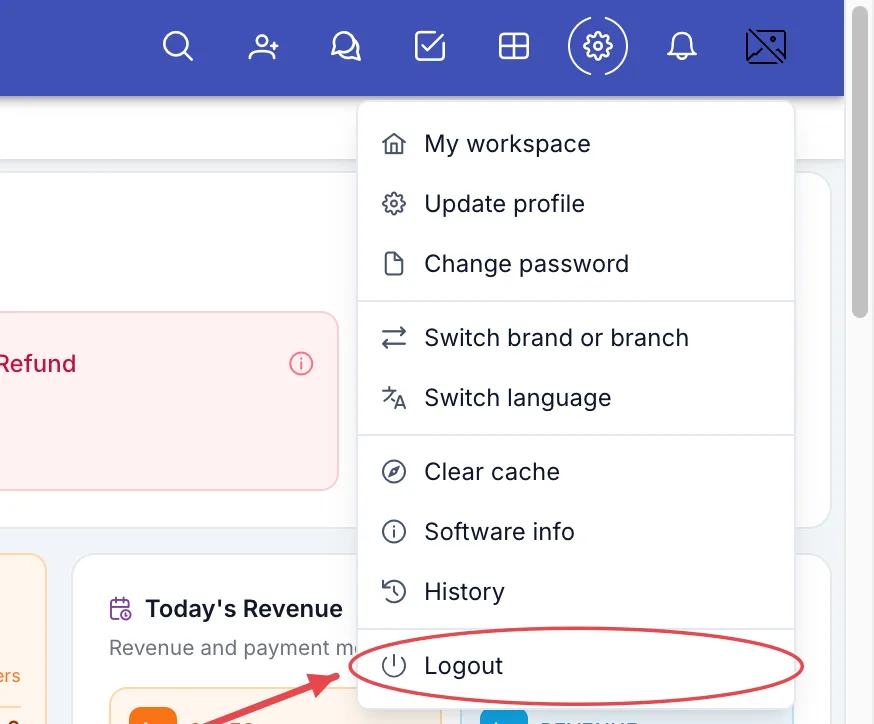
Logout menu item
Signing out clears all data loaded on the computer. After signing back in, the "Syncing data..." screen loads everything fresh. This fixes most cases of lists (services, doctors, branches…) looking incomplete or showing old names.
Step 5: Try another browser
Open the software in another browser (an up-to-date Google Chrome, Microsoft Edge or Safari). If it works there → the old browser is the problem: update it, or turn off ad-blocking / translation extensions for the CluvixHealth site.
Chrome and Edge sometimes translate the page into another language, which changes words and numbers on screen in odd ways. If the address bar shows a translate icon, choose Never translate this site. To change language, use Switch language in the avatar menu instead.
Still broken: contact support
Send your clinic manager (or CluvixHealth support) these 5 things — it makes the fix much faster:
- A screenshot of the problem, showing the address bar and any error message.
- What you were doing: what you clicked, in which order, before the problem appeared.
- When it happened (date and time).
- Your account and the brand / branch selected.
- Which steps on this page you already tried.
Support never needs your password. If anyone asks for it by message or phone, don't give it.
About "Clear cache"
The avatar menu of the Board of Directors has an extra Clear cache item. It is not a way to fix display problems on one computer: it clears the shared server-side cache for the whole clinic, runs as soon as you click it and doesn't ask for confirmation. Only use it when support tells you to, usually after a big configuration change when everyone still sees old figures.