Getting to Know the Interface
This page shows what each button on the screen does before you start real work. Every module in CluvixHealth uses the same layout, so once you know it you can find your way everywhere.
The module screen
Right after you sign in, the software opens the module screen.
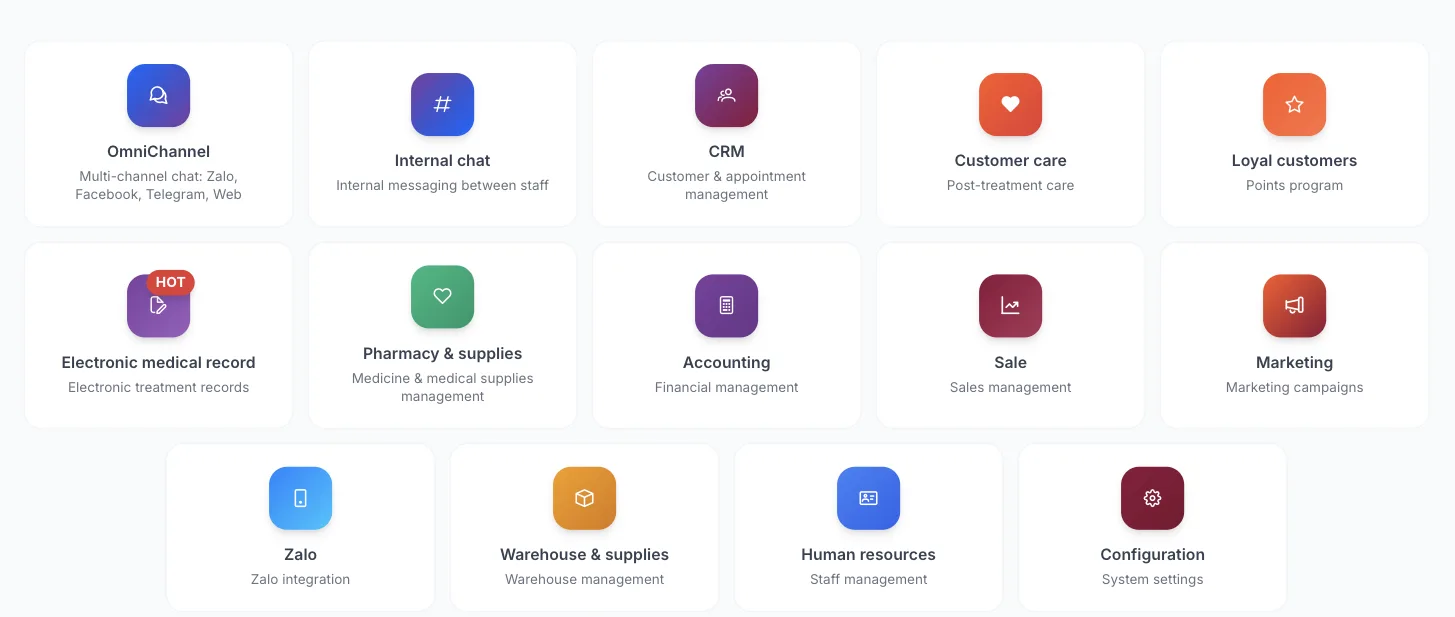
Module screen
- Each tile is a module: icon, name and a short description. Some tiles carry a red HOT badge.
- Click a tile to open that module.
- The screen only shows the modules your account is allowed to use. Different people seeing different tiles is normal.
- What each module does: see the module list.
The top bar
Inside a module, the blue-purple bar at the top is always visible, whatever screen you are on.

Top bar
The numbers in the picture match the table:
| No. | Button | What it is for |
|---|---|---|
| 1 | Logo | Go back to the module screen. |
| 2 | Round yellow arrow button | Collapse or reopen the left menu to make room for tables. |
| 3 | Magnifier — Search customer (patient) | Find a customer quickly from any screen without opening the customer list. |
| 4 | Person with a plus sign — Add customer | Open the new customer form straight away. Shortcut: Alt + C (Windows) or ⌘ + Ctrl + C (Mac). |
| 5 | Two chat bubbles — Internal chat | Open chat with colleagues. See Internal chat. |
| 6 | Checkbox — Pending my approval | Items waiting for your approval (leave, overtime…). A red number means something is still pending. |
| 7 | Grid — System modules | Switch to another module without going back to the module screen. |
| 8 | Gear | Opens the Settings panel: interface colors, Light/Dark mode and menu type. Changes here only affect how the software looks on your computer, not any data. |
| 9 | Bell — Notification | Notifications sent to you. See Notifications below. |
| 10 | Avatar — My account | The account menu. See Account menu below. |
Some buttons only appear if your account has the matching permission, so your bar may have fewer buttons than the picture. If your account has no profile picture yet, button 10 shows an empty image icon — set one in Update Personal Info.
The left menu
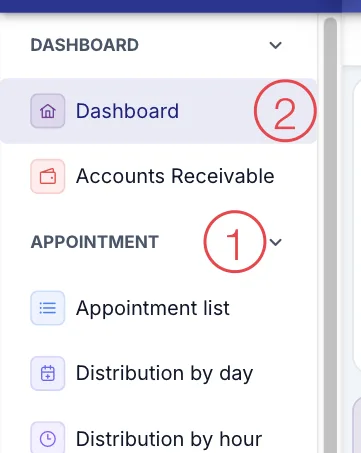
The left menu holds the screens of the module you have open. Each module has its own menu: in CRM you only see the CRM menu.
Left menu
- Group name — small capital letters such as APPOINTMENT, CUSTOMER (PATIENT). Click the group name (or the arrow next to it) to collapse or reopen the whole group and keep the menu short.
- Screen — the lines under a group name; click to open. The open screen has a light purple background.
At the bottom of the menu are your avatar, name and role.
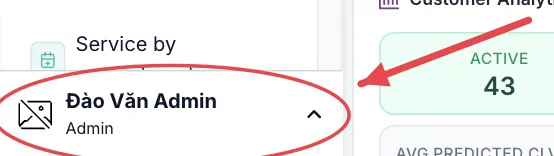
Name block at the bottom of the menu
Click this block for another account menu, which includes Logged-in devices and Two-factor auth — these two items are not in the avatar menu in the top bar.
Breadcrumb
Just below the top bar is a breadcrumb showing where you are, e.g. 🏠 > Appointment > Appointment list.

Breadcrumb
Click the house icon or any step in it to go back to that screen.
Notifications
Click the bell (button 9 in the top bar) to open the notification list. The red number on the bell is the number of unread notifications.
- Click a notification to jump to the related place. It is marked as read automatically.
- Mark all as read clears the red number once you have looked through them.
- Notifications tagged Internal come from an internal discussion on a record; clicking opens the chat.
- The time on the right: today shows hour:minute, yesterday shows Yesterday, older ones show day/month.
- Nothing there: No notifications yet.
Account menu
Click your avatar in the top-right corner (button 10).
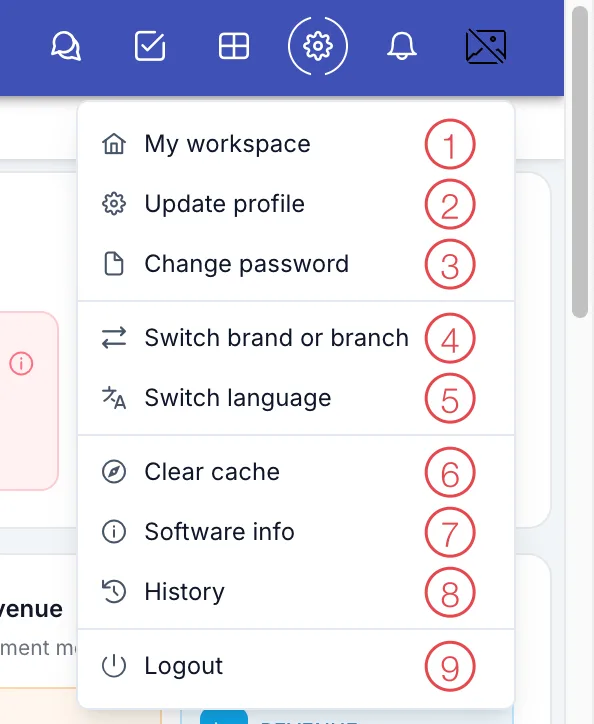
Account menu
| No. | Item | What it is for |
|---|---|---|
| 1 | My workspace | Your own work page: my appointments, my customers (patients), tasks, revenue and commission for your role. |
| 2 | Update profile | Edit your name, phone, avatar… See Update Personal Info. |
| 3 | Change password | See Change Password. |
| 4 | Switch brand or branch | Move to another clinic/branch. See Switch Brand. |
| 5 | Switch language | Change the display language. Saved to your account, so it follows you to other computers. |
| 6 | Clear cache | Only the Board of Directors sees this. Not for fixing problems yourself — see When the Software Looks Wrong. |
| 7 | Software info | Opens the Cluvix Solutions website in a new tab. |
| 8 | History | Only shown to people with permission. |
| 9 | Logout | Signs out immediately, without asking. |
Click Logout at the end of your shift before leaving the computer. Signing out clears the data loaded on that computer; the next shift signs in with their own account.