Account Security
Account security is the set of protections standing behind every sign-in to CluvixHealth: two-step verification set per brand, a limit on how many devices can be logged in at once, automatic sign-out when something important changes, and a log that records every security-relevant event. This page helps clinic owners and administrators understand how the software protects staff accounts, so they can confidently hand out access to patient records and money.
Two-step verification, set per brand
Each brand sets its own two-step verification (2FA) policy — the whole chain does not share one configuration:
| Setting | Meaning |
|---|---|
| Required for the whole brand | Every account in that brand must turn on 2FA before they can work |
| Required by role | Only the selected roles (e.g. doctors, accountants) are required to |
| Trusted-device days | A device already marked "trust this device" is not asked for a code again for this many days |
Because this is set per brand, an owner running both a dental practice and an aesthetics clinic can require strict 2FA at the site that handles more payments, and keep it lighter at the other — each place gets the level of safety that fits its own scale.
For the steps to turn 2FA on for one account, and how to require it clinic-wide, see Two-Step Verification.
Limiting how many devices can log in
Each account can only be signed in on a certain number of devices at the same time. Signing in on a new device once that limit is reached automatically signs out the device that has been idle the longest to make room — no one needs to remember to sign out of the old one.
A staff member who leaves without signing out of their personal phone, or an account whose password leaked and got signed in from an unfamiliar device, cannot quietly keep a session alive forever — the device limit forces old, rarely used sessions to give way.
Automatic sign-out when something important changes
Certain changes make CluvixHealth revoke every active session immediately, on every device, instead of waiting for the session to expire on its own:
| Change | Result |
|---|---|
| Changing the password | Every signed-in device is signed out, and needs the new password to sign in again |
| Pressing "Sign out of all devices" | Same effect — used when an account is suspected of being compromised |
| Changing the role | Old sessions (still carrying the old permissions) are signed out, so signing back in picks up the new ones |
| Deactivating / letting a staff member go | All of their sessions end immediately, without waiting for expiry |
Because of this, removing access or locking an account takes effect the moment you press save, not after that person signs out on their own or a token happens to expire.
Restricting to an allowed network range
A clinic can list the network addresses (IPs) staff are allowed to connect from — set for the whole brand, or overridden for one specific account. Access from outside that list is denied. This suits a clinic that wants staff to only work from the clinic's own network, rather than opening the account up to be used from anywhere.
Entering the wrong network address can lock out the very staff member who needs access. Try it with one address first, confirm it still works, then apply it to the full list.
Security log
Administrators can open the Security Log inside the Settings section — a list of security-related events.
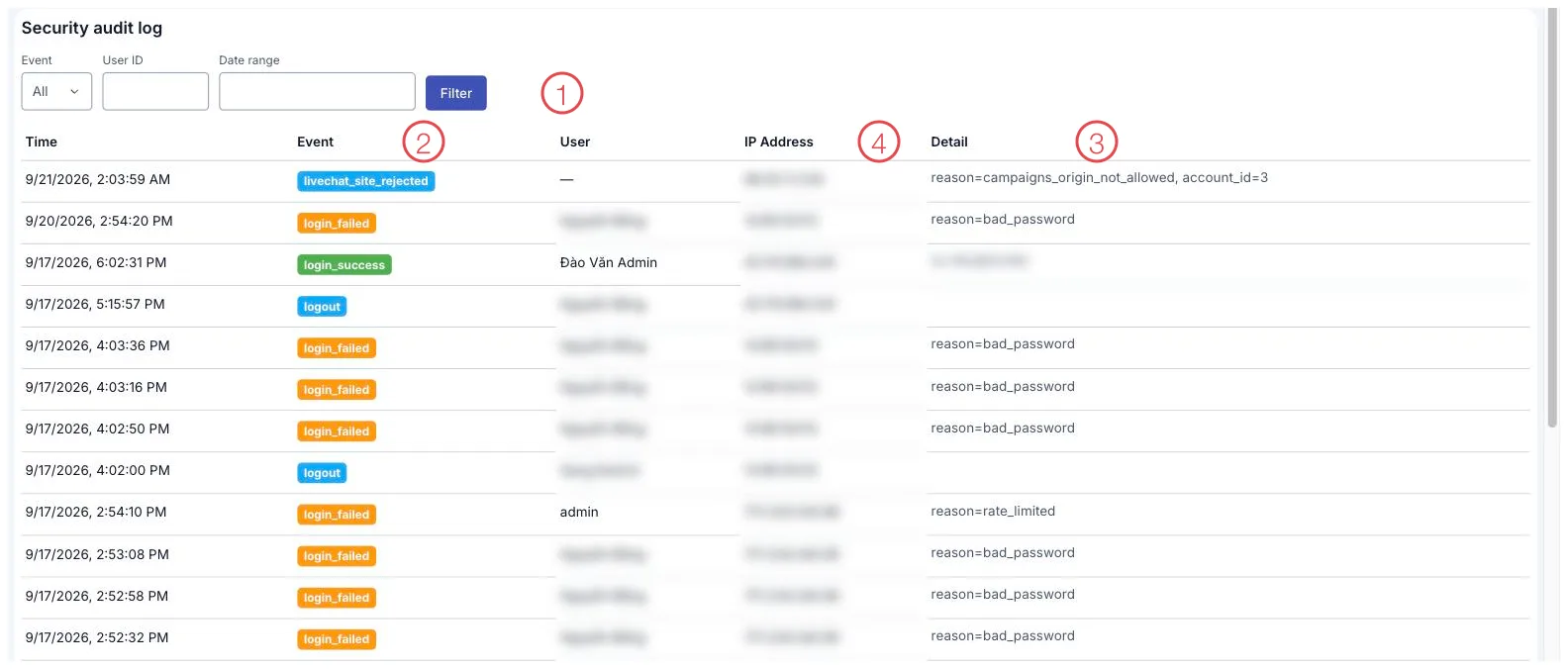
Illustration of the Security audit log screen
| Area | What it is |
|---|---|
| 1. Filters | Narrow by event type, by user and by date range, then click Filter. |
| 2. Event type | Each event is colour-coded: green for success, orange for failure, blue for sign-out. |
| 3. Detail | The specific reason, such as a wrong password or being blocked after too many attempts. |
| 4. User and network address | Who, and from which address — both columns are blurred in this illustration. |
The events that get recorded:
| Event | What it means |
|---|---|
| Successful / failed sign-in | Who just signed in, or just typed the wrong password |
| New device | The account just signed in from a device it has never used before |
| Unusual network access | A session already in progress is seen switching to a different network address than the one it signed in from |
| Device signed out for exceeding the limit | An old device was displaced to make room for a new sign-in |
| A revoked session was reused | A session that had already been signed out (by a password change, role change…) was still used — worth a closer look |
| Blocked by network address | Someone tried to connect from outside the allowed IP list |
This log lets an administrator answer "who just signed in to this account, from where, and was anything unusual" without having to ask every staff member individually.
Data edit history
Alongside the sign-in log, every business record in CluvixHealth — customers (patients), appointments, orders, receipts — automatically keeps track of who created it and who last edited it. When you need to trace back a change, you always know exactly who touched that record, not just what changed.
Related
- Two-Step Verification — the steps to turn 2FA on or off for an account.
- Access from Vietnam only — the layer that blocks access from abroad at the door.
- Role-Based Permissions — what someone can do once they are safely signed in.
- Multiple Brands — why 2FA policy is set separately per brand.