Role-Based Permissions
Role-based permissions are how CluvixHealth decides who can view, create, edit or delete what. Each staff member is assigned one role, and that role comes with a specific list of things they can do — so a receptionist cannot open the payroll, and an accountant cannot edit a treatment plan, even though they sign in to the same software.
What a role is
A role is a name that bundles a group of permissions together — for example Receptionist, Doctor, Accountant, Manager. Every staff member has exactly one role at any given time. When their job changes, their role changes — roles are not stacked on top of each other.
The list of roles is defined by the clinic itself, with its own names and its own choice of permissions for each role, in the HR screen — it is not limited to a fixed set of built-in roles.
How specific permissions get
Permissions do not stop at "can open this screen or not" — they go down to each individual action on that screen. The permission screen makes this plain:
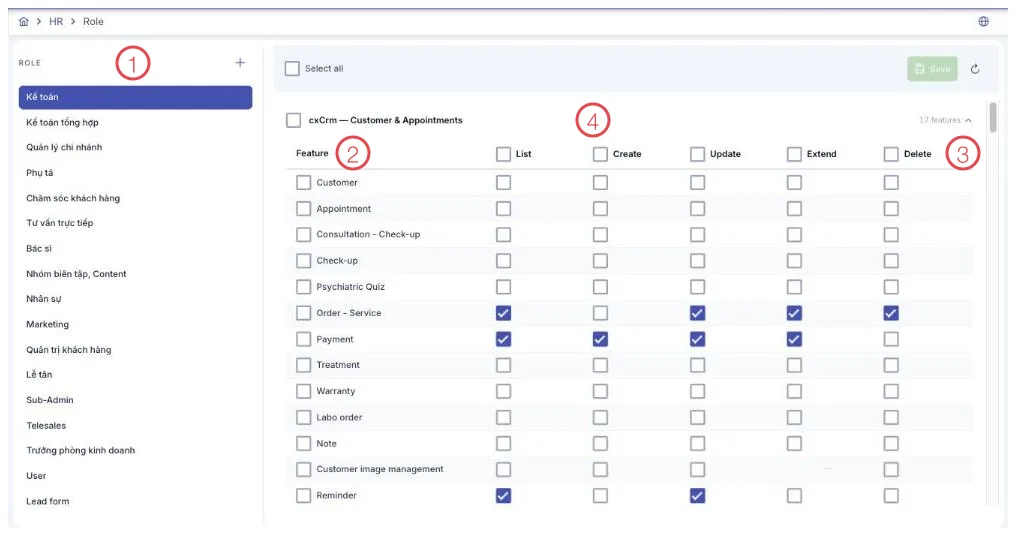
Illustration of the Permission screen
| Area | What it is |
|---|---|
| 1. Role list | The roles your clinic has defined. Click one to see and edit its permissions. |
| 2. Feature column | Each piece of work in the software: customers (patients), appointments, orders, payments, treatments… |
| 3. Action columns | For every feature, tick each action separately: list, create, update, extend, delete. |
| 4. Grouped by area | Features are grouped by business area, with a count for the group. Click to expand or collapse. |
A few examples of how fine that split goes:
| Action | A separate permission |
|---|---|
| View the customer list | Different from the permission to delete a customer |
| Create an appointment | Different from the permission to cancel an appointment |
| Search customers (patients) within your own site | Different from the permission to search across every site |
| Approve a leave request | Different from the permission to create payroll |
| View shared settings | Different from the permission to edit shared settings |
Because permissions are split this finely, a role can carry exactly what it needs without any extra reach: a receptionist can create an appointment but not cancel another doctor's, a nurse can view a medical record but not delete it.
The safest approach is to give a role only the permissions its day-to-day work requires. Adding a permission later, when a new task comes up, is far easier than noticing a role has too much reach and having to walk it back.
Where it is enforced
Permissions are checked by the CluvixHealth server on every single action sent to it, not just by hiding buttons on screen. That means even if a staff member found a technical way to call the software directly, the action would still be blocked if their role lacks that permission — hiding the button in the interface is a convenience on top, not the only line of defence.
Permission checks are remembered by the software for a short time, so even though they happen on every action, users never feel any slowdown.
Searching across sites
For roles that need to look up a customer at another site — for example, a receptionist serving a regular who last visited a different location — the clinic can turn on a dedicated "Search and view data across sites" permission. A role without it only ever sees customers (patients) from the site it is currently working in. See Multiple Branches for how data is kept separate per site.
Three layers at once
Role-based permissions are the third layer, on top of two layers that already keep data separate:
- Brand — staff only work inside the brand they are assigned to.
- Branch — within that brand, they only see data from the sites they are assigned to.
- Role — within that exact brand and branch, they can only do what their role allows.
Together, the three layers mean a receptionist at the Smile dental practice's District 1 site never sees the Belle clinic, never sees District 7, and even within District 1 cannot open the payroll.
Related
- Multiple Brands — the layer that separates data by brand.
- Multiple Branches — the layer that separates data by site.
- Account Security — protecting the login itself.