Accounting
Accounting brings all of the clinic’s money into one place: daily income and expenses, cash funds, vouchers (payments, deposits, refunds), e-invoices and tax, up to the accounting books and period-end financial statements.
Open the Accounting module
After you sign in, click the Accounting tile on the module screen.
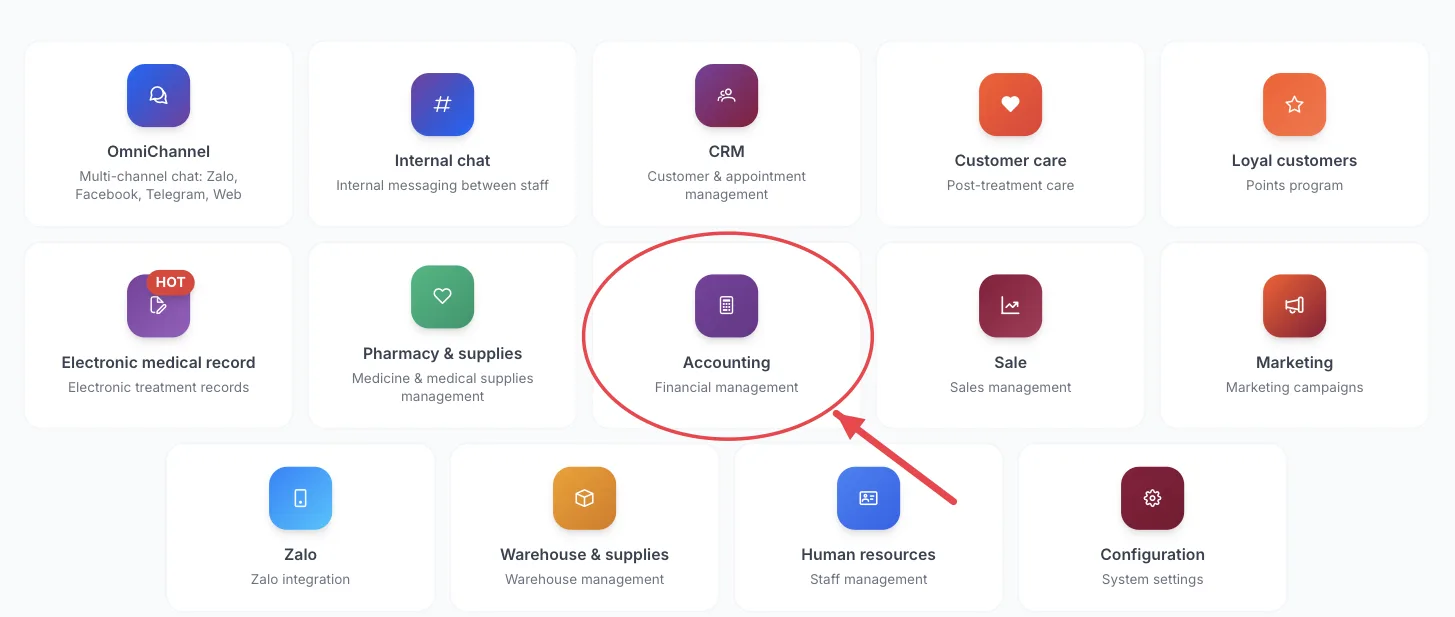
The Accounting tile on the module screen
If you are already in another module, no need to go back: click the grid icon (System modules) in the top bar and pick Accounting.
Who uses it
Accountants, cashiers, clinic owners.
What you can do
- Record and view clinic income and expenses.
- Manage money funds (cash, bank accounts) and reconcile them.
- Manage payment, receipt/expense, deposit, consignment, deposit refund and service refund vouchers.
- Issue e-invoices, record supplier invoices and prepare VAT reports.
- Post to the books, view the general ledger, produce financial statements and close periods.
- See the clinic’s profit and loss.
Menus in this module
The left-hand menu is split into groups. The numbers in the picture match the numbered groups below; names in bold match the software.
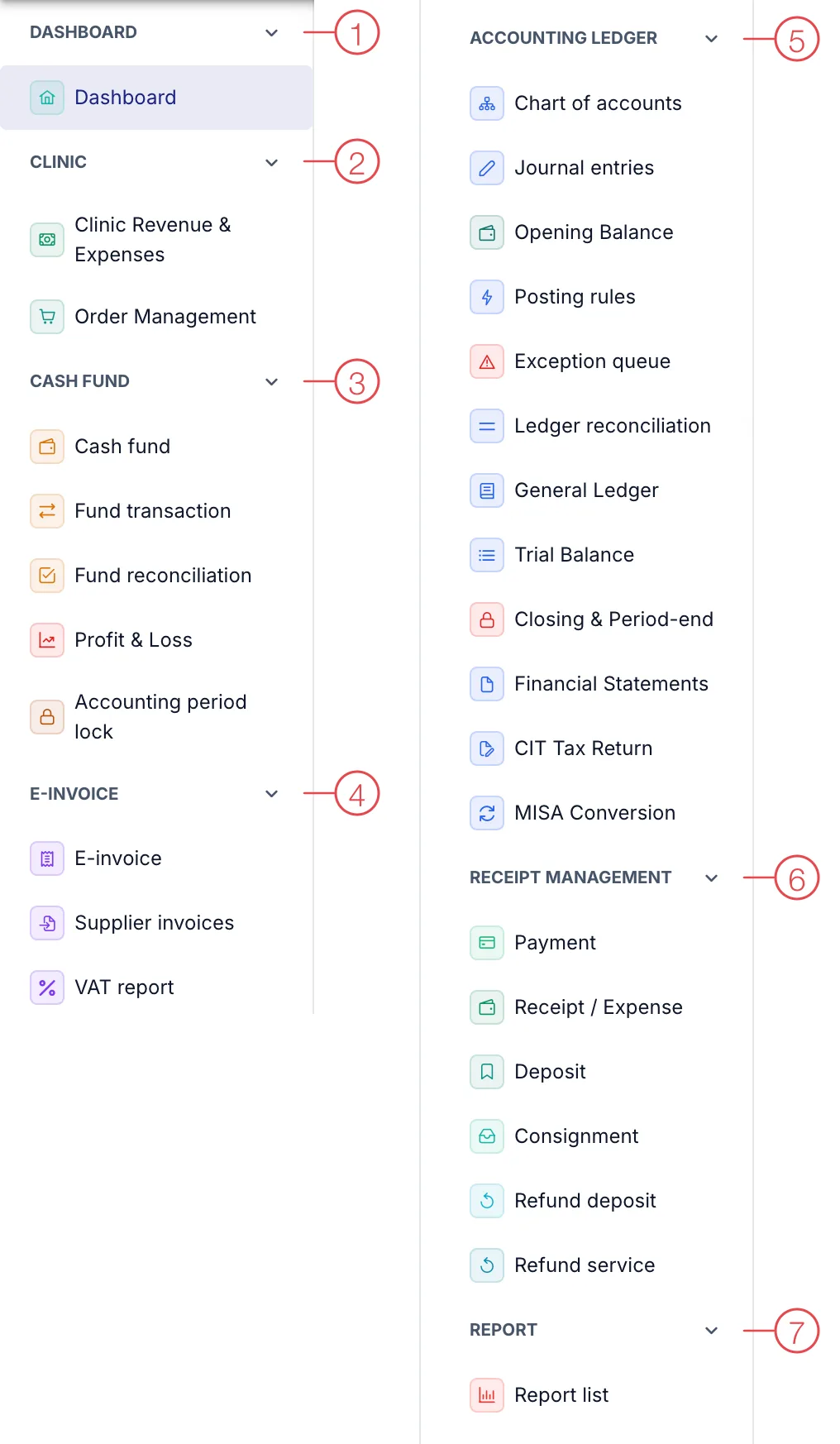
Accounting module menu
1. Dashboard
| Menu | What it is for |
|---|---|
| Dashboard | Cash flow overview: income, expenses, fund balances. |
2. Clinic
| Menu | What it is for |
|---|---|
| Clinic Revenue & Expenses | Money coming in and going out of the clinic each day. |
| Order Management | Service/product orders and their payment status. |
3. Cash fund
| Menu | What it is for |
|---|---|
| Cash fund | List of funds: cash, each bank account, e-wallets. |
| Fund transaction | Every money movement in each fund. |
| Fund reconciliation | Compare software balances with real cash / bank statements. |
| Profit & Loss | Whether the clinic made a profit or loss over a period. |
| Accounting period lock | Lock a finalised period so nobody can change its figures. |
4. E-invoice
| Menu | What it is for |
|---|---|
| E-invoice | Issue electronic invoices to customers (patients). |
| Supplier invoices | Invoices received from suppliers. |
| VAT report | Summary of value-added tax payable. |
5. Accounting ledger
| Menu | What it is for |
|---|---|
| Chart of accounts | The list of accounting accounts. |
| Journal entries | Record accounting entries manually. |
| Opening Balance | Account balances when you start using the software or at period start. |
| Posting rules | Set which accounts each transaction type posts to, so the software posts automatically. |
| Exception queue | Transactions the software could not post automatically, waiting for an accountant. |
| Ledger reconciliation | Match the books against operational data. |
| General Ledger | Detailed movements of each account. |
| Trial Balance | Movements and balances of all accounts for the period. |
| Closing & Period-end | Period-end steps to close the books. |
| Financial Statements | The financial statements for the period. |
| CIT Tax Return | Corporate income tax return. |
| MISA Conversion | Export data to MISA accounting software. |
6. Receipt management
| Menu | What it is for |
|---|---|
| Payment | Customer (Patient) payments for orders/services. |
| Receipt / Expense | Receipts and expenses outside sales (electricity, purchases…). |
| Deposit | Money customers (patients) pay in advance. |
| Consignment | Money customers (patients) leave with the clinic to be used gradually. |
| Refund deposit | Return a deposit to a customer. |
| Refund service | Refund a service the customer no longer wants. |
7. Report
| Menu | What it is for |
|---|---|
| Report list | Revenue, income/expense and receivables reports. |
The module screen only shows tiles your account has permission for. If you need it, ask your clinic manager to grant access.
Do a Fund reconciliation at the end of each day: the cash you count should match the cash fund balance in the software.
Related
- First Login — how to get in and the module screen.