OmniChannel
OmniChannel (multi-channel chat) brings messages customers (patients) send the clinic from Zalo, Facebook, Telegram and the website chat box into one screen. You reply to every channel in one place and see the chatting customer (patient)’s record and appointments at the same time.
Open the OmniChannel module
After you sign in, click the OmniChannel tile on the module screen.
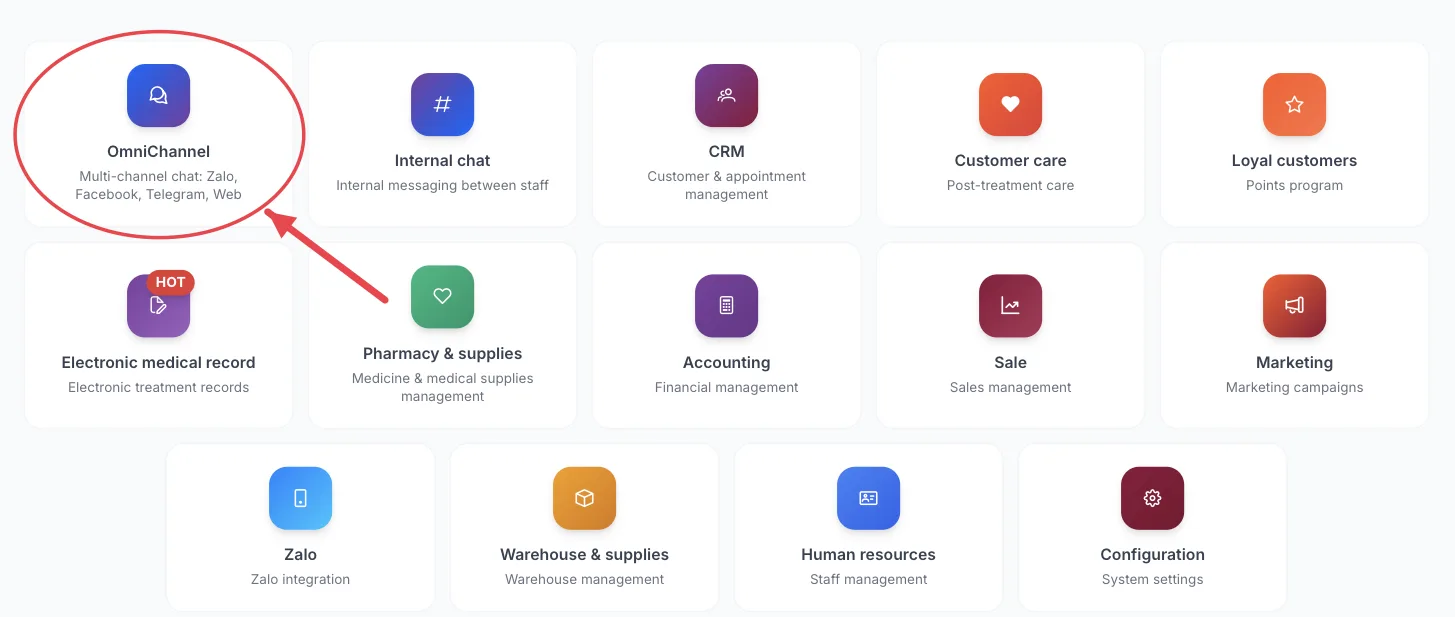
The OmniChannel tile on the module screen
If you are already in another module, no need to go back: click the grid icon (System modules) in the top bar and pick OmniChannel.
Who uses it
Consultants, customer care staff, receptionists handling messages.
What you can do
- Reply to messages from every connected channel on the same screen.
- Quickly filter Unread, Not replied, Mine and Processed conversations.
- Search conversations by customer name or phone number.
- See the customer’s profile, CRM info and appointments while chatting.
- Track customer (patient) satisfaction (CSAT survey) and connected pages.
Parts of the screen
Channel overview
Click the OmniChannel tile on the module screen and the channel overview opens — a summary of all the clinic’s chat channels.
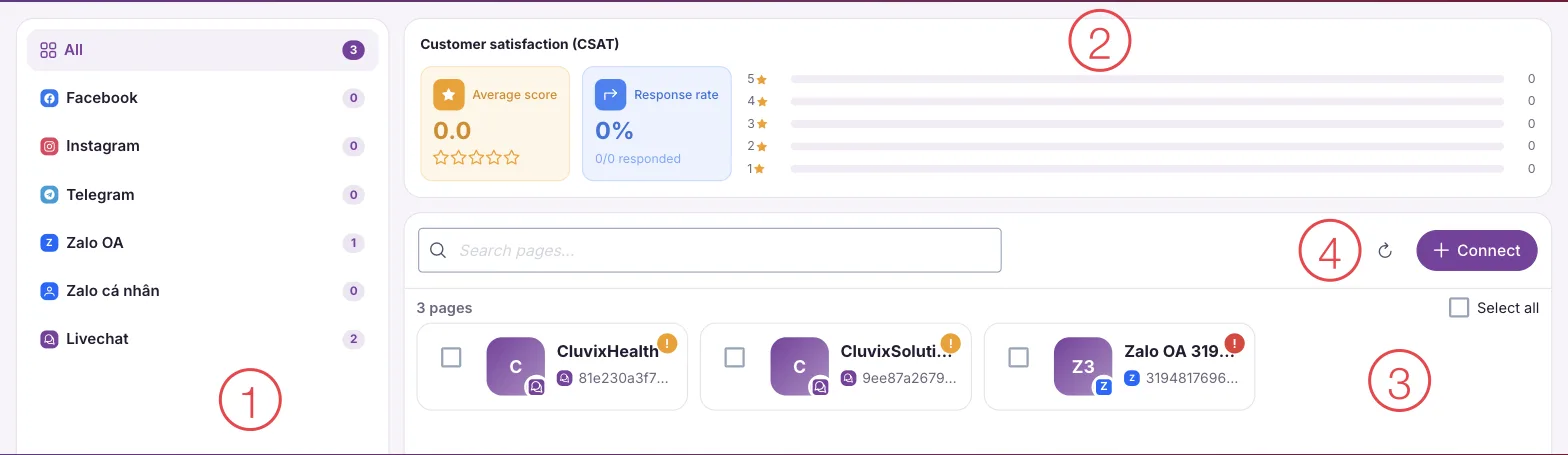
OmniChannel channel overview
The page has 4 areas, numbered as in the picture:
- Channel list — All, Facebook, Instagram, Telegram, Zalo OA, Zalo personal (shown as Zalo cá nhân), Livechat (website chat). The number on the right is how many pages/accounts are connected for that channel.
- Customer satisfaction (CSAT) — the average score customers (patients) gave after chatting, the response rate and the count for each star level.
- Connected pages — each card is one chat page/account. An orange or red exclamation mark on a card means its connection needs checking.
- Connect — add a new chat page/account (usually done by an administrator).
Chat inbox
On the channel overview, click a page card (area 3) to open that page’s inbox.
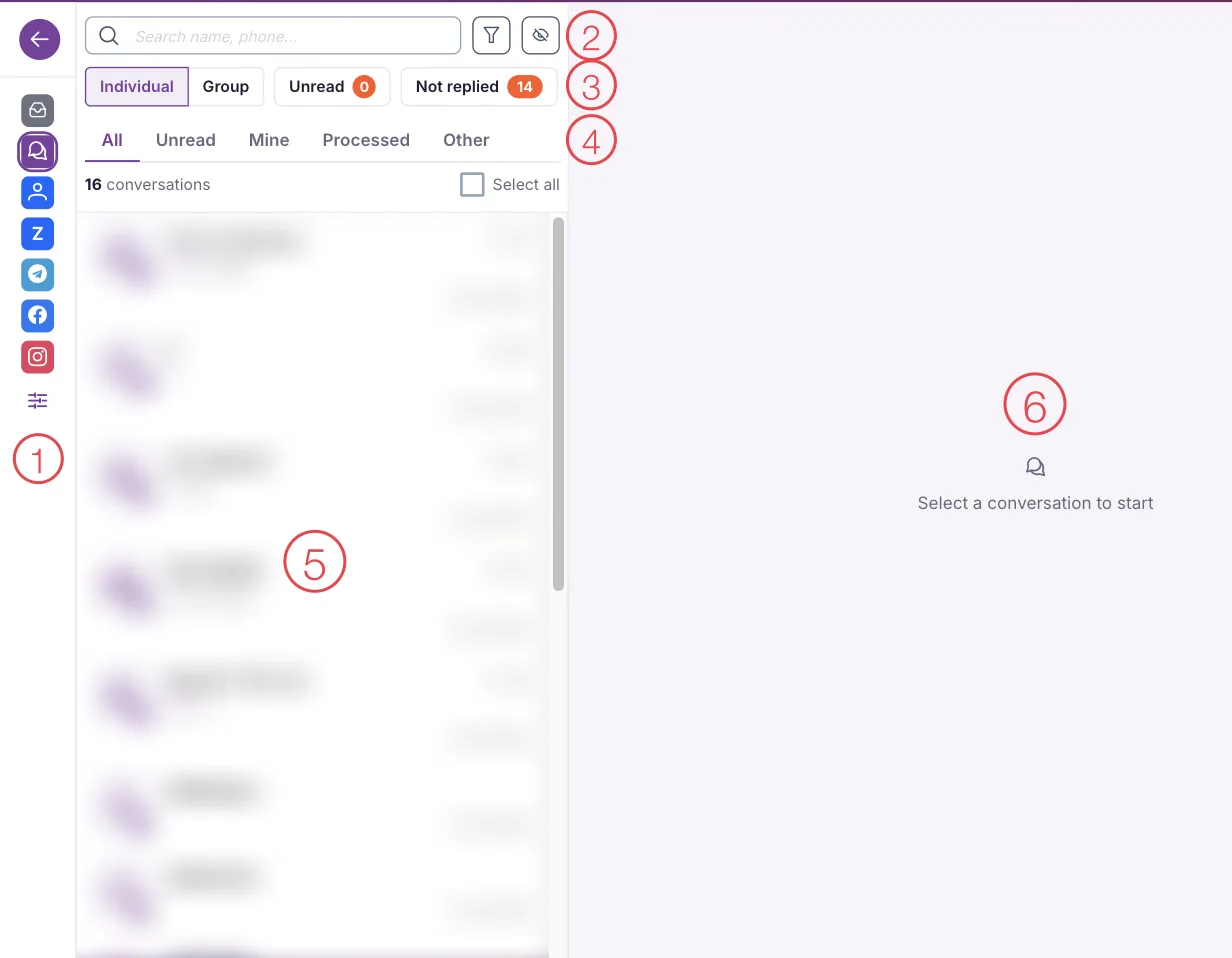
OmniChannel chat inbox
The inbox has these parts, numbered as in the picture:
- Channel bar on the left — switch quickly between channels. The arrow at the top goes back to the channel overview.
- Search and filter — type a customer’s name or phone; the funnel button adds more filters.
- Individual / Group / Unread / Not replied — choose the type of conversation. The orange number is how many are unread or not replied.
- All / Unread / Mine / Processed / Other — narrow the list further, e.g. only conversations you are handling.
- Conversation list — one row per customer: name, latest message, date and page.
- Chat window — click a conversation to read and reply. When a conversation is open, the right-hand column shows the customer’s profile, CRM info and appointments.
Channels (Zalo, Facebook, Telegram, website chat) must first be connected by an administrator before messages arrive.
This module depends on the clinic's subscription plan and needs account permission. If you can't see it, ask your clinic manager to check.
Take an unassigned conversation before replying so two people don’t message the same customer.
Related
- First Login — how to get in and the module screen.