Internal chat
Internal chat lets clinic staff message each other inside the software — no need to use personal Zalo for work: direct messages, group chats, and discussions about a specific record without customer information leaving the clinic.
Open the Internal chat module
After you sign in, click the Internal chat tile on the module screen.
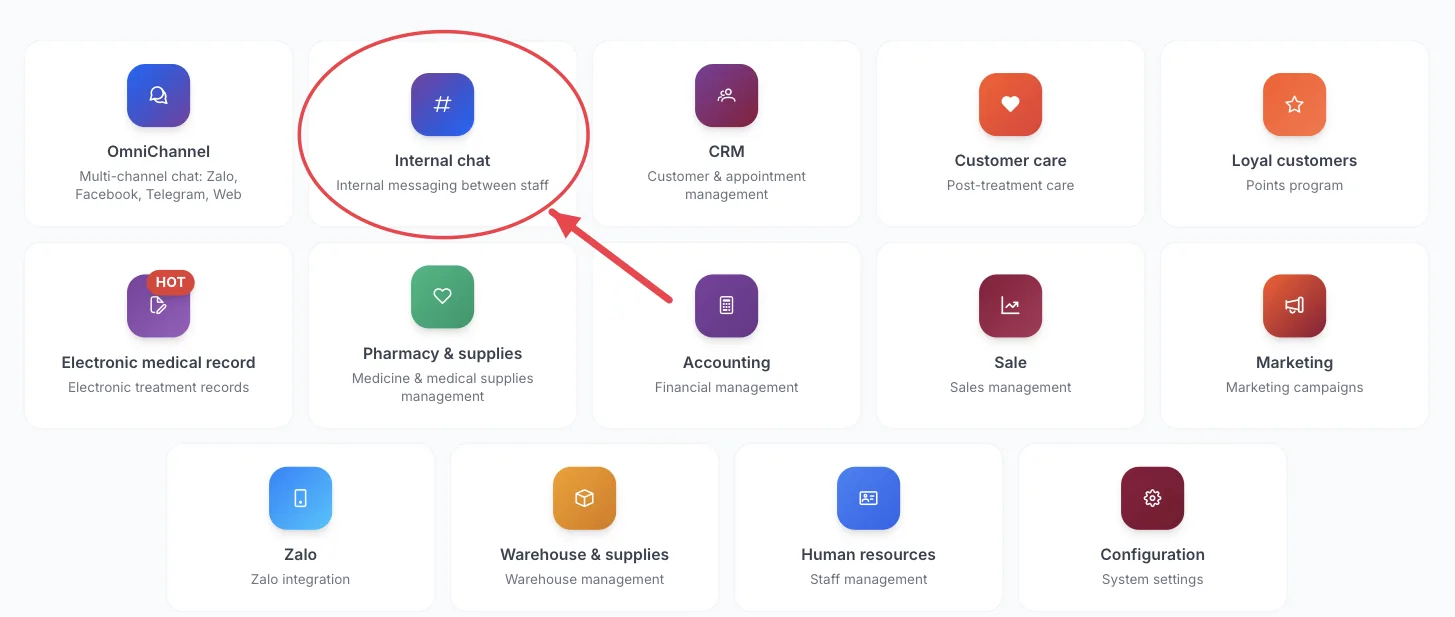
The Internal chat tile on the module screen
If you are already in another module, no need to go back: click the grid icon (System modules) in the top bar and pick Internal chat.
Who uses it
All staff.
What you can do
- Send direct messages to colleagues.
- Join group and department channels.
- Discuss a record (e.g. a customer) internally, attached to that record.
- Pin important conversations to the top.
- See which colleagues are online.
Parts of the screen
Click the Internal chat tile on the module screen, or the Internal chat button in the top bar.
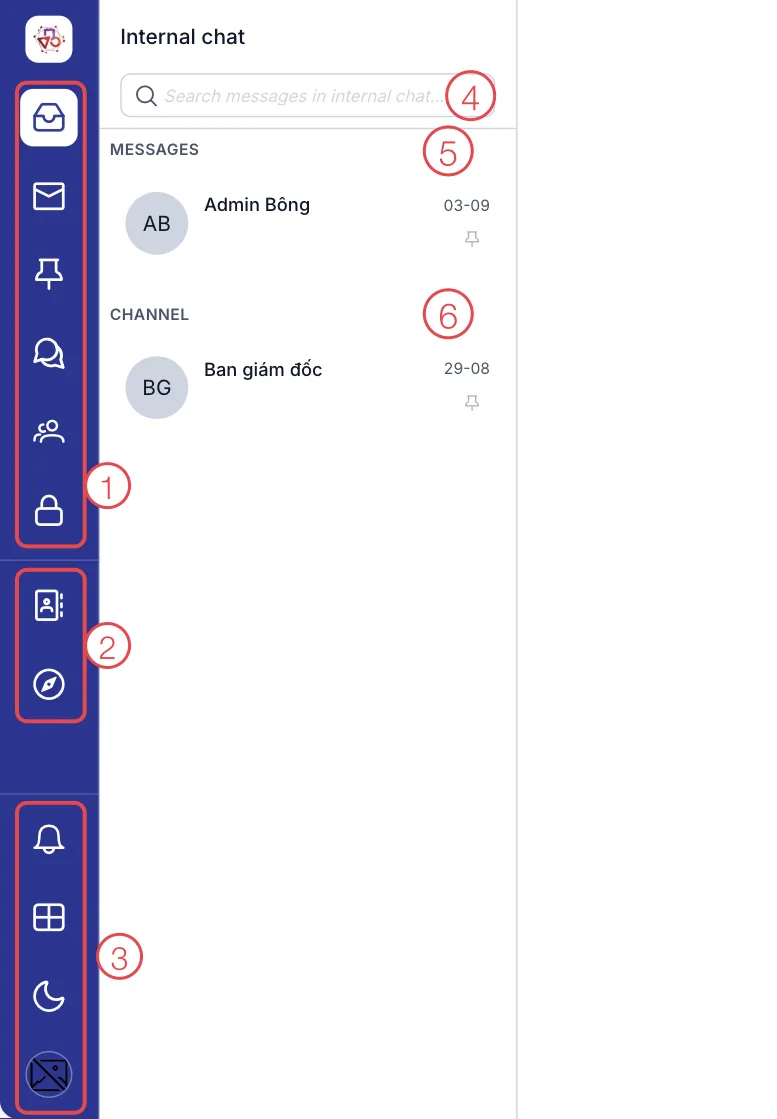
Internal chat screen
The screen has these parts, numbered as in the picture:
- Conversation filters (upper part of the left bar) — in order: All, Unread, Pinned, Messages (direct messages), Channel (group chats), Internal discussions on records (channels attached to a specific record).
- Directory and Discover channels — find a colleague to message directly, or find and join an existing channel.
- Common tools (bottom) — Notification, System modules (switch module), Dark (dark mode) and My account.
- Search — find old messages in internal conversations.
- MESSAGES — your direct conversations with each colleague.
- CHANNEL — group chats you have joined. Click a row to open the conversation on the right.
Every staff member can use this module; no special permission needed.
Use this instead of personal Zalo when discussing patients — customer information stays in the clinic’s software, not on personal phones.
Related
- First Login — how to get in and the module screen.