Stock Adjustment
The count comes out different, or a box turns out to be damaged — the software's figure has to be brought back to reality. Stock adjustment does that, but always with a reason and an approver, so no number ever changes without anyone knowing why.
The list screen shows Form code, Warehouse, Type, Status, Approved at and Created at.
Creating an adjustment
Click Create form:
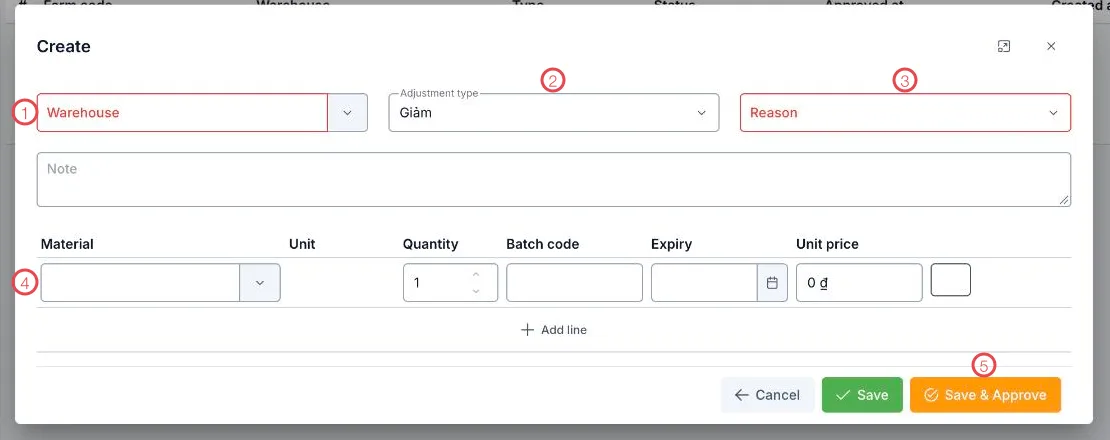
Illustration of the stock adjustment form
| Area | What to enter |
|---|---|
| 1. Warehouse (required) | The store whose figure needs correcting. |
| 2. Adjustment type | Increase or Decrease. |
| 3. Reason (required) | From the clinic's own reason list; the options shown are already filtered by increase or decrease. |
| 4. The material line | Material, Quantity, Batch code, Expiry, Unit price. |
| 5. Save & Approve | Save and approve in one go if you have the right; Save leaves it as a draft for somebody else to approve. |
Adjustment statuses
| Status | Meaning |
|---|---|
| Draft | Created; stock has not changed. |
| Approved | Approved — stock updates to match. |
| Cancelled | Dropped. |
Only a Draft can be edited; once approved, create another adjustment to correct further and both stay in the history.
Keep the reason list short and clear
Damage, standard wastage, stock-take difference, entered in error — a handful of clear reasons lets the period report answer "where did the supplies go", instead of a pile of vouchers all saying "adjustment".
Related
- Stock Take — where differences are found.
- Current Stock — the figure once approved.
- Stock Return — for material coming back from a specific issue.