Purchase Orders
Every clinic sends some work out: a lab pours models, makes crowns, fabricates appliances. This screen holds those suppliers' price lists — one row per service with its price and unit, so that when work goes out the price is already known.

Illustration of the Purchase order screen
| Area | What it is |
|---|---|
| 1. Create | Add a supplier's service and its price. |
| 2. Search box | Search by provider or service name. |
| 3. Columns button | Choose which columns the table shows. |
| 4. Status column | An on/off switch — off means the service is temporarily not offered for selection. |
The other columns: Provider, Service, Price/Unit and Position (display order).
Adding a supplier service
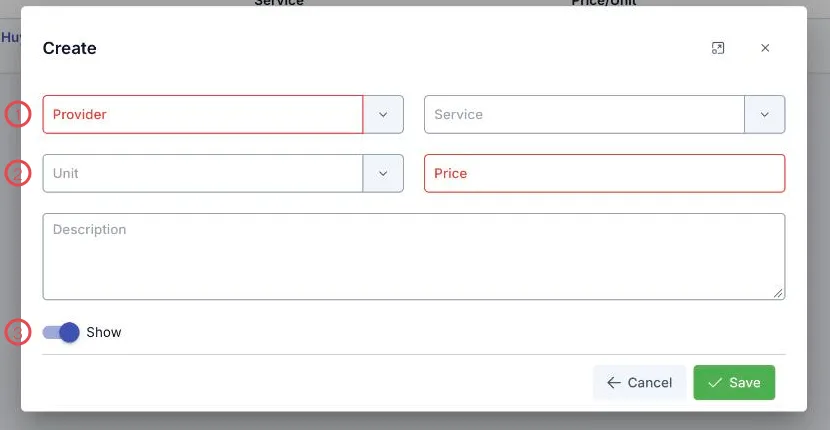
Illustration of the supplier service form
| Area | What to enter |
|---|---|
| 1. Provider (required) and Service | Who does the work and what the work is, for example Kim Huyen Lab — pulp treatment. |
| 2. Unit and Price (required) | What the price is per: per piece, per case, per arch… |
| 3. The Show switch | On means available immediately; off keeps the record without offering it. |
The Description box in the middle is for the terms: turnaround time, specification, what warranty applies.
Switch old prices off, don't delete them
When a supplier changes a price, add a new row and switch off the old one. Work sent earlier can then still be traced back to the price that applied at the time.
Related
- Stock Entry — receiving supplies from a supplier.
- Warehouse Overview — the life of a supply item in the clinic.