Stock Reservation
Next week's implant case needs that exact fixture. Without holding it, someone uses it on another case and the shortage only appears on the day. Stock reservation locks aside what is needed: the goods stay on the shelf, but they are spoken for.
The list screen shows Reservation code, Material, Warehouse, Quantity, Expires at, Status and Created at. The toolbar also has an Expire overdue button to clear out reservations whose time has passed.
Creating a reservation
Click Create reservation:
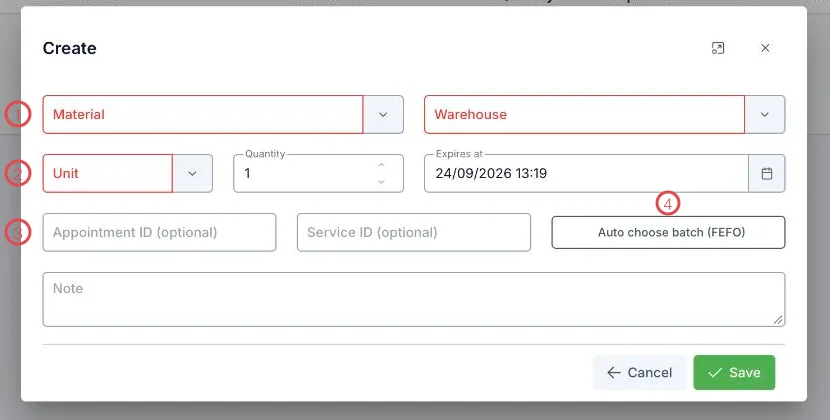
Illustration of the stock reservation form
| Area | What to enter |
|---|---|
| 1. Material and Warehouse (required) | What to hold, and where. |
| 2. Unit, Quantity, Expires at | How much to hold and until when. |
| 3. Appointment ID and Service ID | Tie the reservation to the booking or service it is for. |
| 4. Auto choose batch (FEFO) | The software picks the nearest-expiry usable lot for you. |
FEFO — why that button is worth pressing
FEFO is First Expired, First Out: use the soonest-to-expire lot first. Pressing it instead of picking a lot yourself buys two things:
- Less waste. Lots close to expiry get used before they lapse.
- Nothing to remember. Whoever makes the reservation does not have to compare dates.
Reservation statuses
| Status | Meaning |
|---|---|
| Active | The material is locked, and shows in the Locked stock column. |
| Converted | The treatment happened and the reservation became a stock issue. |
| Expired | The expires at time passed unused — the material unlocks itself and returns to available. |
| Cancelled | The reservation was dropped. |
Holding too long locks material for nothing and makes other cases think you are out. Set Expires at just after the appointment — past that, the software releases it for you.
Related
- Current Stock — the Locked stock column is this.
- Stock Usage — the next step when the treatment happens.
- Warehouse Overview — where reservation sits in the cycle.