Stock Entry
Everything in the store starts with a stock entry: whose goods, into which warehouse, in which lots and expiring when. Recorded properly here, everything downstream works — warnings, traces, recalls.
The list screen has a search box, an Entry date filter, an export button and an Import data button for loading many lines from a file. The table shows Stock entry code, Material, Quantity, Provider, Warehouse and Stock entry date.
Creating an entry
Click Stock entry on the toolbar:
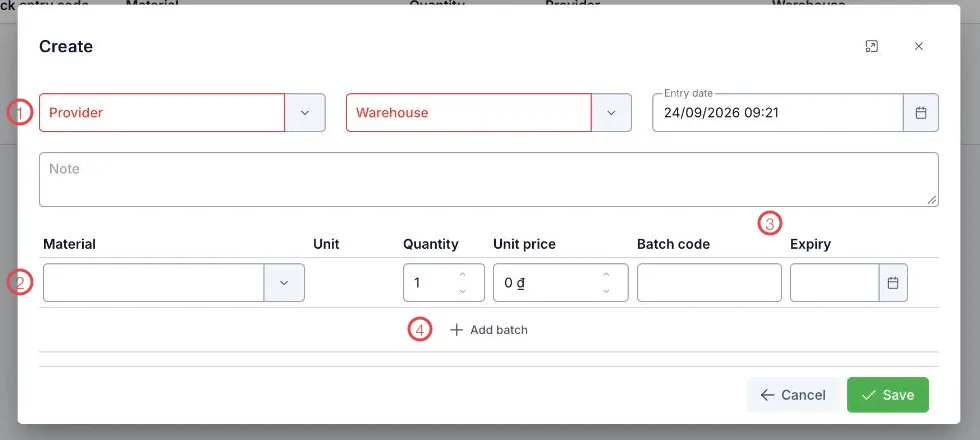
Illustration of the stock entry form
| Area | What to enter |
|---|---|
| 1. The top row | Provider and Warehouse (required) — whose goods and where they go; Entry date defaults to now. |
| 2. The material line | Material, Unit, Quantity and Unit price. |
| 3. Batch code and Expiry | The most valuable part of the form — see below. |
| 4. Add batch | Add another line: one entry can cover several materials and several lots. |
The Note box above is for the invoice number or delivery terms.
Why batch code and expiry matter
Three things run on lot data:
- Expiry warnings on the dashboard count lot by lot.
- Material recall filters exactly the lots the manufacturer named.
- Stock reservation picks the nearest-expiry lot first (FEFO).
Record it once on arrival and all three work.
When a dozen items arrive at once, click Import data on the toolbar, download the template, fill it and upload — faster than typing lines and less error-prone.
Related
- Current Stock — the result of an entry.
- Stock Usage — the other direction: supplies leaving.
- Purchase Orders — suppliers' service price lists.