Coupons
Coupons is where you manage discount codes tied to one referral partner (CTV). When a customer (patient) uses this code, they get a discount and the partner who owns the code earns a commission — unlike Promotions, which are shared codes for every customer, not tied to any partner, and never earn a commission.
The screen is laid out like this:
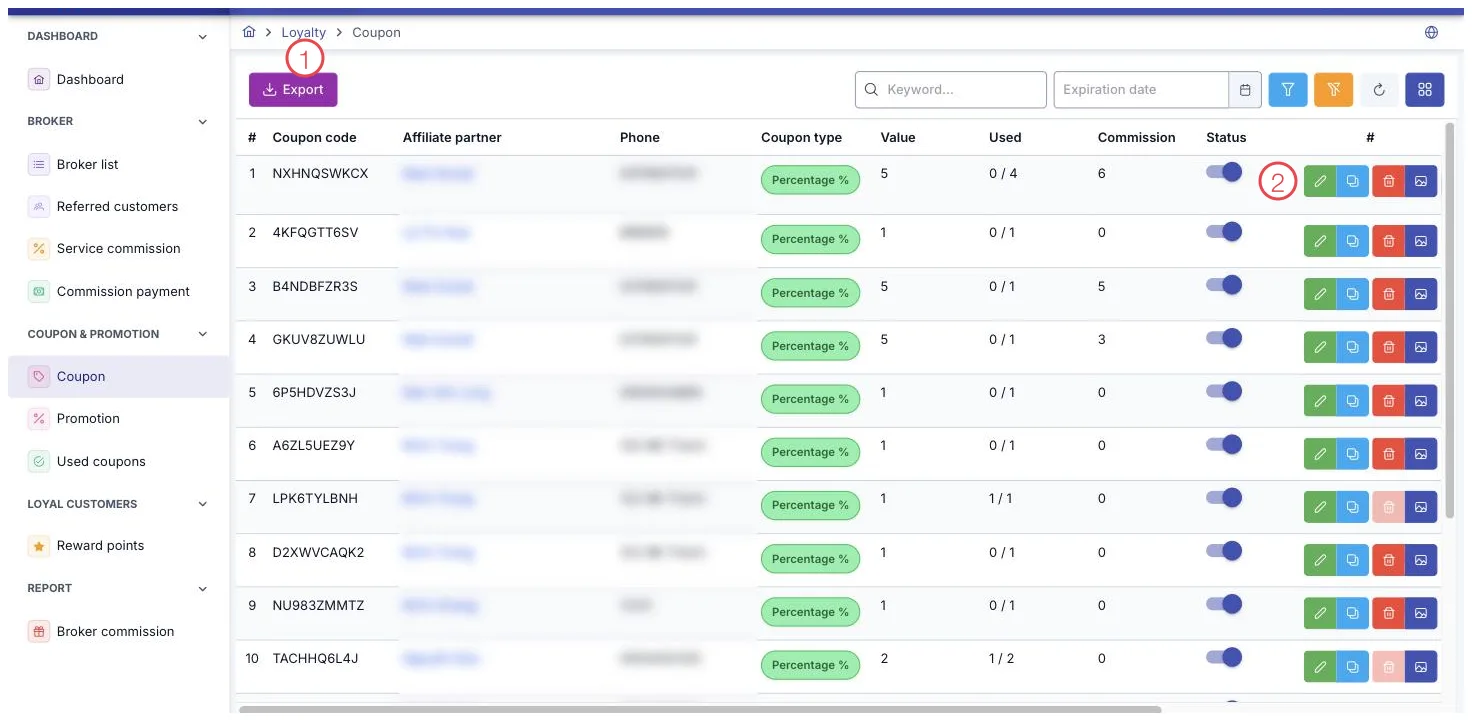
Illustration of the Coupon screen
| Area | What it is |
|---|---|
| 1. Export button | Sends the filtered list of codes to Excel. |
| 2. Row buttons | The pencil edits, duplicate creates a new code from this one, the bin deletes, and the image icon opens the referral card the partner can share. |
How to create a coupon
Coupons are created from the Partner List page — press the gift icon at the end of the partner's row you want to add a code for. You can also create a coupon right when creating a new partner, in the Add coupon (optional) block of the partner form.
The Coupons page is for viewing, editing, duplicating, and deleting existing codes — there's no separate Create button here.
Filters and export
Filter by Partner Category, Coupon Category, Assignee, Branch, Created By, Creation Date, and Expiry Date. The toolbar has an Export button to export the currently filtered list to a file.
Row action buttons
Each coupon row has the following buttons:
- Pencil — edit the code's details.
- Duplicate — reopens the form pre-filled with the original code's data, and saves it as a brand-new code.
- Trash — delete the code; this button is grayed out once the code has been used.
- Image icon — create or view the referral card: an image combining the partner's name and coupon code over a preset background, for the partner to share with customers (patients).
What the columns mean
| Column | Meaning |
|---|---|
| Usage | Shown as used / total allowed; the used count is tracked automatically each time an order applies the code. |
| Status | A toggle right on the row. Off means the code can no longer be applied to new orders — different from deleting it. |
| Expiry Date | Shown in red if already past due, "—" if no expiry is set. |
| Value | Shows an amount if the code is Fixed Value, or a percentage if it's By %. |
Filling in the form when creating or editing
| Field | Note |
|---|---|
| Quantity (required) | The total number of uses allowed for this code. |
| Coupon Type (required) | By % or Fixed Value. |
| Coupon Category (required) | Based on the categories your clinic sets up. |
| Value (required) | The discount amount or percentage. For By % codes, the maximum value is 100. |
| Partner Commission % (required) | The commission percentage the partner earns when the code is used; can be left at 0. |
| Coupon Code | Randomly generated, with a regenerate button. To set your own, use uppercase letters and numbers, 6–16 characters. |
| Referral Card Background | Optional, used to compose the partner's referral card. |
Once a coupon has at least one recorded use, it locks and can no longer be edited. To change its conditions, create a new code or duplicate the existing one, so the figures on orders that already used the old code stay accurate.
To see how many uses are left on a code, check the Usage column — no need to open Used Coupons to count them manually.
Related
- Partner List — where you create a new coupon for each partner.
- Used Coupons — history of every time a code was applied to an order.
- Promotions — shared codes not tied to any partner.