Broker List
Broker List is where you manage every broker (CTV) — the people who refer customers (patients) to your clinic and earn a commission when that customer pays. Each broker is its own record, not a staff account, and can be linked to an existing customer for cases where "a customer (patient) is also a broker" who refers their friends.
From the left menu, open Broker > Broker List to reach this screen.
The screen is laid out like this:
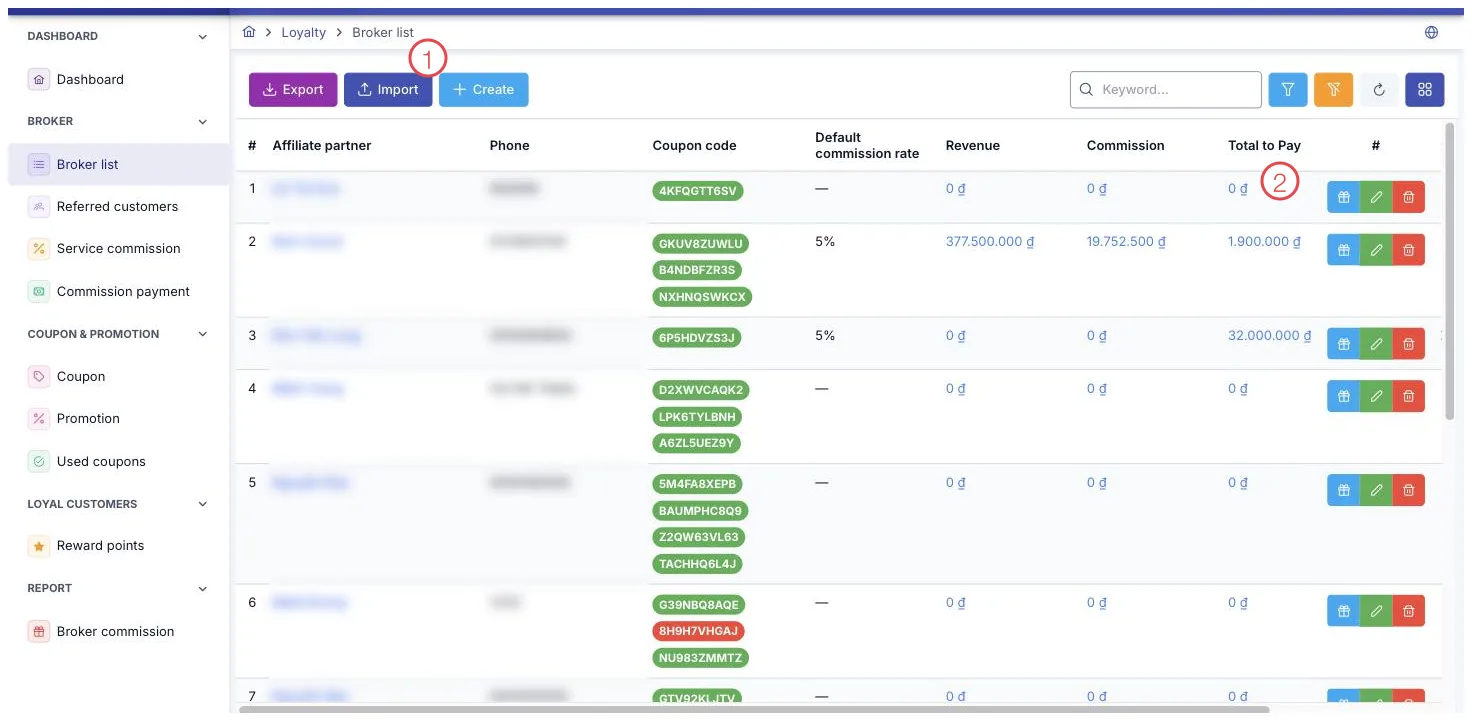
Illustration of the Broker List screen
| Area | What it is |
|---|---|
| 1. Toolbar buttons | Export sends the list to Excel, Import loads partners from a file, Create opens the new-partner form. |
| 2. Row buttons | The gift icon creates a coupon for that partner, the pencil edits, the bin deletes. |
Search and filter brokers
Tap the funnel icon to open the filters: Brand, Broker Type, Broker Category, Created By, Created Date. There's also a separate Keyword box for a quick search by name or phone number. When the screen first opens, nothing is filtered — you see every broker.
Export, import, and create
The toolbar has three buttons:
- Export — export the brokers you're currently viewing to an Excel file.
- Import — load a ready-made broker list from an Excel/CSV file, useful when adding many brokers at once instead of creating them one by one.
- Create — open the form to add a new broker.
The 3 buttons at the end of each row
Every broker row has 3 buttons:
- Gift — create a coupon for that specific broker.
- Pencil — edit the broker's information.
- Trash — delete the broker.
Tap the broker's name in the Broker column to open that person's detail page, where you can see their full history of referred customers and commissions earned.
What some columns mean
| Column | Meaning |
|---|---|
| Coupon code | Shown as a chip: green if the coupon is still valid or has no expiry, red if it has expired. |
| Commission rate | The default commission rate, applied when an order from a customer this broker referred doesn't use a coupon. |
| Revenue / Commission / Total due / Remaining | Running totals that the software recalculates automatically after every new commission or payment — they can't be typed in. |
Create or edit a broker
Tap Create, or the pencil on an existing row, to open the form:
| Field | What to enter |
|---|---|
| Broker name (required) | The referrer's full name. |
| Phone number (required) | Must not duplicate another broker in the same brand. |
| Brand (required) | The brand this broker belongs to. |
| Broker type (required) | Chosen from your clinic's own category list. |
| Broker category (required) | Chosen from your clinic's own category list. |
| Commission rate | 0–100%, optional. |
| Customer | A search-and-select field, used when this broker is also an existing customer. |
Only when creating a new broker, the form also shows an Add coupon (optional) section. Filling in any field there makes the other 4 fields — Quantity, Coupon type, Coupon category, Coupon value — required. There's a button to auto-generate a code and another to copy the code, ready to use right away. When editing an existing broker, this section doesn't appear — to add a coupon for an existing broker, use the gift button at the end of their row instead.
Deleting a broker deletes every coupon linked to that person, and any customer currently linked to this broker reverts to a regular customer (patient). Check carefully before tapping trash.
To see how much a broker has been paid and how much they're still owed, just look at the 4 columns Revenue, Commission, Total due, Remaining on their row — no need to open every order and add it up yourself.
Related
- Referred Customers — which customers (patients) each broker has brought in.
- Service Commission — the detail of every commission earned.
- Commission Payment — the payment rounds already made to brokers.