Promotions
Promotions are ordinary discount codes shared with every customer, typically used for running campaigns. Unlike Coupons, promotion codes aren't tied to any referral partner and never earn a commission; in exchange, they support scoping by brand, branch, and service group.
The screen is laid out like this:
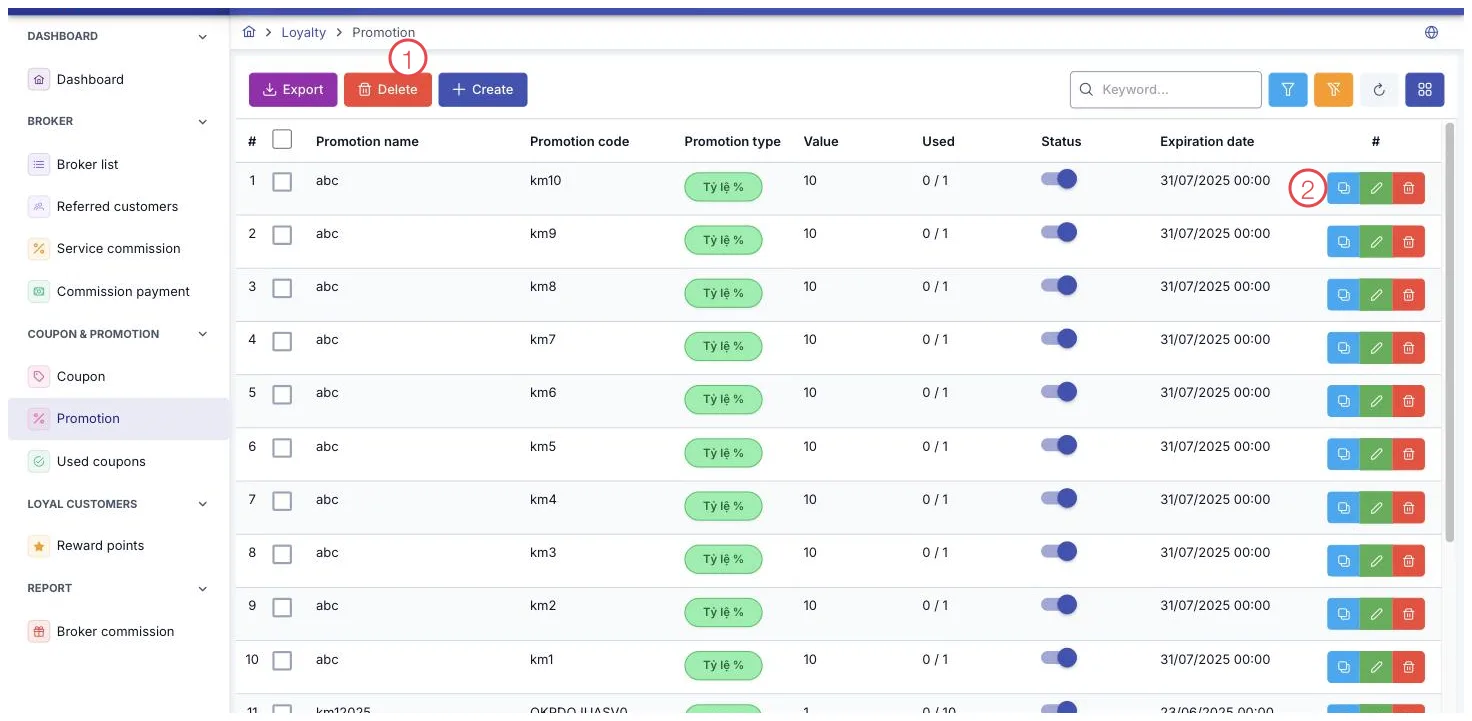
Illustration of the Promotion screen
| Area | What it is |
|---|---|
| 1. Toolbar buttons | Export sends the list to Excel, Delete removes every ticked row at once, Create opens the form. |
| 2. Row buttons | Duplicate, the pencil to edit, the bin to delete. |
Filters and toolbar
Filter by Created By and Creation Date. The toolbar has three buttons:
- Export — export the currently filtered list to a file.
- Create — opens the form to add a promotion code.
- Delete Selected — check multiple rows at the top of the table and delete them at once; only rows that haven't been used yet can be selected.
Row action buttons
- Duplicate — reopens the form pre-filled with the original data, and saves it as a new code.
- Pencil — edit the code's details.
- Trash — delete the code.
Once a row has been used, Edit and Delete are grayed out, leaving only Duplicate available.
What the columns mean
| Column | Meaning |
|---|---|
| Usage | Shown as used / total allowed; the used count is tracked automatically each time an order applies the code. |
| Status | A toggle right on the row; off means the code can no longer be applied to new orders. |
| Expiry Date | Shown in red if already past due, "—" if no expiry is set. |
| Applicable Branches | Lists the branches where the code applies; "—" means it applies to every branch. |
Filling in the form when creating or editing
Compared to coupons, the promotion form adds the following fields:
| Field | Note |
|---|---|
| Promotion Name (required) | The campaign's name, used to identify it in the list. |
| Applicable Brands (required) | Multi-select, at least one is required. |
| Applicable Branches | Multi-select. |
| Service Group | Pick a group first, and the software loads the matching Applicable Services list. |
The remaining fields (Quantity, Promotion Type, Value, Promotion Code...) work the same as the Coupons form.
Set a starting and ending number for the code's suffix, and the software generates a whole batch of codes that differ only in that trailing number, sharing the same image. This is ideal for printing vouchers at the counter or handing each customer a unique code.
Related
- Coupons — discount codes tied to each referral partner.
- Used Coupons — history of every time a coupon or promotion was applied.
- Reward Points — the customer's accumulated points history.