Commission Payment
Commission Payment is the record of amounts actually paid to brokers (CTV), different from Service Commission, which records commission as it's earned. This screen tracks money that has truly left the clinic. Accounting uses it to review, edit, or delete past payments.
From the left menu, open Broker > Commission Payment to reach this screen.
The screen is laid out like this:
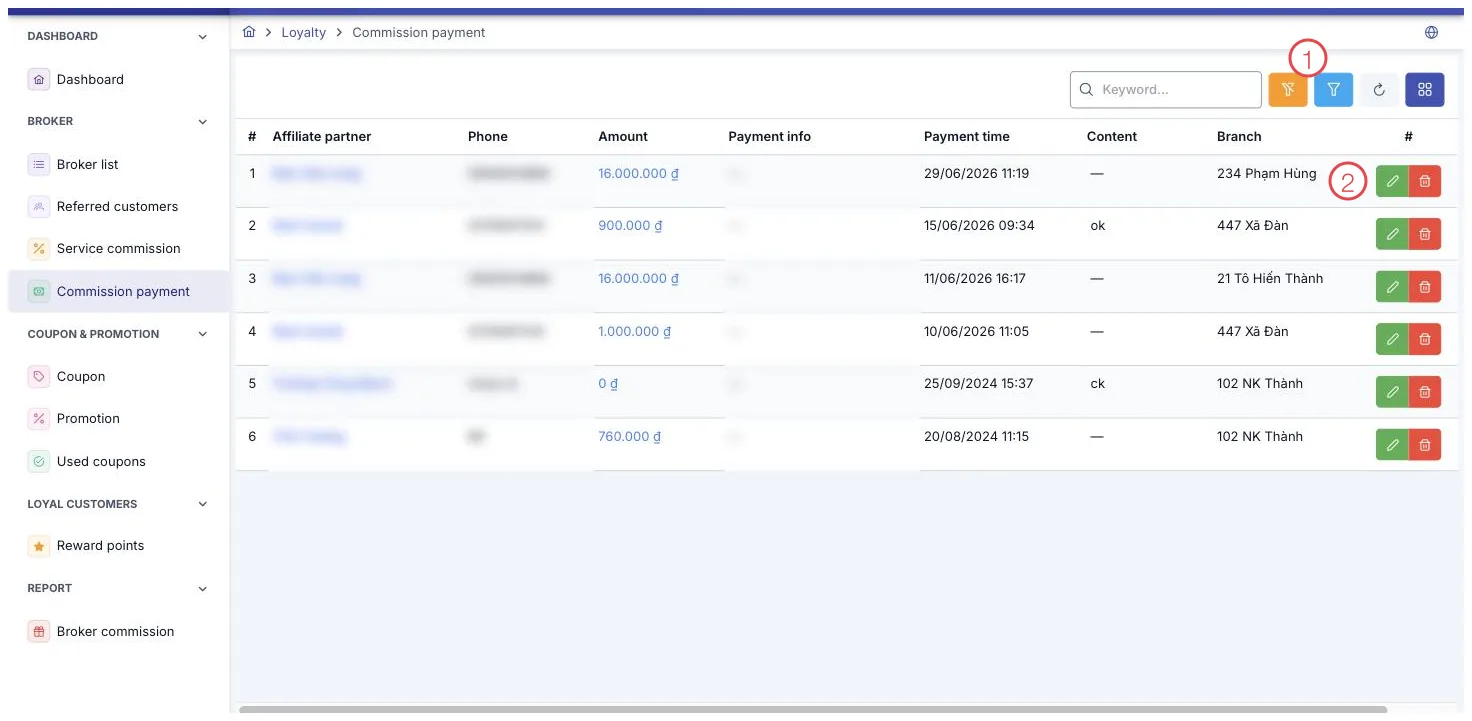
Illustration of the Commission Payment screen
| Area | What it is |
|---|---|
| 1. Filter button | Opens the filters for branch and payment date range. |
| 2. Row buttons | The pencil edits a payment, the bin removes it — the partner's paid total is recalculated straight away. |
Search and filter
The filters are Branch and Payment Date (a date range).
The buttons at the end of each row
Each row has 2 buttons: Edit and Delete (asks for confirmation before deleting for good). After a deletion, the software automatically recalculates that broker's total paid.
Recording a new payment
This screen has no create button — recording a new payment always starts from the broker's detail page, Commission tab (see Service Commission). Tap the credit card button on the service row you want to pay, and the payment form opens with the broker, customer (patient), and service already filled in.
The payment form includes:
| Field | What to enter |
|---|---|
| Branch (required) | The branch making the payment. |
| Amount (required) | Tap Max to auto-fill the maximum amount allowed. |
| Payment date (required) | The date the money was actually paid. |
The service and customer (patient) are pre-filled from the row you started from — no need to select them again.
The amount entered can't exceed any of 3 limits at once: the broker's total unpaid commission, the commission generated from that specific customer (patient), and the maximum commission on that specific service. This keeps accounting from ever paying out more than a broker is truly owed.
What some columns mean
| Column | Meaning |
|---|---|
| Payment info | Combines details saved on the broker's payment profile, such as a bank account number. |
Recording a payment counts immediately toward the broker's total paid — there's no approval step to wait for.
When you're not sure how much a broker is still owed, tap Max in the Amount field instead of typing a number yourself — the software fills in the correct maximum, so you don't have to add up several commission rows by hand.
Related
- Service Commission — the earned-commission record, where a new payment starts from.
- Broker List — each broker's profile and total due.
- New Payment — recording a customer payment that generates commission.