Pharmacy Overview
A clinic pharmacy lives with two worries: running out without noticing, and holding stock that has already expired. The Pharmacy & drug store module keeps both in sight — from ordering from suppliers and receiving stock by batch, through dispensing against a doctor's prescription or selling over the counter, to submitting prescriptions to the national system and handling a recall.
The module is for pharmacists, counter staff, storekeepers and the clinic owner.
This module covers medicines and the drug store. Medical supplies and equipment (gloves, needles, consumables) live in the separate Warehouse & supplies module on the module board.
How to open Pharmacy
On the purple bar at the very top, click the grid icon (four small squares). A board of modules appears, each one an area of the clinic's work.
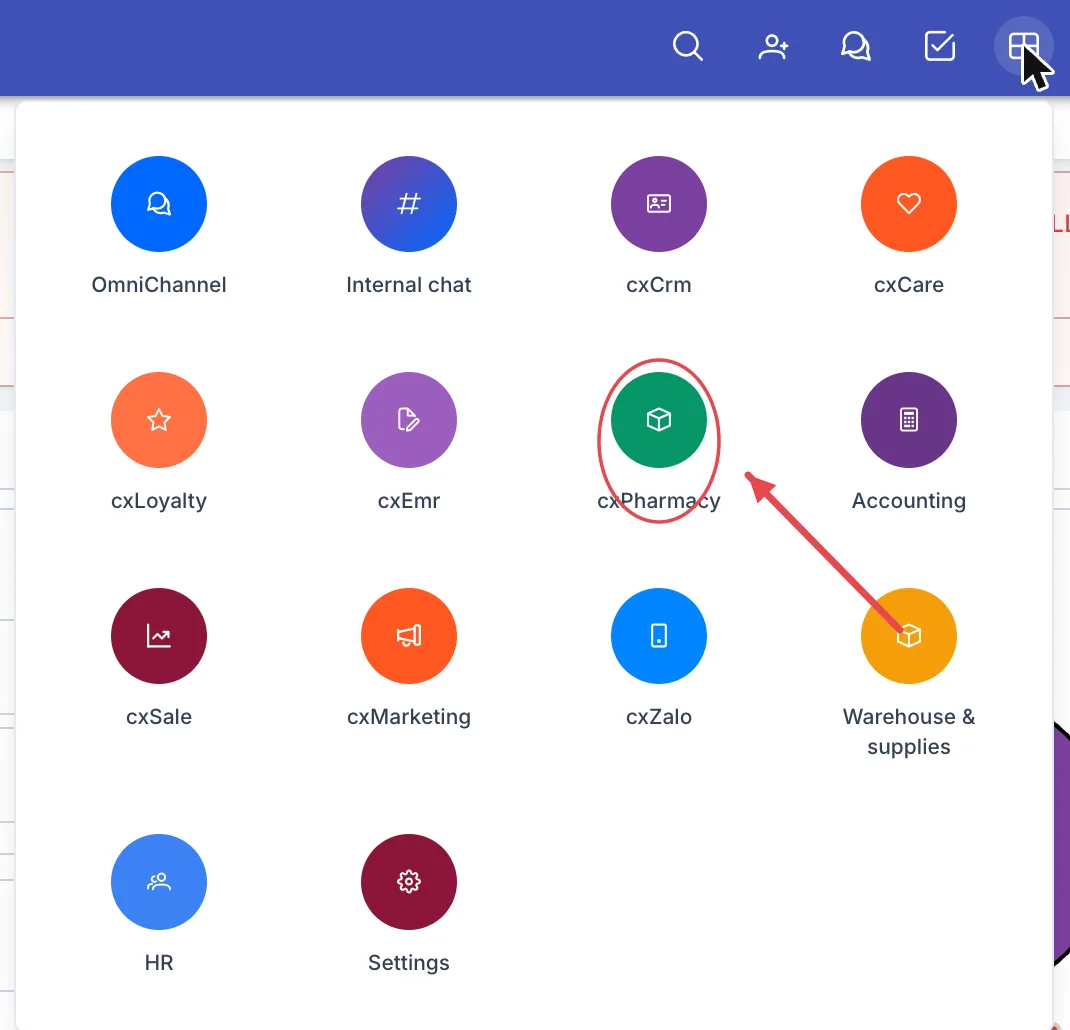
Illustration of the module board
Look for the cxPharmacy tile — a box icon on a round green background. Click it to open the module.
What's on the working screen
Opening the module lands you on the Dashboard, which answers both of those worries at once.
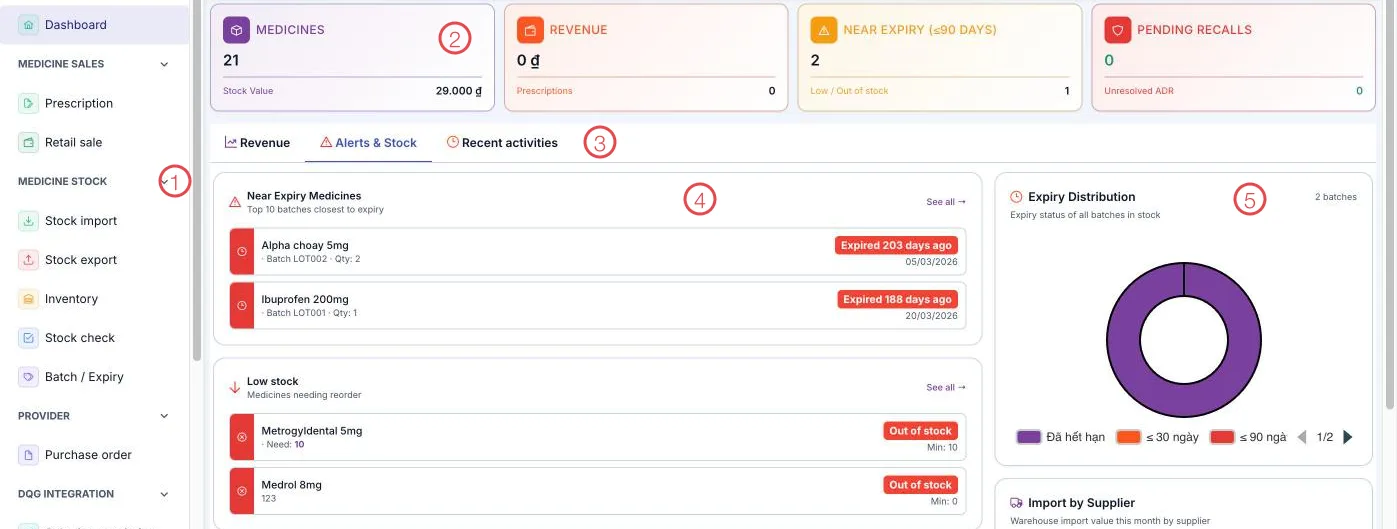
Illustration of the Pharmacy working screen
| Area | What it is |
|---|---|
| 1. Left menu | The module's items, grouped: Medicine sales, Medicine stock, Provider, DQG integration, Drug safety, Report. |
| 2. Figure cards | Medicines under management (with stock value), Revenue and the number of prescriptions, Near expiry (≤90 days) with how many items are low or out of stock, and Pending recalls with unresolved ADR reports. |
| 3. Three content tabs | Revenue · Alerts & Stock · Recent activities — they change what shows below. |
| 4. Alert lists | Near expiry medicines (the 10 batches closest to expiry, with batch number and quantity) and Low stock (medicines needing reorder, with the minimum level). Each has a See all →. |
| 5. Expiry distribution | A doughnut chart of every batch in stock: expired, ≤30 days, ≤90 days. |
Further down sit Stock in/out overview (imports, exports, sales and current stock this month) and Import by supplier (this month's import value by supplier).
The path of a box of medicine
The module follows the life of medicine through the clinic:
- Order. Raise a purchase order with the supplier for whatever is running low.
- Receive. When it arrives, take it into stock by batch, recording each batch's number and expiry date.
- Dispense and sell. Dispense against a prescription written during a visit, or make a retail sale at the counter; every issue comes off the right batch.
- Submit. Send prescriptions to the National Prescription system, look them up and review the submission history.
- Control. Stock checks on a schedule, batch and expiry tracking, and stock export for other purposes.
- Drug safety. Record ADR reports (adverse drug reactions) and run drug recalls when a batch has to come back.
What the module covers
Medicine sales
| Menu | What it does |
|---|---|
| Prescription | Prescriptions written by doctors: dispense from the nearest-expiry batch first, print, submit to the National Prescription System. |
| Retail sale | Selling at the counter to someone without a prescription from a visit. |
A customer's prescriptions can also be viewed right inside their own profile, see Prescription in the customer profile.
Medicine stock
| Menu | What it does |
|---|---|
| Stock import | Record arrivals batch by batch, with expiry dates and cost. |
| Stock export | Issue medicines for purposes other than sales. |
| Inventory | What is left of each item, against its minimum level. |
| Stock check | Reconcile the software's figures with what is counted on the shelf. |
| Batch / Expiry | Track every batch and expiry date — the basis of all the expiry alerts. |
Provider
| Menu | What it does |
|---|---|
| Purchase order | Order from suppliers and follow delivery. |
DQG integration
| Menu | What it does |
|---|---|
| Submit prescription | Send prescriptions to the National Prescription system, in batches per branch. |
| Lookup prescription | Look up a submitted prescription on the national system. |
| Integration history | The log of submissions and what came back. |
Drug safety
| Menu | What it does |
|---|---|
| ADR report | Record adverse drug reactions seen in patients. |
| Drug recall | Raise and approve a recall for a batch that has to come back. |
Report
| Menu | What it does |
|---|---|
| Report list | The way in to all the pharmacy reports — see below. |
The reports available
The module's reports answer three familiar needs:
- Stock — Stock in/out/balance report, Low stock medicines, Stock audit, Batch tracking, Returns / disposals.
- Commercial — Medicine sales revenue, Best-selling medicines, Profit analysis, By supplier, By sales staff.
- Statutory registers — Drug entry book, Drug issue/sale book, Narcotic / psychotropic report.
Why use it
- Warnings before it is too late. Batches close to expiry and items running low sit on the dashboard, with an expiry chart for the whole store — one look tells you what to order and what to move.
- Control down to the batch. In by batch, out by batch: you can trace a box back to who received it and which batch it came from, which is what makes a recall quick and exact.
- Prescriptions arrive straight from the clinic. The doctor writes during the visit and the counter sees it immediately — nothing copied out by hand, no mistaken dose.
- Registers you can print. The entry book, the issue book and the narcotic report come straight from live data rather than being written up at month end.
- National prescription submission in one button. Send in batches, look up and review the history without leaving the software.
Related
- Prescriptions — the same prescriptions, reachable from the medical records module.
- Medical Records Overview — where a prescription starts.
- The Pharmacy & drug store module — the short introduction in Getting started.