Purchase Orders
When the dashboard flags an item running low, the next move is to order from the supplier. A purchase order records what was ordered, from whom, how much and when it is due — so nobody has to remember it when the delivery arrives.

Illustration of the Purchase order screen
| Area | What it is |
|---|---|
| 1. Export button | Download the order list as a file. |
| 2. New order | Raise a new purchase order. |
| 3. Search and filters | Search by order code or supplier; filter by Order date, Provider and Status. |
| 4. Clear, refresh, columns | Drop the filters, reload, choose which columns show. |
The table holds the Order code, Provider, Order date, Expected date, Total amount and Status.
An empty screen is usually the date filter
The screen opens with Order date = today. Widen the range at position 3 to see older orders.
Raising a purchase order
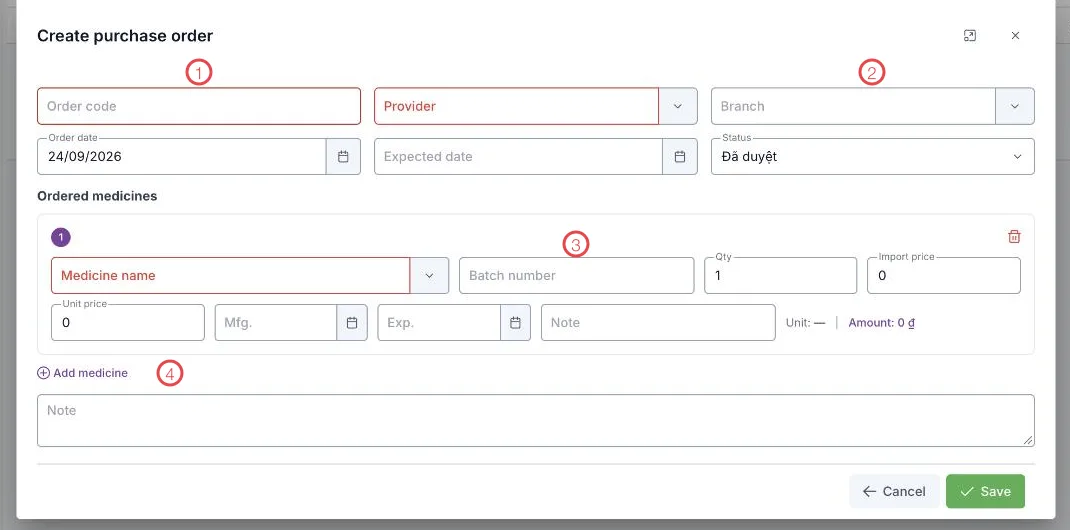
Illustration of the Create purchase order form
| Area | What to enter |
|---|---|
| 1. Order code and Provider (required) | The code you will search for later, and who you are buying from. Branch is where the goods go. |
| 2. Status | Where the order stands — see below. Beside it are the Order date and the Expected date. |
| 3. The medicine line | Medicine name, Batch number, Qty, Import price, Unit price, Mfg., Exp. and a Note. The line's Amount is calculated. |
| 4. Add medicine | Add the next item to the order. |
The Note at the bottom is for anything the supplier should know about the order as a whole.
Order statuses
| Status | Meaning |
|---|---|
| Draft | Being written, not sent. |
| Pending approval | Finished, waiting for approval. |
| Approved | Confirmed and sent to the supplier. |
| Received | The goods arrived and a stock entry was made. |
| Cancelled | Dropped. |
The status column answers the question that comes up most when stock runs short: which orders are still on their way.
Related
- Stock Import — the next step when goods arrive.
- Inventory — where you see what needs reordering.
- Pharmacy Overview — the dashboard's ready-made Low stock list.