Prescription
Prescription brings together every prescription a doctor has written for a customer (patient) at the clinic — the pharmacy uses this screen to dispense the right medicine, print the prescription for the customer to take home, and submit the prescription to the National Prescription System (DQG).
Open this screen from the Medicine sales group in the left menu of the Pharmacy module, item Prescription.
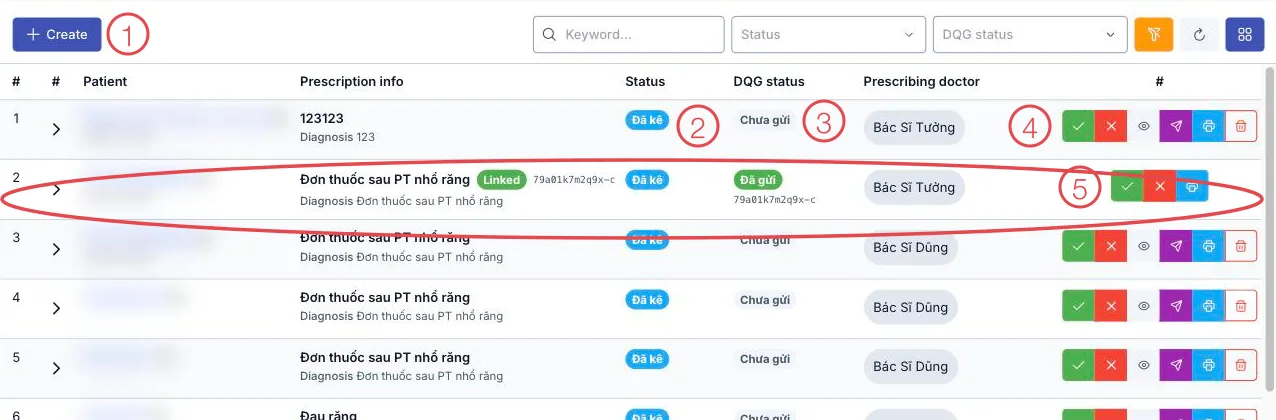
Illustration of the Prescription screen — the row circled in red has been submitted to the National Prescription System
| Area | What it is |
|---|---|
| 1. Create button | Write a new prescription for a customer (patient). |
| 2. Status column | Which step the prescription is at: Prescribed, Dispensed or Cancelled — see the table below. |
| 3. DQG status column | Whether the prescription has been submitted to the National Prescription System — see National Prescription System link. |
| 4. Row action buttons | What you can do with that prescription — see Row action buttons. |
| 5. A prescription already submitted | Shows the green Linked tag with its national prescription code; its buttons shrink to Dispense, Cancel and Print. |
This is the exact same prescription data a doctor writes during a visit — open it from Medicine sales → Prescription here, from the Medical Records module, or right inside each customer's (patient's) own profile: all three show the same prescription, the same status, updated at the same time.
Prescription status
| Status | Meaning · what you can still do |
|---|---|
| Prescribed | The doctor just wrote it, the medicine has not been handed over yet. Still possible: dispense, edit, cancel, or delete (if not yet sent to DQG). |
| Dispensed | The pharmacy has handed over the medicine and stock has been deducted. Still possible: cancel. No longer deletable. |
| Cancelled | The prescription is no longer used. Still possible: view only, no further action. |
Row action buttons
| Button | What it does · when it's available |
|---|---|
| Dispense | Deducts stock from the right batch and records that the medicine has been handed to the customer. Shown only while the prescription is Prescribed. |
| Cancel | Marks the prescription as no longer used, without dispensing. Available in both Prescribed and Dispensed status. |
| Preview data to send | Shows exactly what will be sent to the National Prescription system — medicine name, strength, diagnosis — before you actually send it, so you can check everything matches. Shown only when the prescription is not yet sent or failed, and not cancelled. |
| Resend to DQG | Sends the prescription to the National Prescription system, used for both the very first submission and a resend after an error. Same display condition as Preview. |
| Prints the prescription for the customer to take home. | |
| Delete | Removes the prescription entirely from the software. Available only while the prescription is Prescribed and has not yet been sent to the National Prescription system. |
Click Preview data to send before Resend to DQG to check the medicine name and strength match exactly what will reach the national system — fixing it in the software is always easier than sorting it out afterwards.
Dispensing — the software deducts the nearest-expiry batch first
Click Dispense, and the software looks through every batch still in stock for each medicine in the prescription and deducts from the batch closest to its expiry date first. If one batch doesn't have enough left, it automatically moves on to the next batch in expiry order until the full quantity is covered.
The pharmacy doesn't need to remember which batch to sell first — the software always pushes the batch closest to expiry out first, cutting the risk of medicine expiring while still on the shelf.
Submitting to the National Prescription System
The DQG status column shows where a prescription stands:
| DQG status | Meaning |
|---|---|
| Not sent | Never submitted to the national system. |
| Sending | Currently being submitted. |
| Sent | Submitted successfully, the prescription now exists on the national system. |
| Error | The last submission attempt failed — resend it with Resend to DQG. |
Once a prescription reaches Sent or Sending status, its content (medicines, dosage, diagnosis…) can no longer be edited, and the prescription can no longer be deleted — because it already exists on the national system, which does not allow deleting it back. From this point only Dispense or Cancel remain available; to drop the prescription, use Cancel — it stays in the software but is marked cancelled.
So check the medicines, dosage and diagnosis carefully before sending — use Preview submission data above first.
Printing a prescription
The printout combines the medicine name together with its strength on the same line (for example "Paracetamol 500mg"), and states at the bottom: "This prescription is valid for 5 days from the date it was written." — matching the regulation on electronic prescriptions. The printout includes the diagnosis, the dosage for each medicine, general instructions and the prescribing doctor's signature.
The medicine name printed on a prescription is built from the active ingredient and strength declared in Medicine list — leaving them blank means the printed prescription is missing information, and also affects submission to the National Prescription System.
Related
- Prescriptions — the same screen, opened from the Medical Records module.
- Prescription in the customer profile — view prescriptions right inside each customer's profile.
- Medicine list — where the active ingredient, strength and medicine code used for printing and submission are declared.
- Retail sale — selling medicine without a doctor's prescription.
- Pharmacy Overview — the full life of medicine in the clinic.