Prescription in the customer profile
The Prescription tab inside a customer's (patient's) profile shows right away which prescriptions this customer has been given, which ones have been dispensed, and which ones have been submitted to the National Prescription System — without opening the separate Prescription screen and searching by the customer's name.
Go to CRM › Customer management, click the customer's name to open their customer (patient) profile, then click the Prescription tab in the row of business tabs in the middle of the screen.
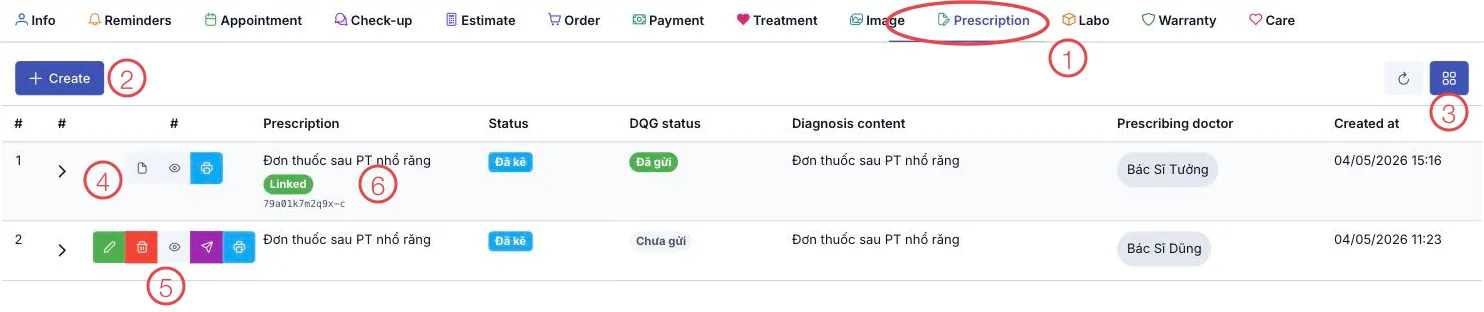
Illustration of the Prescription tab — row 1 has been submitted to the National Prescription System, row 2 has not
| Area | What it is |
|---|---|
| 1. Prescription tab | Opens the list of this customer's own prescriptions. |
| 2. Create button | Write a new prescription for this customer — see New prescription. |
| 3. View more button (grid icon) | Shows extra columns: ICD diagnosis, Dispensed date, Instruction, Created by. |
| 4. Buttons of a submitted prescription | Only View linked prescription (opens it read-only), Preview data to send and Print remain. |
| 5. Buttons of a prescription not yet submitted | Update prescription, Delete prescription, Preview data to send, Resend to DQG and Print. |
| 6. Linked tag | The prescription is on the National Prescription System, with its national code right below. |
The prescription table for this customer
Compared to the clinic-wide Prescription screen, the table here drops the customer-name column (you are already inside that customer's profile) and adds a Diagnosis content column for a quick clinical read. Status and DQG status mean the same as on the clinic-wide screen.
To see the ICD diagnosis (ICD-10 disease code) or the Dispensed date (when the pharmacy handed over the medicine, blank if not yet dispensed), click View more (area 3) and tick the column you want.
Row action buttons
| Button | What it does · when it shows |
|---|---|
| Update prescription (pencil) | Edit medicines, dosage, diagnosis. Only for a Prescribed prescription not yet submitted to the National Prescription System. |
| Delete prescription (bin) | Deletes the prescription. Same condition as Update. |
| View linked prescription (sheet) | Replaces Update once the prescription has been submitted — opens it to view, not to edit. |
| Preview data to send (eye) | Shows exactly what goes to the National Prescription System. Shown for every prescription except Cancelled ones. |
| Resend to DQG (paper plane) | Submits the prescription, for the first time or again after an error. Shown when not yet submitted or failed, and not cancelled. |
| Prints the prescription for the customer to take home. |
Dispensing and cancelling are done on the clinic-wide Prescription screen. The rule that locks the content once submitted to the National Prescription System is exactly the same there.
To see everything a specific customer has been prescribed across their visits, open this tab in their profile instead of filtering the clinic-wide Prescription screen — it's faster and there's no risk of filtering the wrong customer with the same name.
Related
- Prescription — the clinic-wide prescription screen, with the full meaning of each button and status.
- New prescription — write a new prescription right from this tab.
- Customer Details — the page that holds the Prescription tab.