Batch / Expiry
A drug store is not managed by "medicine" but by batch: the same product in two batches has two expiry dates, two costs and two different fates. This screen is where you see that.
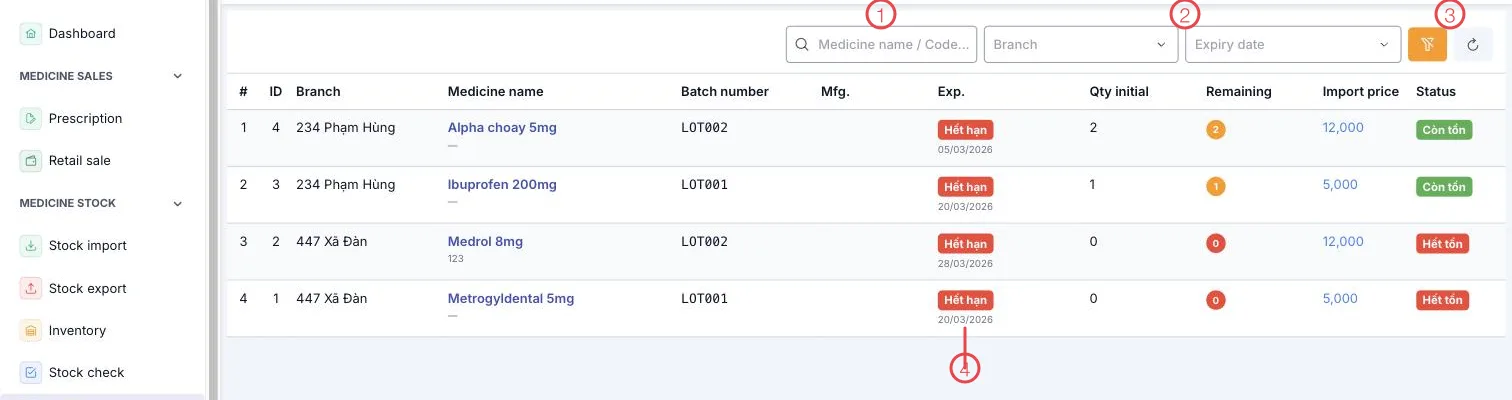
Illustration of the Batch / Expiry screen
| Area | What it is |
|---|---|
| 1. Search box | Search by medicine name or code. |
| 2. Branch and Expiry date | Filter by store, and by expiry status — the fastest way to pull out batches close to expiry. |
| 3. Clear and refresh | Drop the filters and reload. |
| 4. Exp. column | The batch's expiry date, with a coloured warning label. |
The other columns: Branch, Medicine name, Batch number, Mfg. (manufacture date), Qty initial, Remaining, Import price and Status.
Reading Exp. and Status
The Exp. column shows the expiry date with a coloured label — a batch already past its date is flagged red on the row, so nobody has to compare dates by hand.
Status says whether the batch still holds anything:
| Status | Meaning |
|---|---|
| In stock | The batch still has medicine on the shelf. |
| Out of stock | The batch is used up, kept for the record. |
Qty initial and Remaining side by side show how far into a batch you are.
Why batch-level matters
- Accurate expiry warnings. The dashboard counting batches expiring within 30 or 90 days runs on this data.
- Recalls of exactly the right scope. When a manufacturer recalls certain batch numbers, filtering on the batch tells you what is left and where it went.
- Issuing in the right order. Seeing each batch's expiry lets you use the closest one first, which cuts what has to be thrown away.
Set the Expiry date filter to the near-expiry group and plan: which batch to move first, which to return to the supplier, which to dispose of. Ten minutes at month start saves real money in stock.
Related
- Stock Import — where batch numbers and expiry dates are first recorded.
- Inventory — the sum of all batches, per medicine.
- Stock Export — handling expired batches or returns.