Conversation Filters
The strip of icons on the left is how you cut the conversation list down. Each one carries its own unread count, so a glance tells you where the work is.
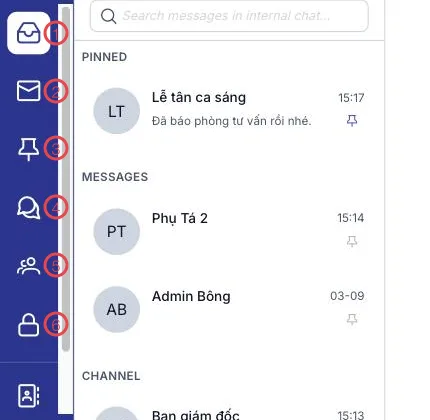
Illustration of the conversation filter strip
| Filter | What it shows |
|---|---|
| 1. All | Every conversation, grouped: PINNED first, then MESSAGES, then CHANNEL. |
| 2. Unread | Only conversations with messages you haven't read — for clearing down each morning. |
| 3. Pinned | The conversations you pinned to the top. |
| 4. Messages | One-to-one chats and small groups — see Direct messages and groups. |
| 5. Channels | The larger channels you belong to — see Chat channels. |
| 6. Record discussions | Channels tied to one customer, order or medical record — see Internal discussion on a record. |
Pinning a conversation
Pin whatever you open every day. Hover the row in the list and click the pin:
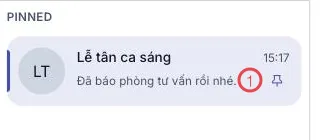
Illustration of the PINNED group
| Button | What it does |
|---|---|
| 1. The pin | Pins or unpins the conversation. |
A pinned conversation jumps to the PINNED group at the top of the list and also appears under the Pinned filter.
Pin about three things
Pin too much and pinning stops meaning anything. A good set: your department's channel, today's shift channel, and the person you work with most.
Related
- The Internal Chat Screen — the screen as a whole.
- Searching messages — when filtering isn't enough.