Staff Directory
The Directory is where every conversation starts: find the person, click, type. No friend requests, no approvals — the whole clinic is already in there.
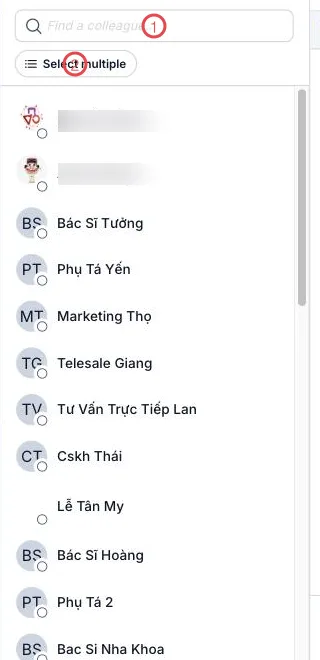
Illustration of the Directory screen
| Area | What it does |
|---|---|
| 1. Find a colleague | Type a name to filter the list. |
| 2. Select multiple | Turns on tick-boxes for starting a group or creating a channel. |
Each row is one colleague with a status dot (online, busy, offline). Click the name and the direct conversation opens.
Starting a group quickly
Click Select multiple, tick the people you want, then the create button at the bottom:
- Leave the name blank → an unnamed group, right for 2–7 people on one short job.
- Give it a name → a channel, right for bigger, longer-running work.
Discover channels
Just under the Directory on the left strip sits Discover channels — the clinic's public channels. Anyone in the company can join without an invitation, and on joining can read the channel's entire history.
A new member of staff's first day
Open Discover channels and join the clinic's shared channels. Reading back a few pages is enough to see what the clinic is currently dealing with.
Related
- Direct messages and groups — what clicking a person gives you.
- Chat channels — department and public channels.