Setting Your Status
A doctor mid-procedure, a receptionist handling a difficult customer (patient) — what they need most is for the system to stop pushing work at them. That is exactly what the status does.
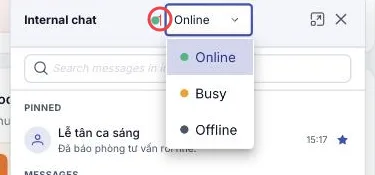
Illustration of the status picker
| Area | What it is |
|---|---|
| 1. The status box | Click to change it. The dot beside it tells colleagues how you are. |
The three statuses
| Status | What it means |
|---|---|
| Online (green) | Working; messages and work arrive as usual. |
| Busy (amber) | Tied up — the software stops assigning new customer conversations to you automatically. |
| Offline (grey) | Away from the machine. |
What Busy actually changes
This is the part people miss: the status is not just decoration. While you are on Busy:
- New customer conversations are no longer auto-assigned to you.
- You do not pick up waiting conversations from the queue either.
- A manager can still hand you one directly — so anything urgent is never stuck.
Set it back to Online when you are free and customers (patients) flow to you again.
Set Busy before you go in
A doctor heading into a procedure, a technician starting a long case: set Busy at the start. New customers go to whoever is free instead of sitting in a busy person's queue.
Related
- The Internal Chat Screen — where the status lives.
- Internal Chat Overview — what the module gives you.