Attaching a Customer (Patient) to a Message
Instead of reading phone numbers out to each other or describing "the lady with short hair yesterday", drop the customer record straight into the message. One click opens exactly the right record for everyone.
Picking the customer (Patient)
Click the person icon beside the composer and the customer finder opens:
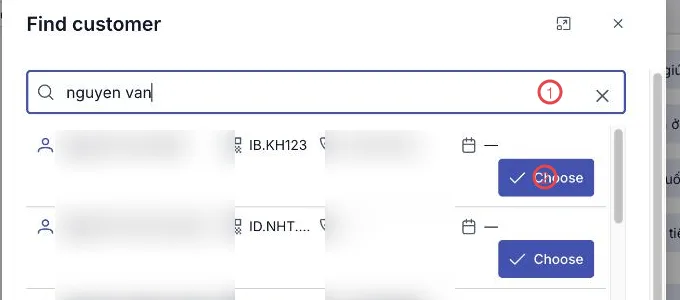
Illustration of the Find customer dialog
| Area | What it does |
|---|---|
| 1. The search box | Search by name, customer code or phone number. |
| 2. Choose | Attaches that customer to the message you are writing. |
Sending it with a note
The chosen customer (patient) appears as a chip just above the composer:

Illustration of the composer with a customer chip
| Area | What it is |
|---|---|
| 1. The person button | The button you just used to open the finder. |
| 2. The customer chip | The attached customer (patient). Click ✕ if you picked the wrong one. |
| 3. Send | Sends the message with the chip. |
Add your note and send. In the conversation the chip shows in blue at the start of the message:

Illustration of a message carrying a customer chip
Click the chip and the customer's record opens — nobody has to go looking for it.
Searching messages matches attached customer (patient) chips too. So everything said about one customer, scattered across channels, can still be gathered up.
Related
- Internal discussion on a record — the other way round: a channel of its own per record.
- Sending a message — the buttons around the composer.